Showing posts with label daw bench. Show all posts

Sunday, October 15, 2017

Porting DAW Bench Projects to Ableton Live

Vin Curigliano's DAW Bench is the standard toolset for measuring digital audio workstation hardware and software performance. While the current DAW Bench suite includes projects for several different DAWs, Ableton Live isn't one of them- which was a problem for me, since I was planning to investigate the performance differences between Live and Cubase for an upcoming post. Rather than ditch DAW Bench and go to the effort of developing my own test suite from the ground up, I chose to port the DAW Bench Cubase sessions to Ableton Live. What follows is a detailed analysis of the original DAW Bench projects, and my account of the surprises and challenges I encountered when porting those projects to Live.


When I first began this effort I thought I was the first person to do such a thing, but I eventually discovered user on a music forum who did his own attempt at a Live port a few months back. His goal was different from mine, and his projects weren't direct ports (he only replicated DAW Bench's "DSP" tests, and he chose a different set of plugins for his projects from the ones used in the official tests), so I continued with my own effort.

It is October 2017 as I'm writing this, so my observations here are based on the 2017 edition of the DAW Bench DSP and VI projects.

Analyzing the DSP Projects

Each DAW Bench DSP project contains hundreds of instances of a given CPU-intensive effects plugin, simulating a very complex mix. The "score" of a DSP test is the number of plugin instances you can enable without encountering any glitches in the audible audio.
  • There are four audible tracks of pre-recorded audio, comprising the loop that plays while you enable FX plugins, listening for pops and drops. There are no effects plugins on these tracks.
  • There is another "monitor" track which is just a recording of a sine wave. I don't know its purpose, but its track volume is turned all the way down.
  • Next there are 40 more tracks of sine wave recordings, each with eight instances of the plugin under test filling the track's insert slots. Each instance is disabled when you first load the project. Track volume for each of these tracks is also turned down all the way.
  • All tracks are routed to the main stereo outs, but only the first four audio tracks are audible due to their volume settings.
  • There are three different DSP projects, one for each of these free-to-use effects plug-ins: SGA1566 (Shattered Glass Audio), MJUC jr. (Klanghelm), and a special version of ReaXcomp (Cockos) which is actually included with the DSP project download.
The DSP-1566 project on Cubase 9.

Analyzing the VI Projects

While the DSP projects are all about effects plugins, the VI tests only use instances of a virtual instrument plugin: Native Instruments Kontakt 5. The "score" of a VI test is the number of individual Kontakt "voices" you can have playing simultaneously before encountering audio glitches.
  • The project contains one "Multi1Orchband" instance of the Kontakt plugin that contains a 16-part multi (one part per MIDI channel) of different Kontakt instruments that comprise most of the audible content in the project.
  • Next there are ten "Multi2Poly" instances of Kontakt, each with 16 instances of the same instrument: A layered pad patch named "Light Breaks Through." Due to the patch's two sample layers, a single MIDI note played with this patch uses two Kontakt voices/oscillators. As with the sine tracks in the DSP projects, each instrument part in the Multi2Poly multis is turned down all the way. More on this later.
  • The project also contains 16 MIDI tracks, each routed to a different MIDI channel in the Multi1Orchband Kontakt instance.
  • Finally there are ten folders containing 16 MIDI tracks each, each one routed to its respective MIDI channel in one of the ten Multi2Poly instances. The MIDI tracks are simple clips that play a 16-bar sustained 10-note chord. So at play time, a single Multi2Poly instance can have up to 320 voices going at a time (16 parts of a 2-voice patch playing 10 notes each).
  • There are two flavors of VI projects, "CV" and "NCV." In the CV project. many of the instruments in the "Multi1Orchband" multi have convolution reverb enabled as an insert effect, while that effect is bypassed in the NCV project. Both projects use convolution reverb as a send effect on a few channels. Importantly, the Multi2Poly multi is identical between the CV and NCV versions of the project (no reverb effect actively enabled as an insert or a send), so the results between CV and NCV tests are generally not very significant.
  • The VI projects in DAW Bench were initially developed using Kontakt 4, whose factory library had a different layout from the library in Kontakt 5. While the current generation of the DAW Bench projects uses the Kontakt 5 plugin, the multis still use samples from the Kontakt 4 library. I am a licensed owner of Kontakt 4 but I do not currently have that version of the plugin installed anywhere, so I keep a folder containing all the necessary samples on my hard drive for when I need to do tests.
The VI CV project on Cubase 9.

Porting the DSP Projects

  • Session view vs Arrangement view: Cubase is a traditional "piano roll" DAW while Live offers both a piano-roll style Arrangement view and the clip/loop-based Session view. I chose to build my projects in Session view because of the looping nature of the tests (it's just a few measures of repeating audio, after all), and because this view offers better access to the plugin slots for every track (after some UI resizing, at least).
  • Audio tracks: The DAWBench DSP 2017 folder includes an "Audio" folder that contains the pre-recorded audio content (including sampled sine waves) used by these projects, which I easily imported into Live as stems. I grouped the tracks in the same order as the folders used in the Cubase projects.
  • Plugin presets: All instances of the effects plugins in these projects use identical settings, which is important, because some plugin presets can be more CPU-intensive than others. Since plugin settings are embedded in the DAW project, I didn't have preset files I could import into Live, so I noted all of the plugin values used in the Cubase projects and created presets matching those settings for each of the plugins in Live.
  • Plugin inserts: Just like with the Cubase projects, I inserted 8 instances of the desired effects plugin on each of the sine tracks. I enabled display of the insert slots in Session view and resized it so all 8 slots were visible at all times.
  • Levels and routing: All tracks are routed to Live's Master outs, but all of the "Sine" tracks are set at -inf volume.
The DSP-1566 project on Live 9.

Porting the VI Projects

  • MIDI tracks: For the MIDI parts that play into the "Multi1Orchband" instance of Kontakt, I dragged all of the MIDI clips out of Cubase and imported them into Live as MIDI clips. There were 16 MIDI clips for the Orchband multi, and another 16-bar MIDI clip for the polyphonic Sine tracks. This clip simply played a 10-note chord for a full 16 measures. Note: Due to an issue I discovered while performing benchmark testing, I discovered that the original 16-bar Poly tracks could not be used for reliable testing. (I will go into more detail on this in my next post.) Because of this I also created a 1-bar version of the Poly track that plays a sustained chord for the first seven 8ths of the measure. Session view allows me to add both the 1-bar clip and the 16-bar clip to every poly track and switch between them at will. Because of this I also edited separate copies of the original Cubase VI projects to use the same 1-bar loop.
  • Audio tracks: The VI projects include one audible pre-recorded audio track (a 2-bar drum loop to accompany the Orchband parts), and 16 sine wave tracks whose volume is turned to -inf/silent. I presume these additional tracks are to help simulate a real music project that is handling both virtual instruments and audio tracks.
  • EQ: In Cubase, each of the Sine audio tracks had channel EQ enabled, although it wasn't applying any boosts or cuts. This is not a default track setting, however, so I figured it was intentional. Since Live doesn't have built-in track effects, I instantiated an EQ Eight effect on each of the Sine tracks in Live, and only enabled the first four filter activators, setting them to the same frequencies as those in the Cubase projects, to simulate an equivalent processing load.
  • Levels and routing: All audio outputs are routed to the Master outs. The Cubase VI projects use the MIDI volume fader in the inspector to set the volume of each part in the Orchband multi. Live uses envelopes for this sort of thing, so I used the pink noise mixing method to set the MIDI levels of each of the audible MIDI parts. As mentioned before, all Sine audio tracks were set to -inf, and most importantly, all parts in the Multi2Poly instances of Kontakt were also turned down to -inf- which proved to be a problem during testing.
  • Kontakt multis:
    • I didn't want to have to go through the laborious process of browsing for the correct samples for each of the VI projects when loading them into Live, so in Cubase, I opened both the CV and NCV versions of the DAW Bench projects and saved the Kontakt multis as "monoliths," which include samples. I saved only one copy of the Multi2Poly multi (since it is identical in both flavors of the DAW Bench VI projects), and separate CV/NCV versions of the Multi1Orchband multi. To ensure that my choice of monolith vs. traditional NKI did not adversely affect my tests, I did do a project built that used the traditional sample loading method. I found that RAM consumption was identical whether you used a monolith or not (Kontakt appears to load all samples for all parts when it is able to do so).
    • Upon my first playback of my imported MIDI clips and multis, I discovered something very strange. One of the parts in the audible potion of the project was clearly out of tune, and not playing in the same way that it sounded when playing under Cubase. It took a while to debug, but I determined that the problem was ocurring in part 13 of the Orchband multi. It was a patch named "Mini Lead 2." This Kontakt patch is explicitly designed to be monophonic (to only play one note at a time). Strangely, the original Cubase DAW Bench projects play chords into this track and they are audible as chords. I don't know why this works under Cubase (because it's not supposed to). But basically, the patch's monophonic design was affecting how it interpreted the chords being sent to it under Live, resulting in strange and unexpected behavior. In order to make the project sound the same in Live as it does in Cubase, I had to bypass the Unisono behavior on Mini Lead 2.

      Here's a demonstration of the Unisono issue with the Mini Lead 2 part. It's a 16-bar track divided into four 4-bar sections: 1) The track as it's supposed to sound, 2) The Mini Lead 2 part correctly playing, soloed, 3) The track when the Mini Lead 2 part is not working correctly, and 4) The out-of-tune Mini Lead 2 part, soloed.

The VI CV project on Live 9.

The results

See my upcoming post about the DAW Bench results when I compared Live 9 to Cubase 9. I may also publish these project files at some point so others can do their own tests in Live.

Tuesday, September 5, 2017

Comparing DAW Performance of Recent Cubase Versions on Windows

I recently had to increase the buffer size setting on my audio interface to eliminate audio glitches in a music project on Cubase Pro 9. Since I almost never have to adjust my interface settings while producing a track, I wondered if perhaps Cubase 9 wasn't performing as well as previous Cubase versions I'd worked with. I searched around for some performance information, but I couldn't find any detailed, up-to-date comparisons of recent Cubase versions- so I decided to do my own.


Cubase versions under test

I decided to test the most recent available 64-bit versions of the last four major Cubase releases:
  • Cubase 6.5 - Originally released February 2012, the latest version is 6.5.5 from June 24, 2013.
  • Cubase 7.5 - Originally released December 2013, the latest version is 7.5.40 from Jan 19, 2015.
  • Cubase Pro 8.5 - Originally released December 2015, the latest version is 8.5.30 from Feb 22, 2017.
  • Cubase Pro 9.0 - Originally released December 2016, the latest version is 9.0.30 from July 20, 2017.
In addition to comparing basic performance of individual Cubase releases, I also wanted to examine the effects of ASIO-Guard, a feature Steinberg introduced with Cubase 7. By using smart management of CPU time and audio buffers, ASIO-Guard claims to increase the amount of plugins you can run without encountering audio glitches. Steinberg claims to have made improvements to ASIO-Guard over time, so I wanted to see how the feature had changed.

DAW Bench and Test Preparation

I installed each version side-by-side on my PC, patched them with the latest updates, and then downloaded the 2017 versions of the DAW Bench test projects. In case you're not familiar with DAW Bench, it's a collection of DAW projects assembled by audio professional Vin Curigliano to assess a digital audio workstation's ability to reliably produce audio while operating under heavy DSP workloads. When a computer's DSP resources are exhausted, audio suffers, with pops, drop-outs, and strange digital artifacts. Many factors contribute to a DAW system's ability to perform well: CPU, chipsets, drivers, operating system, DAW software, and audio interfaces all play a role.

The current iteration of DAW Bench includes five different Cubase test projects, broken into two categories.

  • The DSP projects contain some basic audio tracks with literally hundreds of instances of a specific effect loaded up on various tracks. These push your computer's computational digital signal processing capabilities to its limits. The "score" for a DSP test is the number of plugin instances that can be activated without glitching the audio.
  • The VI projects use instances of Native Instruments Kontakt to test your computer's virtual instrument oscillation/voice generation abilities by playing from hundreds to thousands of simultaneous notes of polyphony. The "score" for a VI test is the number of musical notes that can play simultaneously without glitching the audio.

Each of the DSP projects uses a different freely-available effects plugin:
  • DSP-1566 uses Shattered Glass Audio's SGA1566, which is a CPU-intensive emulation of a vintage tube amplifier.
  • DSP-MJUC uses Klanghelm's MJUC jr., a "variable-mu" compressor plugin.
  • DSP-REAX uses a specially-compiled version of Cockos ReaXcomp, a multi-band compressor. (Note: The correct version is included in the DAW Bench download, don't use the one from the Reaper site.)
There are also two flavors of the VI tests: The "VI-CV" tests use Kontakt's internal convolution reverb effect (using more DSP power), while the "VI-NCV" tests have no reverb enabled.

I performed the tests on my primary DAW PC. The full specs of the system are published elsewhere, but here's the pertinent information:
  • Processor: Intel i7 5930K @ 3.50GHz (6 physical cores)
  • RAM: 32GB
  • Video: NVIDIA GeForce GTX 960
  • Operating System: Windows 7 Professional SP-1, 64-bit
  • Audio Interface: RME FireFace UFX, in FireWire mode
  • Interface Settings: 44.1kHz, 256 samples.
  • Windows Optimization: The only Windows performance tweak I made was to select the High Performance power scheme in the Power Options control panel and to disable some unneeded startup processes and services. I have not adjusted any of the more arcane Windows settings such as the MMCSS options.
  • Cubase Optimization: In all of my tests I use the default Cubase performance settings, with the obvious exception of disabling/enabling ASIO-Guard for a specific round of tests. So this means I'm leaving Audio Priority to Normal, Activate Multi Processing is checked, Activate Steinberg Audio Power Scheme is unchecked (I'm using the built-in Windows High Performance scheme), and on versions of Cubase that offer various "ASIO-Guard Level" settings, I'm using the normal level.

DSP Test Results

The results of the DSP tests are below. For versions of Cubase with the ASIO-Guard features, separate scores are shown with the feature disabled ("no AG") or enabled ("AG"). Cubase 6.5 is the only tested version which lacks that feature.

DSP Test Raw Data (44.1kHz, 256 samples)
DSP Test Chart
The results weren't very dramatic, however they did show modest gains for the ASIO-Guard feature- particularly for versions 7.5 and 9.0. Cubase 8.5 with ASIO-Guard enabled scored the best for 2 out of 3 tests while Cubase 9.0 with ASIO-Guard disabled scored lowest in all three tests.

VI Test Results

The virtual instrument tests were a little more interesting. In the tests below, "VI-CV" are with Kontakt's convolution reverb effect enabled, while reverb is disabled in the "VI-NCV" tests.

VI Test Raw Data (44.1kHz, 256 samples)

VI Test chart

A few things stand out in these tests:
  • First, ASIO-Guard made dramatic improvements in both Cubase 8.5 and Cubase 9.0, while their ASIO-Guard gains weren't quite as impressive in the DSP tests. The feature shows a clear and demonstrable benefit, at least for some plugin duties.
  • The improvement ASIO-Guard made on Cubase 7.5 was much less impressive, and I am guessing it's because the Cubase 7.x implementation of ASIO-Guard did not fully support multi-timbral plugins such as Kontakt.
  • It was also interesting that while Cubase 9.0-with-ASIO-Guard gained the second-highest score in the test, without ASIO-Guard, Cubase 9.0 scored the lowest on these tests. Cubase 8.5 scored significantly higher, in both the ASIO-Guard enabled and disabled tests.

Final scores

I wanted to be able to rank individual Cubase versions in terms of performance, but I didn't want the VI tests to skew the numbers (since the VI scores reach up to the thousands while the DSP scores are all down in the low hundreds). In order to give each test equal weight, I divided the VI test scores by 10, and then I summed all 5 test scores for each DAW and ASIO-Guard setting.

Final Scores (raw)
Final Scores (chart)
With these adjusted performance scores, it appears that Cubase 8.5 with ASIO-Guard is the best-performing version of Cubase in recent years, although Cubase 9.0 still performs very well in second place so long as ASIO-Guard is enabled. However with ASIO-Guard disabled, Cubase 9.0 is the worst-performing version of Cubase of the versions tested.

Conclusions

  • Cubase 9 performs slightly worse than Cubase 8.5, given the same content and settings on the same system. Without ASIO-Guard, Cubase 9 performed about 4 percent worse than 8.5. With ASIO-Guard there was only around a 2 percent difference.
  • Core Cubase performance (without ASIO-Guard) has not changed significantly over time. With Cubase 7.5 and 8.5 performing around 1 percent better than Cubase 6.5 and Cubase 9.0 performing nearly 3% worse, Cubase has delivered more or less consistent performance across major releases.
  • ASIO-Guard can make a big difference, but it depends on the specific plugins and workload. Both Cubase 8.x and 9.x saw huge gains in the VI tests with ASIO-Guard enabled, but the gains were less impressive in the DSP tests.
  • Cubase makes very good use of multi-core processors and hyper-threading (*). Not all Windows DAWs handle modern CPUs the same, but Cubase has, for some time, been quite good at making use of both physical and logical CPU resources to deliver reliable audio under heavy DSP loads. Here's a screenshot of Windows Task Manager while Cubase is performing one of the DSP tests covered earlier. Every logical core of my i7 5930K is working at the maximum allowed by the Windows MMCSS settings (which reserve 20% of CPU power for background tasks). I plan to explore this stuff a little more in future posts.
(*) As of the time of this writing there is a known issue with Cubase on Windows 10 where Windows imposes a thread limit that can result in audio instability on CPUs with more than 14 logical cores (or more than 7 physical cores). For now, Steinberg recommends using Windows 8.1 or earlier for top Cubase performance on CPUs that exceed 14 logical cores, or using workarounds on Windows 10 which are documented at the above link to at least avoid the audio glitches resulting from this limitation.

Monday, June 22, 2015

Building a New Computer for Music Production (June 2015 Edition) Part 2

This is the second article about my new Haswell-E-based Digital Audio Workstation PC. In part 1, I covered the part list, hardware assembly, and BIOS settings. In this post, I'll talk about my choice of operating system, which drivers I used (and where to find the right ones), OS and BIOS tweaks, and the performance of this computer, as compared to my previous DAW PC.

CHOOSING AN OPERATING SYSTEM

I chose to install the 64-bit version of Windows 7 Professional on this system. I prefer the Professional SKU of Windows 7 because unlike the Home versions, it includes the ability to operate as a Remote Desktop server, but it also doesn't include all the extra bloat that the Ultimate SKU brings with it. (The Pro versions and above also allow access to more than 16GB of RAM.)

As a professional software developer, I've programmed for every version of Windows since 3.1. I'm intimately familiar with Windows system internals, and I normally start programming for new Windows versions even before public tech preview editions of them are released (we get early builds directly from Microsoft). Even though my job requires that I use Windows 8 and Windows 10 on a daily basis, I still usually prefer Windows 7 for home use. Here's why:
  • There's not a single new feature in Windows 8 (or 10) that I need in order to make music or perform my day-to-day computing tasks. Not only do I have no use for touch controls on a desktop, the Modern UI, or Microsoft's anemic Windows Store, even with Start button replacements like ClassicShell, Windows 8 made some tasks that used to be really trivial on Windows 7 (like restarting Windows in Advanced mode- something that I have to do quite frequently as a developer) much more onerous and complicated. Also, many elements of the user interface provide less information than in previous operating systems; they've streamlined the UI to the point of opacity.
  • Windows 7 provides better compatibility with the software and devices I already own. Since Windows 8's official release, I've purchased six different off-the-shelf computers for home use. In each case I initially tried to use their preloaded Windows 8 installs, but I encountered incompatibility problems with several games, utilities, and devices that forced me to reformat four of those computers and install Windows 7 instead. (Two of those six computers are still running Windows 8 with no problems.) I have experimented a fair amount with Windows 8 for music use, and while I did encounter some driver-related issues with audio interfaces when it was first released, I have never had any showstopping problems with Windows 8 when it came to my music applications or devices (so long as the drivers were Windows 8-ready).
  • Windows 8 does not improve music production performance. I have conducted numerous benchmarks between Windows 7 and Windows 8 on the same hardware and found that on average, Windows 8 performs about the same as Windows 7. (You can see the results of my most recent test in my article about the Intel NUC, under "Windows 7 versus Windows 8.1.") In some cases it's a tiny bit worse, in some cases it's a tiny bit better. But there is definitely not an across-the-board improvement in any measure of computer performance that I have seen. Yes, Windows 8 can boot faster and launch applications faster than Windows 7 on the same hardware, but it simply does not improve DAW performance in any measurable way. I do not expect that to change with Windows 10.
This is a personal choice that's based on my own real experiences with software and hardware on both Windows 7 and Windows 8. I use Windows 7 because I know it works, and I know I'm not missing anything by avoiding the newer operating systems.

SO, WHICH OPERATING SYSTEM SHOULD YOU USE?

This is entirely up to you. Most modern music apps that I'm aware of work properly on Windows 8, and most newer devices have drivers that should work in that environment well. If you know your apps and drivers are compatible and you like the new features Windows 8 includes, go ahead and use it. It's fine.

OPTIMIZING WINDOWS 7

I've seen a lot of guides on how to optimize Windows for music production, and many of the tips these things provide are outdated, irrelevant to music production, or sometimes just plain wrong. For Windows 7 and later, there's actually very little you have to do in order to make your DAW PC production-ready. Here are the only performance tweaks I ever make:

USE THE HIGH PERFORMANCE POWER SCHEME

Select the High performance power plan in the Power Options control panel of Windows. (It might be hidden when you first open the control panel. Click the arrow next to Show additional plans to reveal it.) This power scheme includes a number of hidden performance tweaks that aren't exposed in the Windows UI. In other words, you can't, for example, take the Balanced plan and edit it so that it exactly reproduces the behavior of the High performance scheme. This is the single most important Windows setting you can change to ensure stable music-making performance.


DISABLE UNNECESSARY WINDOWS STARTUP ITEMS

After you've installed all your required drivers and applications, you'll probably have a number of unnecessary task tray programs and background processes starting up. The fewer of these things running at any time, the more juice your system has to devote to delivering reliable audio.

Windows 7 has a built-in System Configuration tool (just run msconfig from the Start menu) where you can uncheck undesired programs from the Startup tab. You can see below that among other things I disabled the Intel(R) USB 3.0 Monitor (iusb3mon.exe). That process doesn't do anything essential.


DISABLE UNNECESSARY WINDOWS SERVICES

I usually leave all the default Microsoft/OS services alone, but lots of applications and devices install Windows services that you don't necessarily need. You can use msconfig to disable these, too. What I like to do is open msconfig to the Services tab and check Hide all Microsoft services, so only the third-party ones are showing. Then I sort the list by the Status column and uncheck any services with the status of Running that don't seem to serve any essential purpose. If you see "Stopped" services that you haven't explicitly disabled, that usually means they're not set to load automatically when Windows starts, and instead will only be used as needed by their associated applications. I generally just leave these be.


USE A LOW-IMPACT ANTI-VIRUS

If your computer has an Internet connection or you ever plug in USB drives that have had contact with other Internet-connected computers, you MUST have some kind of anti-virus installed. It is no longer true that simply being a tech-savvy computer user is enough to protect your computer from infection. There are just way too many attack vectors these days.

So which package to choose? For Windows 7, I use Microsoft Security Essentials. It's free, it's updated regularly, and it is nowhere near as obtrusive or bloated as many consumer alternatives. For a commercial solution, many music producers swear by ESET NOD32 Antivirus. It's not very well-known in the United States, but it is well-regarded both for providing solid anti-virus protection, and also for having a small system footprint.

Do NOT install consumer versions of any Symantec/Norton or McAfee products. They do their jobs, but they are much more intrusive, usually trigger a lot more needless warnings and notifications than other products, and simply don't allow your PC to perform as well as it would with other solutions. Both of these companies make enterprise solutions that are much better behaved.

Note: Windows 8 and beyond don't really need a third-party Antivirus. Windows 8 has Microsoft Security Essentials built-in, although it goes under the name of Windows Defender in that operating system. Windows 7 also has a "Windows Defender" feature, but it is not as comprehensive as Microsoft Security Essentials or the Windows 8 version of Defender.

DRIVES AND FOLDERS

All of my drives are configured with just a single data partition, and all SATA drives are configured to run in AHCI mode (so no RAID), and the Intel 750 series drive is NVMe. I do not split my drives up into multiple data partitions, since doing that doesn't provide any performance or data safety benefits.

I had a three-drive setup in my previous DAW PC (all using traditional SATA hard disks) that looked like this:
  • Drive 1 (2TB): OS, Data, and Applications. Unlike some music folks, I did choose to use my system drive for all personal files, including music projects. It worked fine.
  • Drive 2 (2TB): Samples and Downloads. This is where all sample libraries and things like Reaktor and Kontakt instruments went. Additionally, my Downloads folder is where I keep all purchased software and patches, so it is enormous.
  • Drive 3 (2TB): Backups. I have wasted a LOT of time and effort evaluating different backup packages and approaches, and I have yet to find a commercial backup product that works to my liking (if it works at all). I ended up writing custom backup batch files that run every day via the Windows Task Scheduler, and I set this drive up as a compressed Windows drive (with the "Compress this drive to save disk space" option) to increase its backup potential.
This layout worked fine, but I had a couple of complaints about it that I wanted to fix when I set up the new computer. I also had some physical constraints, due to the small storage capacity of my SSD drives. So here's how I decided to set up the new system:
  • Drive 1 (400GB PCIe SSD): OS and Data. This drive only contains Windows, my personal files/projects/etc, and any applications with crappy installers that don't let you pick a custom install location.
  • Drive 2 (480GB SATA SSD): Programs and Plugins. I never disable Windows User Account Control, because I like being notified when processes are requesting admin access to my machine. A drawback to leaving UAC enabled, however, is that it causes poorly-written software that doesn't follow Microsoft's design guidelines (which they have recommended ever since Windows XP) tries to save preferences or other data under the Program Files folders it fails (sometimes silently, or with misleading errors). This goes for plugins as well, since the default install location for many VST plugins is C:\Program Files\VstPlugins. By sandboxing all my programs and plugins to their own drive, I'm working around the limitation of their bad design by placing them into folders that won't trigger UAC alerts, but I'm still getting the general system protection that User Account Control offers.
    Here's what the root of my Programs and Plugins drive looks like now.
  • Drive 3 (2TB SATA HD): Samples and Downloads. (Same purpose as on my other DAW PC.)
  • Drive 4 (3TB SATA HD): Backups. Compressed drive, same as before. Since this drive exceeds 2TB in size I had to use GUID Partition Table (GPT) layout instead of Master Boot Record (MBR) when setting the drive up. More on this in the note below.
  • Drive 5 (500GB SATA HD): This is just an extra drive I was using as an alternate boot drive when troubleshooting some problems with my setup. It is a 2010 model WD Caviar Black versus my other two WD Black drives, which are brand new. I don't have any immediate plans for this drive.
A NOTE ABOUT VERY LARGE DRIVES (OVER 2TB)

The default partitioning scheme for Windows 7 is MBR, which effectively has a 2TB limit for any individual partition. Because I wanted my 3TB WD Black drive to have only a single data partition, I chose to use the GPT scheme when setting up the drive. All editions of Windows 7 and later support using GPT for data drives, but in order to boot from a GPT drive, you need a 64-bit edition of Windows and a computer with UEFI support.

Note that the partitioning scheme is different from the file system; all my drives are formatted with the NTFS file system, regardless of whether they use MBR or GPT partition types.

DRIVERS

Locating the right versions of the right drivers for this system took quite a bit of time. Here are some notes I collected during the process.

Please note: The following information is accurate as of June 21, 2015. You may have to double-check the versions and driver locations as time progresses.

DRIVERS: INTEL CHIPSET DEVICE SOFTWARE (INF UPDATE UTILITY)

Like with any fresh Windows installation, the Intel Chipset installer should be the very first thing you install. The version at the Intel Download Center is newer than what's currently at the ASUS site or on the ASUS X99 Series disc. I got version 10.0.27 of the chipset installer (SetupChipset.exe) from here. Reboot after installing this one.

DRIVERS: UNRECOGNIZED DEVICES IN DEVICE MANAGER

After running the Intel Chipset installer, you will probably still see a number of unrecognized devices in the Device Manager control panel. Here are the ones I found, along with which drivers fixed them:
  • Corsair Dongle. This is the USB Dongle for the Corsair AX860i power supply. Install the latest Corsair Link software to get the correct driver. You may have to restart Windows before this device shows up correctly in Device Manager.
  • Ethernet Controller. This is the Intel(R) Ethernet Connection I218-V device on the ASUS X99-A USB 3.1 motherboard. The latest installer packages for Windows 7 are at the Intel Download Center. I installed version 20.1 of the PROWinx64 package from here. Note: Whenever I install Intel network drivers, I always uncheck everything except the driver itself. Windows generally has all the network management tools I need.
  • C610 series/X99 chipset xHCI Host Controller (8D31). For this you need to install the Intel USB 3.0 eXtensible Host Controller Driver for Intel 8/9 Series and C220/C610 Chipset Family. I used version 3.0.5.69 from here.
  • PCI Simple Communications Controller. This is the Intel Management Engine Interface. Strangely enough, I couldn't find something that looked like an appropriate match for my board at the Intel Download Center, so instead I installed the Management Engine Interface entry from the Drivers tab of the ASUS X99-series disc. Windows Update can install a newer version of this driver once you install the ASUS one.
  • USB Controller. This might only show up for the USB 3.1 version of ASUS boards. It's the ASMedia USB 3.1/3.0 controller. NOTE: As of this writing, the version of this driver on the ASUS disc is actually newer than the one available at the ASUS downloads page for this motherboard. I installed the one from the disc. "Asmedia USB3.1/3.0 Driver" from the Drivers tab.
  • Unknown device. If you see something just listed as "Unknown device" it could be lots of things, but if you look at its properties and see that its Hardware ID is ACPI\PNP0A0A, then that's the "AMDA00 Interface" device that ASUS uses for some of their software. You can install this driver by picking ASUS Probe II Sense Driver from the Drivers tab of the ASUS X99 series disc. I think I had to reboot Windows after installing this in order for the driver to take effect.
OTHER DRIVERS
  •  The Intel Download Center had a more recent version of the driver for the SSD 750 Series drives than the one included on the mini disc that shipped with the drive. You need the disc for installing Windows 7, but once Windows is fully installed, you'll probably want to get the most recent version of the Intel Solid-State Drive Data Center Family for PCIe drivers from here.
  • For my GTX 960 graphics card I had to download the GeForce 900 Series driver from NVIDIA's downloads page.

STORAGE BENCHMARKS

Although I've had a couple of laptops and a mini computer with SSD drives, my new DAW PC is my first-ever desktop with SSD storage, and I was eager to see how much of an improvement my new drives delivered compared to traditional SATA hard disks in the same PC. I used the 64-bit version of CrystalDiskMark 3.0 (latest official version is 4, but you can still get version 3 here) to test each drive installed in my system.

CrystalDiskMark performs both read and write tests of four different types:
  • Seq: Sequential read/write with 1024KB blocks.
  • 512K: Random read/write with 512KB blocks.
  • 4K: Random read/write with 4KB blocks.
  • 4K QD32: Random read/write with 4KB blocks and a queue depth of 32. (This uses Native Command Queuing to test how well optimized the drive is.)
Here are the compiled results for all drives installed in my system:


It does appear that I picked the right drive for my boot device! My 400GB Intel 750 Series PCIe SSD drive scored from 10 to 831 times faster than my slowest traditional hard drive, depending on the test, and it scored from 1.4 to 14 times higher than my 480GB Intel 535 Series SATA SSD drive. This thing is fast.

SYSTEM BENCHMARKS

To assess my new computer's performance, I looked at three different things:
  • Windows Experience Index: This is the built-in computer rating system in Windows 7. The idea was to judge a computer's suitability for running Windows 7, and it performs tests on CPU, RAM, graphics, and storage. The Experience Index has an artificial cap of 7.9; no single metric measured on a computer can receive a score higher than 7.9. (Microsoft raised the cap in Windows 8, but they also decided to hide the Experience Index from the Windows 8 user interface, for some reason.)
  • DAW Bench (Cubase tests): DAW Bench is a suite of DAW projects designed to push a DAW PC to its DSP limits. There are two projects that use Native Instruments Kontakt to detemine a computer's maximum polyphony, and there are also a series of DSP tests which load huge numbers of specific plugins to see how many simultaneous instances you can run. I ran two Kontakt tests, one using Kontakt's convolution reverb (with CV) and one without reverb (no CV). The DSP test I ran uses the Cockos ReaXcomp compressor plugin.
  • Passmark PerformanceTest: PassMark PerformanceTest 8.0 is a large suite of performance tests that test many aspects of PC performance, from CPU and RAM to graphics and even UI speed. While it produces very detailed test results, for simplicity's sake, I just recorded the overall "PassMark Rating," which is a combined total of all test results.
The two systems under test were:
On the old computer (Antec P183), SpeedStep/EIST, C-States, and Turbo Boost were all disabled. On the new computer (Antec P280), all features were enabled. I didn't make any explicit overclocking tweaks to either computer, so the following just represents baseline performance.
DAW PC comparison. Higher scores are better.
As you can see, once you reach a certain point the Windows Experience Index isn't very useful for measuring a computer's performance. It does its job of indicating Windows 7 suitability, but doesn't give any hint to the true scope of the performance differences between these two machines. My 2010 DAW PC was a very fast computer when I first built it, and the GTX 570 graphics card was a top performer the year it was manufactured.

The true differences become much more clear when we look at the DAW Bench scores. On average, the new computer was able to support nearly three times as many simultaneous plugins or notes of polyphony as the older PC.

The results of the PassMark tests were similar, with the new computer's overall performance rating 2.4 times that of the older system.

Note: The DAW Bench tests were all done with 64-bit Cubase 7.5.2 and a Roland Duo Capture EX USB audio interface, at 44.1kHz/288 samples. I have also used my MOTU Track 16 (USB) and RME FireFace UFX (FireWire) on this computer with excellent results.

OPTIMIZING CPU PERFORMANCE

Back in the Bloomfield days (i7-920, i7-950, etc.), there were a number of common processor tweaks that usually led to better, more reliable audio performance on DAW PCs. Disabling the EIST (Enhanced Intel SpeedStep Technology) and "C-States" power management features led to the biggest gains, while disabling Turbo Mode could stabilize performance, improving the reliability of audio streams. Some folks even disabled Hyperthreading since it can sacrifice a little bit of a core's performance, which isn't necessarily desirable if you're working with software that doesn't utilize multiple threads.

Well, those days are over.

As CPUs have evolved, so have their supporting technologies, and all of the things we used to automatically turn off now either don't harm audio performance, or, in some cases, even improve it. I performed the ReaXcomp/RXC DAW Bench DSP test on my new DAW PC, first at the BIOS defaults (with all of the aforementioned features enabled), and then with each individual feature disabled. I did not do any tests with combinations of the features disables; I only tested them one-at-a-time. This test measures the number of live instances of the Cockos ReaXcomp compressor plugin could be enabled before the audio stream broke down.

Note: All tests were performed with the High Performance power plan selected.

Higher scores are better.
As you can see, disabling EIST and Turbo Mode had no effect on the results (indicating that both of these features allow your computer to reach its full potential when needed), and disabling the C-States had a very slight negative effect. Disabling Hyperthreading, however, had a huge negative impact. Don't do that!

So, at least with the Haswell-E processor family, it looks like this is the current recommendation:
  • EIST/SpeedStep: Enabled
  • Turbo Mode: Enabled
  • C-States: Enabled
  • Hyperthreading: Enabled

CONCLUSION

I don't want to admit how much time I put into building this computer. I'm very pleased with the results, though, and confident that this thing will last me another five years like my first DAW PC did. I sincerely hope that some of the information I've provided in these two posts is useful to someone. Goodness knows it took a lot of research and trial-and-error to figure out.

I haven't looked into any hands-on overclocking procedures, but I imagine a skilled and patient person could wring even more performance of a computer composed of the same parts with the right tweaks. If you're brave enough to try it, I'd love to hear what you did, and how things turned out.

But for now, enjoy and rock on!

Monday, August 18, 2014

REVIEW: Intel NUC D54250WYKH - The World's Smallest DAW PC?

For the past couple of years, Intel has quietly sold miniature computer kits under the product name Next Unit of Computing- NUC for short. Intel envisions a number of usage models for these tiny barebones PCs (they measure 4"x4"x2"), but I've never seen anyone discuss their suitability for music production- so I decided to spend some time working with and benchmarking a recent NUC model to see how it fares in the studio.

Left-to-right: Roland Duo-Capture EX interface, Intel NUC, Amazon Basics DVD writer.

Kit Contents and Specifications


The specific model I have is the Intel NUC D54250WYK.

Front view. USB 3.0 ports on left and audio jack / infrared sensor on right.
The D54250WYK unit has the following specifications and components:
  • Intel Core i5-4250U processor, which is permanently fused to the unit's custom motherboard.The processor is rated at 1.30 GHz clock speed, however with the NUC's Intel Dynamic Power Technology enabled, the clock speed runs closer to 2.40 GHz.
  • Intel HD Graphics 5000 (integrated).
  • WiFi antennas built into the chassis (the NUC does not include a WiFi card- more on this later).
  • Two SO-DIMM slots for up to 16GB of 1600/1333 MHz 1.35V DDR3L memory.
  • One mini DisplayPort connector (with audio support).
  • One mini HDMI connector (with audio support).
  • Four external USB 3.0 connectors.
  • One internal SATA port.
  • One full-length mini PCI Express slot with mSATA support.
  • One half-length mini PCI Express slot (for WiFi adapters).
  • One Gigabit Ethernet Connector.
  • Headphone/Microphone combo jack on front.
  • Infrared sensor on front panel.
  • Kensington style security connector on side.

Rear view. Those are vents near the top. Below those you see power, mini DisplayPort, mini HDMI, Ethernet, and USB 3.0.

When you open the box, you'll find the NUC kit includes the following:
  • The NUC itself (case, motherboard, processor, fan heatsink).
  • A brick style power adapter.
  • A VESA mounting bracket (for fastening the NUC behind your TV).
  • Very minimalistic instructions.
Here's what the kit DOESN'T include. I'll list the specific accessories and components I used with my NUC next:
  • No RAM.
  • No storage (although there are slots and connectors for both SATA and mSATA drives).
  • No OS, obviously.
  • No WiFi card (although there are built-in antennae and a slot for a mini WiFi card).
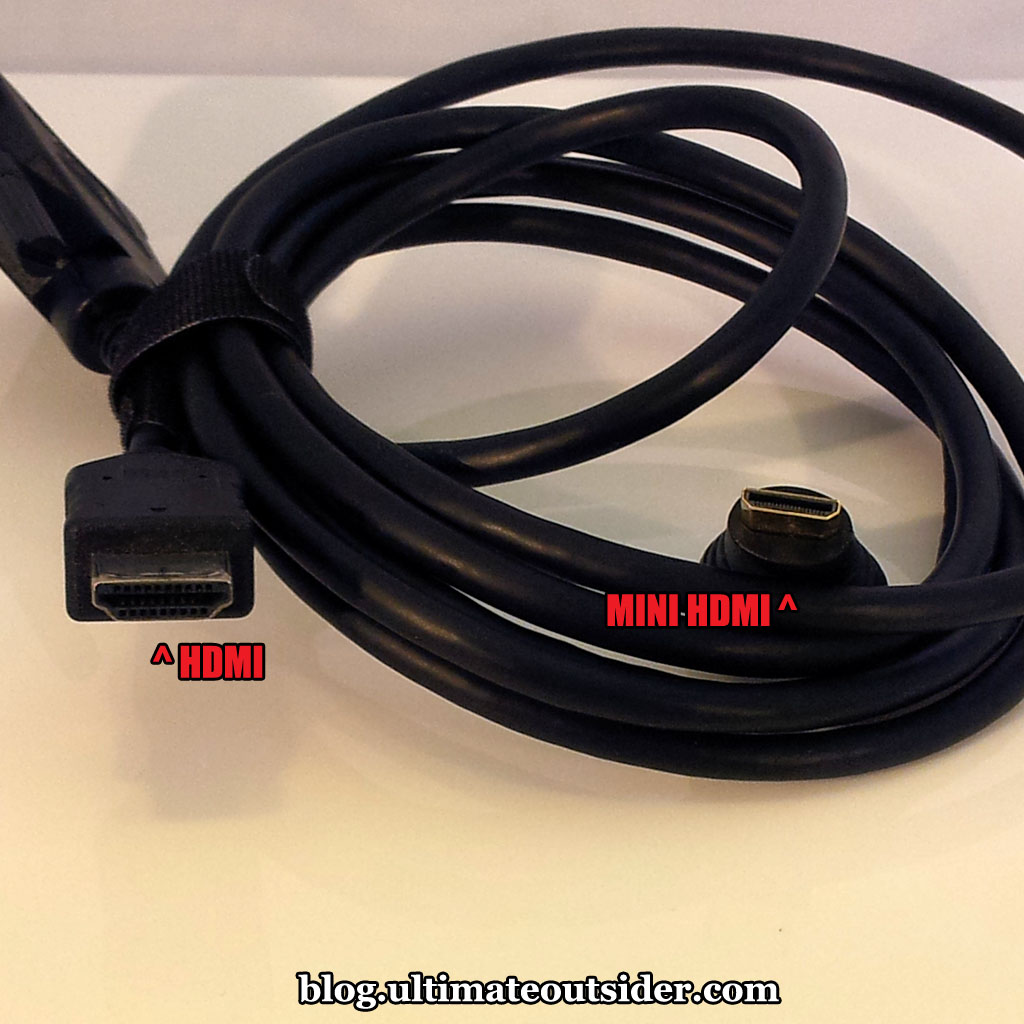
  • No adapters or cables for the mini DisplayPort or mini HDMI connectors; these particular connectors are not very common yet, so check your existing cables and adapters before purchasing.
  • No keyboard or mouse.
  • No discs. You can obtain all necessary drivers from the Intel Download Center.

 Recommended Components and Accessories


Since the NUC is just barebones PC kit, you're going to need some additional items in order to get any use out of it.

Here's what I paid for the NUC plus its essential components (each of which I list below):
  • NUC: $351.00
  • RAM: $87.99 x 2 = $175.98
  • mSATA SSD drive: $116.99
  • SATA hard drive: $72.05
  • TOTAL: $716.02
Here are the specific items I've used to set up my NUC and use it in my studio:

Installing Components

Installing RAM, storage, and Wi-Fi on the NUC is pretty straightforward. You flip the unit upside-down and remove the four screws that fasten the rubber feet to the bottom of the device. Once you remove the bottom plate, you'll find where you can install a typical laptop SATA drive:

 
The connectors on the right are for SATA and power.
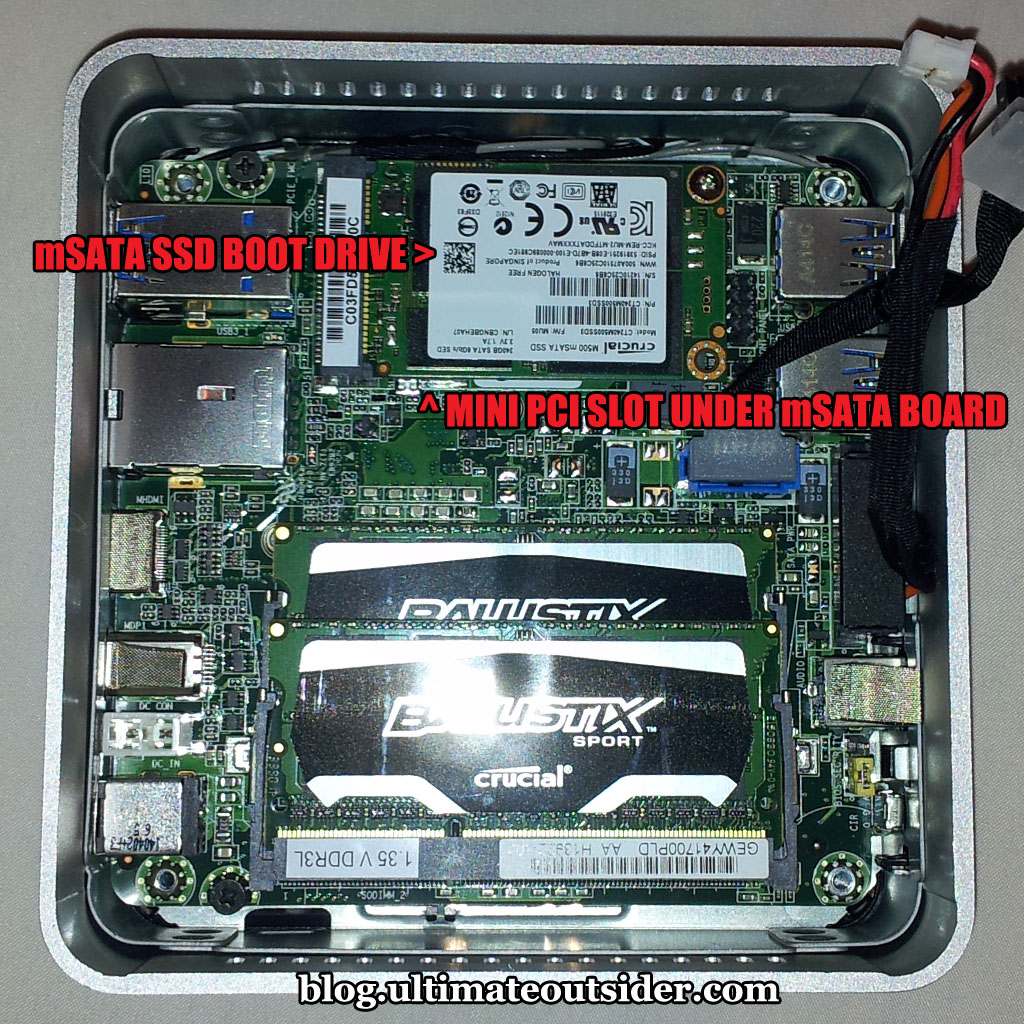
After disconnecting the power and SATA cables, you can remove this layer of the NUC to reveal the moterboard:


This is where you install RAM and mini PCI Express devices. In my case, I didn't bother with a Wi-Fi card, and just installed an mSATA SSD drive to use as my boot device. The half-height mini PCI Express slot for Wi-Fi cards is directly under the slot for full-height cards.

So, can it make music?


Once I had everything set up, the first thing I did was install Cubase. Here's the NUC in action, playing a Steinberg demo project that includes a number of VST instruments and audio effects in addition to lots of digital audio content. Notice how fast Cubase starts!


So, yes, the diminutive NUC is certainly capable of running a modern DAW. But how well does it stack up against full-sized desktops and laptops?

DAW Performance Test Setup


Test tools 

In addition to simply setting up my NUC with a DAW and an audio interface, I ran a number of tests to get a sense of the NUC's overall performance both as a general purpose computer and as a DAW PC. Here are the test tools I used:
  • Windows Experience Index. This is the benchmark tests built into Windows to give users an impression of their computer's suitability for different tasks. For reasons known only to Microsoft, it's no longer exposed in the Windows 8.1 user interface, however the tests can still be run from an administrator command prompt.
  • PassMark Performance Test 8. This program tests all aspects of a computer, including operating system UI performance and resource intensive 3D graphics.
  • DAW Bench. This is a collection of DAW projects that push a computer's DSP processing abilities to its absolute limits, giving users a measure of how many plugins or how many simultaneous musical notes the computer can generate and still deliver reliable audio. DAW Bench comes in different flavors, to suit different DAWs. I use the Cubase version.
  • RTL Utility. This is a free tool that I use to determine the true round-trip latency of audio interfaces under various sample rate and buffer size settings.

 Computers used


In order to get a feel for how powerful the NUC is, I tested it against three other computers. Some quick descriptions and basic specs are below. All systems have Intel processors that support HyperThreading:
  • NUC: My D54250WYK NUC with a Core i5 4250U (dual core).
  • XPS-8300: An off-the-shelf Dell desktop with a Core i5 2300 (dual core).
  • Antec: My home-built desktop DAW PC with a Core i7 950 (quad core).
  • Latitude E6540: A Dell laptop with discrete graphics and a Core i7 4800MQ (quad core).

    Note
    : Like many modern laptops with discrete graphics, the Latitude uses graphics switching technology. It defaults to using the built-in Intel HD Graphics, but can be configured to use the internal ATI Radeon HD 8790M graphics on a per-application basis.

The systems under test. Please see above note about the Latitude's graphics.

Setup preparation

 I prepared each computer identically before running the various tests:
  • All computers are running 64-bit Windows 7 SP1 with the latest updates installed.
  • All systems were using the High Performance power scheme in the Power control panel.
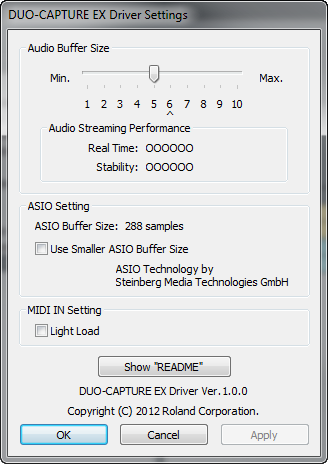
  • All computers had version 1.0.0 of the Windows 7 drivers for the Roland Duo-Capture EX (it's the only version released for Win 7), and the driver was configured the same way for all systems:
  • All computers have Steinberg Cubase 7.5.2, and all were configured the same way:

    Cubase settings.
  • All computers had version 5.30 of Native Instruments Kontakt.

Test Results


Let's start off with the raw results:
Highest scores are green, lowest scores are red.

Understanding the tests


First, here's a quick rundown of what the scores indicate:
  • Windows Experience Index. Windows 7 Experience Index scores range from 1.0 to 7.9, where high scores are better. Things got a little more complicated when Windows 8 came along, but we'll talk about that later.
  • DAW Bench. The scores above represent three different tests. The ReaXcomp score indicates how many active instances of the Cockos ReaXcomp compressor could be enabled before audio started to break up. (This is a test of your PC's raw DSP power.) The Kontakt scores represent how many notes of polyphony your computer is able to play in Kontakt before glitching out. The "CV" version includes convolution reverb processing on the polyphony channels, and the "no CV" version doesn't include reverb. This is why the "no CV" scores are always a little higher.
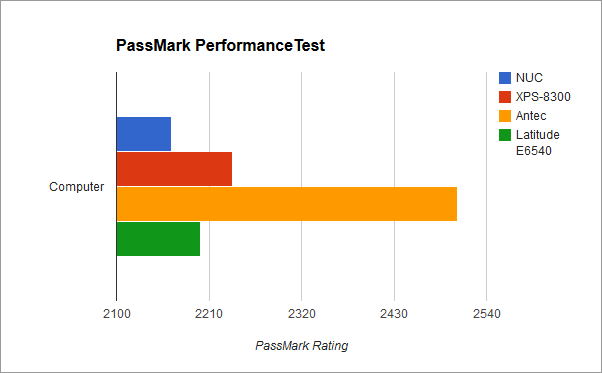
  • PassMark PerformanceTest: This is a single overall score determined by the PerformanceTest test suite. It's the combined total of all points awarded to all subtests. 3D graphics play a large role in these tests, which is why the XPS-8300 and Antec systems outscored the otherwise more powerful Latitude system, as they both have heavy-duty graphics cards installed.
Now let's take a closer look at the results to see what they tell us about the NUC.

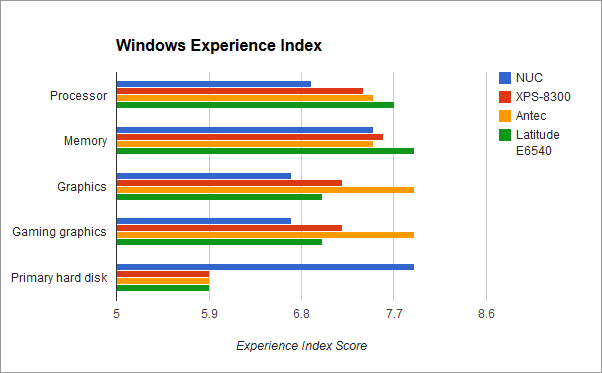
Windows Experience Index

The NUC trailed at least a little behind all other test systems in everything except storage, where it excels due to its SSD boot drive. It scored pretty well on memory performance, nearly tying with the Antec system. I am not sure whether Windows Experience Index used the Latitude's Intel or ATI graphics for the assessment, but I think it was the Intel.


PassMark PerformanceTest

Even though the NUC received the lowest PassMark score, it was surprisingly close to the ostensibly much more powerful Latitude system (I was able to configure the Latitude to use the ATI Radeon graphics for the PassMark tests). The Latitude only fell behind the two desktop systems because of their superior, power-hungry graphics cards. The NUC scored admirably well here, considering its competition.


DAW Bench

The NUC fared worse in the DAW Bench tests, receiving the lowest scores in every category. It did about half as well as the Antec system and around a third as well as the Latitude. While it was no surprise to find that it came in last, I was puzzled as to why its scores were so low in this department, compared to other test metrics where it didn't fall as far behind the other systems.
 

What could explain the gap between the NUC's performance in the Windows Experience Index and PassMark tests and its DAW Bench performance?
  • It's not the interface, and probably not USB 3.0. All of the NUC's external USB ports are USB 3.0, and nearly all USB audio interfaces are USB 2.0, including the Roland interface I used in the tests. While USB 3.0 claims to support backward compatibility with USB 2.0 devices, the reality is that it doesn't always work, and different USB 2.0 devices can deliver different results depending on the USB 3.0 bus they're connected to. To rule out the possibility of an incompatibility issue with my specific interface on the NUC, I re-ran the tests using my RME FireFace UFX in USB mode, at 44.1kHz, 256 samples. The RME's scores on the NUC were very close to the Roland's scores (ReaXcomp: 100, Kontakt CV: 200, Kontakt No CV: 220), so I don't feel the the interface is to blame. This does not completely rule out basic USB 3.0/2.0 compatibility, but I used other USB 2.0 devices on the NUC with zero problems, so I don't think that's a factor either.
  • The number of cores plays a part. The NUC and the XPS-8300 are both dual-core, whereas the Antec and Latitude are quad core, and except for graphics-intensive tests, the NUC's scores were closest to the XPS-8300's. Cubase was configured for multi-core support, and the ReaXcomp test especially draws every ounce of computing power your CPU can deliver.
  • The clock rate is low. Not only is the NUC dual-core, it also has the lowest factory clock rate by far of the other processors. Now Intel has some very clever ways to squeeze some extra juice out of the CPU (which I'll talk about in a moment), but out of the box, this is a very modestly rated CPU.
  • The features that make it a good gaming device don't necessarily improve audio streaming. Intel's modern CPUs feature Intel Dynamic Power Technology, which combines some power management and performance boosting features to dynamically strike the balance between power efficiency and performance. This usually results in little bursts of improved performance here and there, which is perfectly appropriate for gaming (modern games are written to seamlessly adapt based on computing needs and CPU/GPU availability), but not generally beneficial in audio applications where consistency is every bit as important as raw speed. In earlier generations of the Intel Core processors, disabling Intel's CPU power management facilities commonly improved DAW performance- but that's no longer the case today.
  • Face it, the thing's just plain tiny. At only four inches squared, the NUC's form factor didn't offer Intel's engineers many options for heat dissipation, and putting too much processing power in that little box would simply not be feasible. As a result, they locked down some of the overclocking features (several options are grayed out in the NUC's BIOS and the Intel Extreme Tuning utility) and gave it the most powerful processor they could that wouldn't melt the motherboard in day-to-day operation. Part of the reason it's not as powerful as a desktop or an enterprise laptop is that it's just too small to safely deliver that kind of speed in this small a package.

Loudness levels

Desktop DAW PCs and even many laptops are known for being a bit loud in the studio, thanks to fan noise. The NUC is fan-cooled, so it does have potential to introduce noise into the studio environment. To measure its impact, I used a Galaxy Audio CM-140 SPL Meter at a distance of 9 inches from the NUC at different operation states. For reference, my primary desktop DAW PC increases the ambient sound in my room by 6 dB (measured 9 inches away from the side of the PC that faces me) when just sitting idle.

In contrast, the NUC only introduced 2.9 dB of noise when running idle, and 3.6 dB when working at 100% CPU load. (Also measured at 9" away from the NUC.) So even when working at top capacity, it's still a fair amount quieter than my main DAW system is when it's doing nothing at all. And the NUC's sound is just a breezy little whirring that I normally don't even hear unless I'm listening for it, versus the DAW desktop's much more noticeable deep hum.

Dynamic Power Technology

Several years ago, when computers with the first couple generations of the Intel Core processors started showing up in studios, music producers learned pretty quickly that the best way to ensure solid DAW performance was to disable the various power saving and performance boosting technologies in BIOS- at the time those features improved power efficiency and sporadically boosted PC performance at the cost of consistency, which is a problem in DSP-instensive activities like music production. (If you ever hear people talking about disabling EIST, SpeedStep, Turbo Boost, or "C-States", that's what they mean.) These technologies have evolved in more recent generations of Intel's processors, though, and it's now generally recommended to leave them on.

The NUC's BIOS groups SpeedStep and Turbo Boost under a single umbrella, called Intel Dynamic Power Technology. It is enabled by default, with the High Performance BIOS profile, and you should not turn it off. Disabling Dynamic Power Technology on the NUC seriously compromises its performance, as the following video demonstrates:


Windows 7 versus Windows 8.1

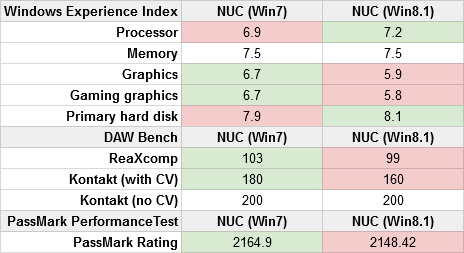
Around the time of Windows 8's release there was a lot of conjecture and misinformation about whether Windows 8 would improve DAW performance. I and several other people conducted benchmarks at the time which established that none of the various performance enhancements included in Windows 8 have any significant effect on DAW performance (which is measured as how far you can push your computer's DSP resources before audio breaks down). But I was curious if anything had changed with the Windows 8.1 update, so I re-ran all of my benchmarks on a fresh Windows 8.1 install with all the latest drivers and updates applied. Here are the results:

Best scores are green, worst scores are red, tied scores aren't colored.
 Overall, the scores were a little lower on Windows 8.1, but really all tests came out close enough that there isn't much practical performance difference between either operating system. So long as all your drivers are 8.1-compatible, I don't see a strong argument one way or the other.

The Windows Experience Index situation is a little weird on Windows 8.1. I had to search around a bit to learn how to run the test. There's a built-in command-line tool called winsat that runs the tests, and when they're complete you have to open up an XML file or use a Powershell command to find the results. I don't know why Microsoft decided to hide this feature from the user interface. It does appear that they increased the maximum possible score (considering that the "primary hard disk" result on Win 8 was 8.1), but I don't know what the new cap is. The highest possible score in Windows 7 was 7.9.

Skyrim Performance

Running benchmarks is one thing, but I was curious how gaming on the NUC felt and looked, considering that traditionally, playing modern 3D games on computers with built-in (usually Intel) graphics chipsets usually isn't a very pleasant experience. I was surprised to find that Skyrim was playable at all four graphics settings (low, medium, high, and ultra) at 1360x768 resolution, although gameplay was noticeably less smooth at high and ultra.

Here are the FPS metrics I recorded at each graphics setting:
  • Low: 40-60 FPS
  • Medium: 24-40 FPS
  • High: 13-25 FPS
  • Ultra: 8-20 FPS
I recorded a video showing the differences between each of the four modes. The actual act of recording video affects performance a bit; I did the FPS measurements before I recorded any footage. The video still conveys the visual and performance differences.


Final thoughts

From my experience with the NUC, I can say that it's absolutely a viable solution for music production use, although that comes with some caveats. It's small and quiet, making it attractive for space-limited studios, and you can pack it with enough RAM and storage to host all the apps and samples you can throw at it.

The NUC's small size comes with some necessary sacrifices in terms of raw performance, though. And while this means less for gaming (where the NUC performs surprisingly well), if you routinely have many dozens of virtual instruments and effects plugins in your DAW projects, you'll probably find yourself freezing tracks to free up CPU cycles more often than you'd like.

The NUC is about as expandable as a typical notebook (and it's quite a bit easier to install and upgrade RAM and storage in the NUC than it is in many laptops), and definitely smaller and more portable than any laptop I've ever used- although laptops don't need you to bring your own display. While the NUC can't compete with a modern desktop for expandability and performance, it is somewhat competitive with modern low-to-mid-range laptops, assuming you've already got a monitor with HDMI or DisplayPort support handy.

While the base NUC kit is quite inexpensive, once you add in all your RAM and storage, the total price for a functional setup is about half what you would pay to build a high-end desktop or to purchase a high-performance laptop.

Pros:
  • Tiny
  • Quiet
  • Stable and reliable
  • Good performance for gaming and general purpose use
  • Capable of running modern DAWs and plugins
  • More power efficient than a desktop or high-end laptop
Cons:
  • Not the best DAW performance for the price
  • More portable than a laptop, but not really a mobile device (no display or batteries)
  • You might need to get some new cables or adapters for the mini DisplayPort or mini HDMI connectors.