Showing posts with label maschine. Show all posts

Tuesday, October 6, 2015

Fixing Native Instruments Product Thumbnails in Komplete Kontrol and Maschine

After several days of installing and patching all my music software on my new DAW PC, I noticed something strange in Maschine 2 and Komplete Kontrol: the thumbnail graphics for a number of my Native Instruments products were missing! Rebuilding the Maschine and Komplete Kontrol databases didn't fix the problem for me, so I took a different approach...


THE SYMPTOMS

Here are some examples of what I was seeing:

Maschine displayed generic artwork on both the product thumbnails in the browser and individual product panels.
Likewise, Komplete Kontrol sometimes showed generic icons and product panels inside the browser.

Both Maschine and Komplete Kontrol give you the ability to rebuild your product database (Preferences > Library > Rescan in both applications), but for whatever reason that wasn't working for me. (And even if it did work, rescanning can take a long time depending on how fast your computer and storage media are.) Thinking I'm probably not the only person who will ever encounter this situation, I decided to add a new wizard to UltimatePluginTool.

THE SOLUTION

To fix this problem, you will need version 1.0 or later of UltimatePluginTool. (You can get the latest version at our downloads page.) Please note that UltimatePluginTool is a Windows application only. I am not a Mac user or developer.

  1. Before you start, it's a good idea to run Service Center and make sure all your products are up to date.
  2. I don't know if this step is necessary, but it's probably a good idea to make sure to quit Maschine or Komplete Kontrol if they're already open.
  3. Launch UltimatePluginTool and select the new option, "Fix Native Instruments thumbnails in Maschine and Komplete Kontrol," then click Next.

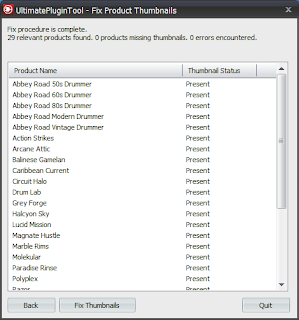
  4. The Fix Product Thumbnails screen will appear, and after a few seconds it should present a list of all applicable Native Instruments products you have installed, as well as whether their thumbnails appear to be installed ("Present") or not found ("Missing"). You can sort the list either by Product Name or Thumbnail Status. (Note: Only products that include their own product artwork appear in this screen. Maschine and Komplete Kontrol have built-in artwork for a number of popular Native Instruments products already.)

  5. Click Fix Thumbnails. UltimatePluginTool will attempt to restore the thumbnail icons to all your installed products, and will update the Thumbnail Status column of each product when it's finished. The text field at the top of the window will indicate if any errors were detected.
    After a successful run.
  6. Re-launch Maschine and/or Komplete Kontrol and enjoy the results!

THE RESULTS

Here's what my Maschine and Komplete Kontrol looked like after I ran the new Fix Product Thumbnails wizard on my DAW PC:
All icons and artwork restored in Maschine.

Also in Komplete Kontrol.

Support UltimatePluginTool

I develop and maintain free software on my own time. I don't charge a fee because I want everyone to have equal access to my programs- but if something I wrote helped you and you'd like to express your thanks in a concrete way, you can send a donation of any amount via PayPal. Support from my visitors covers my hosting and licensing costs, and gives me incentive to keep putting out cool new utilities.

If you wish to help out, you can enter a donation amount below and then click on the Donate button. You do not need a PayPal account in order to donate! Just click the "Don't have a PayPal account" option on the page that comes up after you click the Donate button. The donation amount is in U.S. Dollars (USD).

Amount: $


Note: You might receive a personal "thank you" from me in response, but I won't sign you up for any mailing lists and you won't hear from me again unless you contact me first. Thanks for your consideration!

Sunday, May 31, 2015

Native Instruments Sales on Komplete, Maschine, and Traktor: A Historical Review

When it comes to Native Instruments, one thing people speculate about almost as often as when the next version of Komplete will be released is when the next big Native Instruments sale is going to happen. While no one outside the company can answer those questions with any certainty, studying the past can often help us make better guesses about what is yet to come. It is in that spirit that I embarked on a historical review of official Native Instruments sales.


After several days of hunting down information on every sale I could find involving the company's Komplete, Maschine, and Traktor lines, I compiled a worksheet that indicates the dates when the sales were in effect, and which products each promotion included. I color-coded each sale to indicate which time of year it fell under so I could get a better idea of what kinds of sales Native Instruments typically offers in the different seasons. The Legend tab describes the different columns, and the Stats tab has a few bits of analytical data that are automatically updated whenever I add a new sale to the list, plus some "manual stats" that I tally up by hand after making major updates. You can click the image below to visit the worksheet. The rest of this post is an analysis of the data, plus some other details about the worksheet.

Click the image above to view the raw data.

Understanding the Data

Here are some things I observed after compiling the information. Please note that as the worksheet evolves over time, some of the numbers below might go out of date- but they are accurate, based on my current information, as of June 1, 2015:
  • Of all the types of sales Native Instruments offered that I could find, discounts on new purchases of Komplete bundles were the most rare (only 9% of all sales as of this writing), and discounts on upgrades or crossgrades to Komplete were the second-most rare (21%). Please see the "Notes About the Worksheet" section for the distinction between new purchases and updates/upgrades/crossgrades.
  • When there was a sale on Komplete bundles, it has always been either for new purchases or for upgrades/crossgrades- not both. Although the different kinds of Komplete bundle discounts haven't been offered simultaneously, they occasionally occurred within a couple weeks of each other (2012, 2014).
  • The most common season to find discounts on new Komplete bundle purchases was Summer (4 times out of 5 total sales), and the most common time for discounts on upgrades and crossgrades to Komplete was Spring (7 out of 12 sales).
  • The most common season for Maschine-related sales was Autumn (7 out of 16 sales).
  • The most common times for sales and specials involving Traktor were Autumn (7 out of 22 sales), followed closely by Summer (6 out of 22 sales).
  • Historically, the busiest season for Native Instruments sales is Summer (32% of all sales I've recorded so far). Autumn and Spring are tied for second (at 25%), while the Winter months were the least likely to see new sales, accounting for only 18% of the sales I could find data for.
  • Of all the promotions I discovered that were in effect during a Black Friday, only one of them offered a discount on Komplete bundles (the Thanksgiving XXL sale in 2013), and that was only on upgrades, not new purchases. Not a single Black Friday sale I found included new purchases of Komplete or Komplete Ultimate.
  • Although sales on full Komplete bundles are not very frequent, if you include sales involving individual Komplete-line products (synths, samplers, instruments, effects), more sales have been recorded for that product line (48%) than for Traktor (39%) or Maschine (29%). (Which is probably not surprising since, the Komplete line is the most mature and has the broadest number of total products.)
  • Over half of all promotions recorded involve Native Instruments hardware, whether it's for Maschine, Traktor, audio interfaces, or the new Komplete Kontrol keyboards.
  • Specific Traktor models covered in previous sales include: Traktor Audio 2 DJ, Audio 4 DJ, Audio 8 DJ, Traktor Kontrol S4, Traktor Kontrol X1, Audio 6, Audio 10, Traktor Kontrol S2, Traktor Kontrol Z1, and Traktor Kontrol Z2.
  • Specific Maschine models covered in previous sales include: Maschine, Maschine Mikro, and Maschine Studio.
  • Hardware products from the Komplete line that have been covered in previous sales include: Komplete Audio 6, Komplete Kontrol S25, Komplete Kontrol S49, and Komplete Kontrol S61.

Notes About the Worksheet

  • In cases where a given promotion straddled two different seasons, you'll find that the Start Date and End Date fields of that sale will be colored differently, while only one color is used in the columns indicating what kind of products are covered in that sale. I chose the color/season based on which season held the most days of that specific promotion. This is why many sales during the Christmas shopping season are marked red; because they ran for more days at the end of Autumn than they did at the start of Winter.
  • The Hardware column in the Data tab of the worksheet straddles all Native Instruments product lines (even Kore). Maschine and Traktor have their own columns, but since some sales in those product lines only involve software (Maschine expansions or Traktor Pro upgrades, for example), you can cross-reference to the Hardware column to determine what kind of sale it was.
  • Regarding sales that involve Komplete bundles, I consider a promotion a "new purchase" if customers are not required to either previously own or make a new purchase of any other Native Instruments product. A sale that requires you to own another Native Instruments product is a crossgrade. Sometimes there are "bundle" discounts where you get a reduced price if you buy two items at the same time- for example the "Dynamic Duo" sale from Winter of 2014 where you could get a discount on Komplete 9 if you bought it along with a Maschine. There was one deal from 2008 where you could get a discount on Komplete 5 if you could prove you owned one of a handful of specific third-party DAWs. I didn't count that as a crossgrade since it didn't require ownership of a Native Instruments product.
  • I had multiple sources of varying degrees of accuracy for sale information. If you see a different start date listed for a sale than what you see listed at the Reference link for that sale, it probably means I found another source with more accurate date information. Stop dates were much easier to verify for sure.
  • The great majority of the sale data I found was between the years of 2010 and 2015. As of this writing I've only found solid information on five sales previous to 2010. I'm sure there were many more sales; it's just increasingly hard to find this info.

Credits

These sites were invaluable in my data mining efforts:
If you have any corrections or know of any sales I missed, please let me know in the comments. Thanks!

Sunday, March 22, 2015

Recording Virtual Instruments with SampleRobot Part 3: Virtual Audio Cable with ASIO

This is Part 3 of a 6-part series. Make sure to check out Part 1 for the introduction.

Method Two of Four: Virtual Audio Cable with ASIO

While complex, this method enables you to record into SampleRobot at a higher bit-depth than using a virtual audio cable directly. Some of these steps have to be performed in a certain order. If you accidentally do something out of sequence and you find you're not able to get audio to record, you might have to reboot your computer (or at least restart your applications) and try again.
  • Difficulty: Advanced
  • Advantages: Enables recording at higher bit depths than using Windows audio directly.
  • Disadvantages: Lots of steps to set up (and following proper sequence of steps is important). Only worthwhile on SampleRobot Pro or Sampling Suite (the other editions are limited to 16-bit recording). May involve some trial-and-error getting reliable results. Sometimes audio stops working, requiring system restarts.
  • Software Required: VB-CABLE, LoopBe1, ASIO4ALL, SampleRobot (Pro or Sampling Suite recommended)
The instrument I recorded while making the screenshots below was the standalone version of Native Instruments Maschine . The exact MIDI and audio options in your instrument or plugin host might have different names from what you see in the pictures.
  1. Install VB-CABLE if you haven't already. You only need the single "VB-CABLE Driver" version, not the "hi-fi" one.
  2. Install LoopBe1 if you haven't already.
  3. Install ASIO4ALL if you haven't already.
  4. If you just installed any of the above software packages, restart your computer now. You will almost certainly not be able to finish these steps unless you restart your PC at least once.
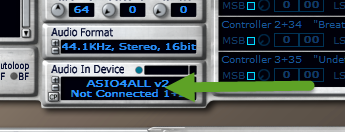
  5. Make sure no other audio apps are running before launching SampleRobot, and then click the little window under where it says Audio In Device. A list of available devices appears. Select any entry in the list that begins with "ASIO4ALL" and then click OK.
    The arrow points to where you should click to select a device. Any "ASIO4ALL" option will work for this step. Also note the little CP button in the lower left of the Audio In Device pane.
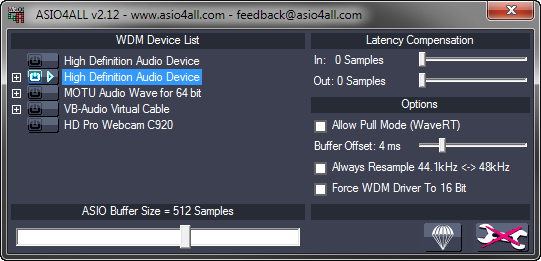
  6. Click the tiny CP button next to the Audio In Device entry you just selected to open the ASIO4ALL control panel. If the Advanced Options button (the big wrench in the lower right) doesn't have a big red X on it, click it once to display the advanced options.
    Your initial settings will look something like this.
  7. To start off with the ASIO4ALL configuration, first disable ALL devices currently enabled. (Click the little power buttons next to any highlighted devices until they are all turned off/unlit. Also, expand any nodes marked with a + sign and make sure their sub-devices are disabled as well.) Next, expand the VB-Audio Virtual Cable node and make sure that only the In option is enabled (do not enable the Out option). Finally, select the In entry under VB-Audio Virtual Cable and move the ASIO Buffer Size slider all the way to the right, for the maximum sample buffer size of 2048 Samples. When you've done everything right, it should look like this:


  8. Once your ASIO4ALL settings are correct, close the ASIO4ALL control panel and then close SampleRobot. This unloads the ASIO4ALL driver, ensuring that it uses your new settings the next time you run SampleRobot.
  9. Launch SampleRobot again and start a new project, either by clicking New in the Projects window or going to File > Project Wizard. Regardless of whether you use the wizard or set your options manually, make sure to choose the following options:

    Audio In Device: ASIO4ALL v2 - VB-Audio Point 1+2
    Audio Format: 44.1KHz, Stereo, 24bit
    MIDI Out Device: LoopBe Internal MIDI
  10. In my screenshot below you can see I've also selected the following:

    Attack Vel: 127
    Note Length: 8 seconds
    Project Settings > Data Path: (a unique folder for this project)
    Note Range: 36/C1 through 51/D#2, 16 notes total, all notes in range selected. (This is the default note range for a Maschine kit.)

  11. Open up the Sound control panel in Windows and locate the CABLE Input device on the Playback tab. Select CABLE Input, and then click Properties.
  12. On the CABLE Input Properties dialog, click the Advanced tab and then select 24-bit, 44100 Hz (Studio Quality) under Default Format. Click OK, and then click OK again.
  13. Start up the instrument you would like to record. If it comes in a standalone EXE version, launch that. Otherwise, load the plugin into your VST host of choice. See part 1 of this series for steps on loading a plugin with VSTHost. Also, don't forget to load up the patch you intend to record!
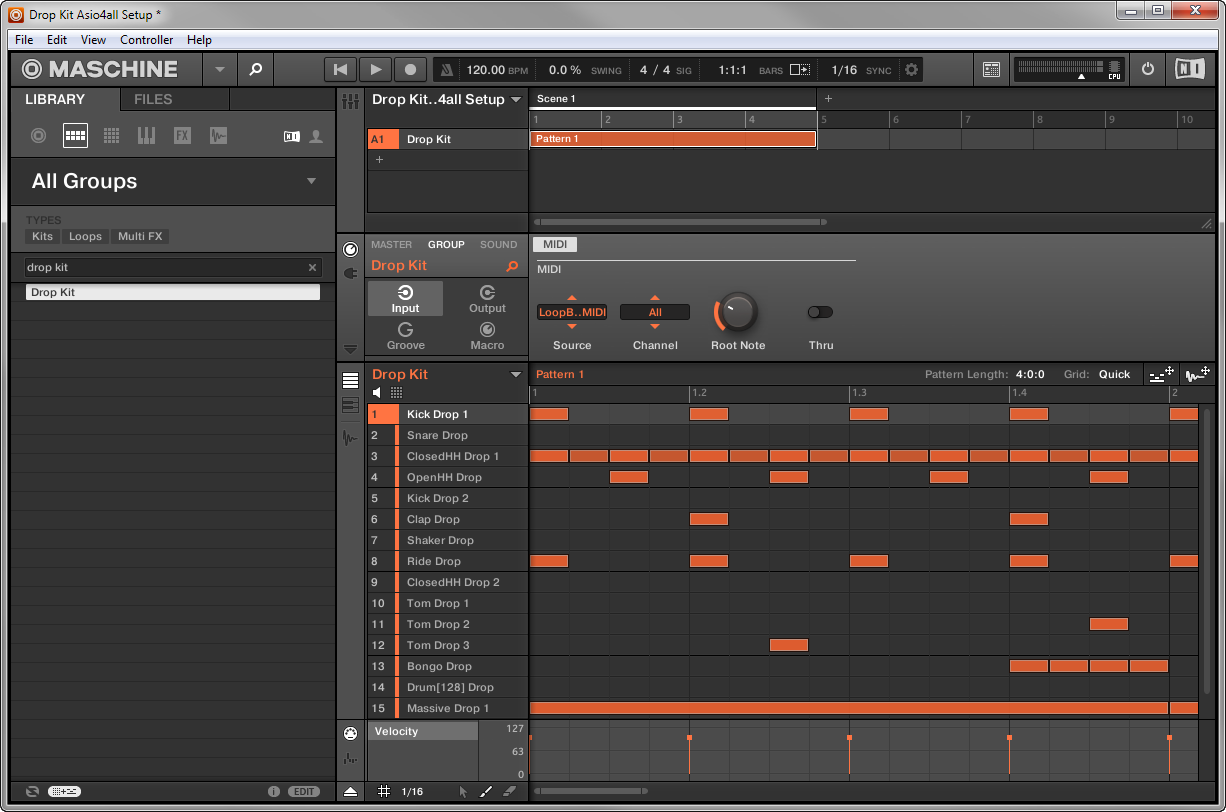
    Maschine, with Drop Kit loaded from the Lucid Mission expansion pack. The Group MIDI settings are set up so that each incoming MIDI note triggers a different Maschine pad.
  14. Locate your instrument's/host's MIDI input settings (in Maschine standalone, you go to File > Audio and MIDI Settings > MIDI > Inputs), and make sure that the option for LoopBe Internal MIDI is enabled. In Maschine you do this by setting the port's Status value to On.

  15. Locate your instrument's/host's audio device settings (in Maschine standalone, it's File > Audio and MIDI Settings > Audio) and make sure to select a Windows Audio driver type (it might be named WASAPI, Wave, WME, Windows Audio, or something similar) and select VB-Audio Virtual Cable as the audio device.

  16. Depending on how your instrument or host works, you might also have to specify how audio from the instrument gets routed. For example, in Maschine, we have to select the Routing > Outputs tab and make sure the main outputs go to the Cable Input L and R.

  17. Switch back to SampleBot. Now that your project is all ready to record, click Rec in the Projects window, and then click Start Recording. You probably won't hear anything while recording is in progress. When recording is complete, little waveforms will appear under the virtual keyboard. You can test the recorded samples by clicking (and holding down) the left mouse on individual notes.
  18. If your samples seem to have completed successfully, go to the Import/Export menu to export the samples into your desired target format. If you're using the default settings, your exported samples will be trimmed down to only contain actual audible audio (which is good!). I like to save my exported files into a new folder called Exports inside my SampleRobot project's Data Path folder. Here's a look at the resulting samples I got after exporting the above project. I am using Resonic Player to preview my samples.

NEXT TUTORIAL


Recording Virtual Instruments with SampleRobot Part 2: Virtual Audio Cable with Windows Audio

This is Part 2 of a 6-part series. Make sure to check out Part 1 for the introduction.

Method One of Four: Virtual Audio Cable with Windows Audio

This is the simplest method I'll describe in this series, and it involves simply sending virtual instrument audio directly to SampleRobot via a virtual audio cable. The instrument I recorded while making the screenshots below was Native Instruments Maschine . The exact MIDI and audio options in your instrument or plugin host might have different names from what you see in the pictures.
  • Difficulty: Easy
  • Advantages: Cheap and easy to do. Suitable for any edition of SampleRobot.
  • Disadvantages: Limited to only 16-bit audio depth.
  • Software Required: VB-CABLE, LoopBe1, SampleRobot (any edition)
How to do it:
  1. Install VB-CABLE if you haven't already. These instructions assume you're using the single "VB-CABLE Driver" version, not the "hi-fi" one.
  2. Install LoopBe1 if you haven't already.
  3. If you just installed either of the above programs, restart your computer before attempting to proceed with recording. Some applications don't "see" their devices until you've rebooted at least once.
  4. Start up the instrument you would like to record. If it comes in a standalone EXE version, launch that. Otherwise, load the plugin into your VST host of choice. See part 1 of this series for steps on loading a plugin with VSTHost. Also, don't forget to load up the patch you intend to record!
    Here I've loaded the Aphasia kit from the Grey Forge Maschine expansion.
  5. Locate your instrument's/host's MIDI input settings (in Maschine standalone, you go to File > Audio and MIDI Settings > MIDI > Inputs), and make sure that the option for LoopBe Internal MIDI is enabled. In Maschine you do this by setting the port's Status value to On.

  6. Locate your instrument's/host's Audio device settings (in Maschine standalone, it's File > Audio and MIDI Settings > Audio) and make sure to select a Windows Audio driver type (it might be named WASAPI, Wave, WME, Windows Audio, or something similar) and select VB-Audio Virtual Cable as the audio device.

  7. Depending on how your instrument or host works, you might also have to specify how audio from the instrument gets routed. For example, in Maschine, we have to select the Routing > Outputs tab and make sure the main outputs go to the CABLE Input L and R.

  8. Launch SampleRobot and start a new project, either by clicking New in the Projects window or going to File > Project Wizard. Regardless of whether you use the wizard or set your options manually, make sure to choose the following options:

    Audio In Device: CABLE Output (VB-Audio Virtual Cable)
    Audio Format: 44.1KHz, Stereo, 16bit (this is the maximum valid bit depth for this particular recording method)
    MIDI Out Device: LoopBe Internal MIDI

    Note
    You won't be able to use the control panel (CP button) or audio in device monitor (the tiny blue button) of SampleRobot with this method because those only work for ASIO devices.
  9. In my screenshot below you can see I've also selected the following:

    Attack Vel: 127
    Note Length: 8 seconds
    Project Settings > Data Path: (a unique folder for this project)
    Note Range: 36/C1 through 51/D#2, 16 notes total, all notes in range selected. (This is the default note range for a Maschine kit.)

  10. When your project is all ready to record, click Rec in the Projects window, and then click Start Recording. You probably won't hear anything while recording is in progress. When recording is complete, little waveforms will appear under the virtual keyboard. You can test the recorded samples by clicking (and holding down) the left mouse button on individual notes (or triggering notes with a MIDI keyboard if you have one specified in the MIDI In Device field- remember to hold down keys to hear the samples ring out).
  11. If your samples seem to have completed successfully, go to the Import/Export menu to export the samples into your desired target format. If you're using the default settings, your exported samples will be trimmed down to only contain actual audio (which is good!). I like to save my exported files into a new folder called Exports inside my SampleRobot's Data Path folder. Here's a look at the resulting samples I got after exporting the above project. I am using Resonic Player to preview my samples.

NEXT TUTORIAL

Thursday, March 12, 2015

Video Tutorials: Fixing Maschine, Reaktor, and Komplete Kontrol Problems with UltimatePluginTool

I've just updated UltimatePluginTool to version 9.0.0.2 (you can check the release notes in the latest installer for details), and I made a couple of tutorial videos that demonstrate how to fix a number of common problems with Native Instruments Maschine, Kontakt, Reaktor (and other products).

Using UltimatePluginTool to Fix Problems with Kontakt and Reaktor


Fixing Problems in NI Maschine and Komplete Kontrol with UltimatePluginTool

Support UltimatePluginTool

I develop and maintain free software on my own time. I don't charge a fee because I want everyone to have equal access to my programs- but if something I wrote helped you and you'd like to express your thanks in a concrete way, you can send a donation of any amount via PayPal. Support from my visitors covers my hosting and licensing costs, and gives me incentive to keep putting out cool new utilities.

If you wish to help out, you can enter a donation amount below and then click on the Donate button. You do not need a PayPal account in order to donate! Just click the "Don't have a PayPal account" option on the page that comes up after you click the Donate button. The donation amount is in U.S. Dollars (USD).

Amount: $


Note: You might receive a personal "thank you" from me in response, but I won't sign you up for any mailing lists and you won't hear from me again unless you contact me first. Thanks for your consideration!

Sunday, February 1, 2015

Troubleshooting Native Instruments Problems with UltimatePluginTool

There are a number of common problems people encounter with Native Instruments products that are easy to fix once you discover the root cause. Unfortunately, some of the error messages you get when the problems occur are vague or misleading. I wrote UltimatePluginTool to help folks identify and correct these issues. In this article I'll walk you through how to fix the following errors:
  • "Loading Issue: Could not load plug-in" (Komplete Kontrol)
  • "Error: Unable to load Slot" (Maschine)
  • "Load Plug-in: Could not load 1 or more plug-ins!" (Maschine)
  • "Error while reading file: This file was saved with a newer version of Reaktor!" (Reaktor)
  • "This patch was generated by a newer version of the application. Please upgrade your copy to load the patch." (Kontakt)
  • "Loading Issue: Plug-in failed loading. The plug-in is likely too old and needs updating." (Komplete Kontrol)
Note: While this article and UltimatePluginTool are specifically for VST plugins on Windows operating systems, some of the information here may apply to other plugin formats and platforms.

1. Download and install all your Service Center updates

Before we get started with UltimatePluginTool, it will help to make sure that all of your Native Instruments products are activated and up-to-date. Launch the Native Instruments Service Center and make sure you see the "All products are activated" message on the Activate tab. If you don't, go to the Update tab and download/install any pending updates.


Note: It is still possible to get errors about Reaktor and Kontakt instruments being saved with newer versions of those products even after you've installed all your updates. UltimatePluginTool will help you fix those errors if you perform the following steps. You should just be sure you've installed the updates before you proceed.

2. Install and launch UltimatePluginTool

Download and install UltimatePluginTool from the Ultimate Outsider downloads page. If you accept the default installation options, UltimatePluginTool will launch automatically once setup is complete. (Otherwise you should find shortcuts for it on your desktop and your Start menu.)

You should also make sure to quit any DAWs, plugin hosts, or Native Instruments software before you continue.

3. Scan for duplicate plugins

If you have multiple copies of different versions of plugins scattered about your various plugin search paths, DAWs and plugin hosts can get confused, loading an outdated version of the plugin even after you've installed updates. On the UltimatePluginTool Start page, select Find duplicate VST plugins and click Next.


If you are running 64-bit Windows, you'll have a choice of whether to search for 32-bit or 64-bit plugins, since those files are normally installed in different locations. Choose which plugin type you'd like to check for first, and then make sure your desired plugin paths are listed under Plugin folders.

The first time you run this wizard, UltimatePluginTool tries to detect some common plugin locations on your system. If you use different folders than those that UltimatePluginTool finds, you can make the appropriate changes now with the Add New and Remove buttons. The program maintains different folder lists for 32-bit and 64-bit plugins.

The program discovered some plugin folders on this computer. If you keep folders in other locations, use Add New to locate and include them in the search.

Click Next. UltimatePluginTool will search your plugin folders for any duplicate files, or for unsupported files (for example, 64-bit plugins in your 32-bit plugins folder). Once the scan is complete, some statistics will appear in the Search status portion of the screen, and if any duplicates or unsupported files are found, their names will appear in the Duplicate files and Unexpected files lists below.

The results of a scan for 32-bit duplicates. Since 'show duplicates' is unchecked, only files with duplicates are displayed at the moment.
  1. Select a filename in the Duplicate files list to see more information about the specific files discovered.
  2. In the above example we can tell that the first file in the details list is the older one by its Date and Version number. Selecting a file in the details list enables the three action buttons on the right.
  3. To remove the outdated file, click Delete, then click Yes when asked whether you would like to proceed.
Remember to re-run this wizard if you are running 64-bit Windows, in case you still need to scan for 32-bit or 64-bit plugins. See the included user guide for more information about the Find Duplicate VST Plugins wizard.

4. Look for wrong or broken file paths

Once you're sure there aren't any duplicate copies of your 32-bit or 64-bit plugins in your various plugin folders, re-launch UltimatePluginTool or navigate back to the Start page. Select Manage installed Native Instruments products, and then click Next.


Note: If you have a large number of Native Instruments products installed, or if you have some very old 32-bit-only products installed, the product scan might take a minute or two the first time you run it. Once the scan is complete, it will populate the "Product information" list with all products discovered on your system.

To check for file location problems, make to check the options to show apps and plugins, content libraries, bundles, drivers and utilities, and broken folder items. Also make sure to uncheck Show valid folder items, like in the following screenshot:

The above settings will display only products with detected file path problems.
In the above example, UltimatePluginTool discovered that it couldn't find the Kontakt 5 plugin in the folder where it's supposed to reside. This happened because we just used the duplicates finder to delete the outdated version of the plugin that had been located in that folder. Even though we know there is a recent version of Kontakt 5 in our plugin search paths, if the plugin isn't located in the exact folder specified on this screen, then Komplete Kontrol and Maschine won't be able to find the plugin if you try to load any Kontakt instruments with them.

To select the correct folder, click the Options button next to the folder you need to change. This opens the Change Folder dialog:


This dialog lists all the folders that all currently installed Native Instruments products (including the current one) are already using. If you see the folder you want already listed, just select it and then click the Use for (product) only button. In our case, the folder we need isn't listed, so we need to click Select Another Folder and locate the folder. Once the folder's selected, we can click Use for (product) only to continue.


After you select a different folder, UltimatePluginTool re-checks the paths. As we can see here, we selected the correct path, and we have the latest versions specified for the application, 32-bit plugin, and 64-bit plugin files.


5. Check product bundle associations (Komplete Kontrol)

The Komplete Kontrol software is explicitly designed to only work with Komplete 9 or Komplete 10, and this requirement has some side-effects that surprise some Komplete 9 and 10 owners.

Consider this example: Reaktor 5 is available as a standalone product, and has also been in every Komplete release since 2005- however if you didn't use a Komplete 9 or 10 installer to install or update Reaktor 5 on your PC, Komplete Kontrol will not work with your existing copy.

You can encounter this problem even if you are a legitimate Komplete 9 or 10 owner and you've used the Komplete installer to install other products on the same PC. Many Komplete owners who already have previous versions installed on their PCs choose not to install the pre-existing products when installing a new Komplete version. Up until the release of Komplete Kontrol, this was the fastest way to safely install new versions of Komplete. (And sometimes the ONLY way, due to the way the Komplete installers calculate disk space required before allowing you to proceed with setup.)

Unfortunately, it is now necessary to perform a complete installation of Komplete 9 or 10 in order to make sure all your applications and libraries are recognized by Komplete Kontrol as belonging to the supported bundles. This is because the Komplete installers are special. Even though the Reaktor 5 you bought in 2005 is technically exactly the same program as the version included in Komplete 10 (assuming you've kept up with your Service Center updates), the Komplete 10 installer associates any product it installs or upgrades with that specific bundle. All Komplete installers do this, but it wasn't until the release of Komplete Kontrol that this fact actually mattered.

Anyway, here's how you can use UltimatePluginTool to determine if this is what's happening on your computer.

On the Start page, select Manage installed Native Instruments products, and then click Next.


Once the product scan is complete, make sure to select the options to show apps and plugins, content libraries, valid path items, and broken path items. Now any products you select items in the Product information list that are associated with a Native Instruments bundle will show some information in the Bundle field, like this:


Beginning with Komplete 8, there is some overlap between the "Ultimate" bundles and the regular Komplete releases. For example, as shown in the screenshot above, Abbey Road 50s Drummer is only available in Komplete 10 Ultimate, so that's what appears in the Bundle field in UltimatePluginTool. However, if we had selected Battery 4- which is included in both Komplete 10 and Komplete 10 Ultimate, then the Bundle field would just read "Komplete 10" even though this computer has the full Komplete 10 Ultimate package installed. This shouldn't be an issue, though- it's the version number that matters to Komplete Kontrol.

If you have Komplete 9 or 10 (regular or Ultimate) installed, and a product you select on this screen is blank or is associated with an earlier version of Komplete, then you'll need to re-run the Komplete 9 or 10 installer to update your installation and associate it with your bundle in order to get it working properly in Komplete Kontrol.

Note: Misleading Warnings in Maschine and Komplete Kontrol

Both Komplete Kontrol and Maschine will report "could not load plug-in" even if the preset you tried to open isn't directly associated with a plugin. For example, Rise & Hit is not itself a plugin; it's a Kontakt instrument. But if there's something wrong with your Kontakt configuration, this is what happens when you try to open a Rise & Hit preset in Maschine:


To make it easier to troubleshoot, here's a list of all the products that appear in Maschine and Komplete Kontrol that aren't standalone products. So if you get an error while trying to launch one of them, remember to also check the settings of the actual plugin (Kontakt or Reaktor) they're associated with for problems:

Kontakt Instruments supported in Maschine and Komplete Kontrol

  • Abbey Road 50s Drummer
  • Abbey Road 60s Drummer/Drums
  • Abbey Road 70s Drummer/Drums
  • Abbey Road 80s Drummer/Drums
  • Abbey Road Modern Drummer/Drums
  • Abbey Road Vintage Drummer
  • Action Strikes
  • Action Strings
  • Alicia's Keys
  • Balinese Gamelan
  • Berlin Grand
  • Cuba
  • Damage
  • Drum Lab
  • Evolve Mutations
  • Evolve Mutations 2
  • Evolve R2
  • George Duke Soul Treasures
  • Kinetic Metal
  • Maschine Drum Selection
  • NY Grand
  • Retro Machines
  • Rise and Hit
  • Funk Guitarist
  • Jay-Bass
  • MM-Bass
  • MM-Bass Amped
  • Pre-Bass
  • Pre-Bass Amped
  • Rickenbacker
  • Vintage Keys
  • Session Horns
  • Session Horns Pro
  • Session Strings Pro
  • Studio Drummer
  • The Gentleman
  • The Giant
  • The Grandeur
  • The Maverick
  • Upright Piano
  • Vienna Grand
  • Vintage Organs
  • West Africa

Reaktor Ensembles supported in Maschine and Komplete Kontrol

  • Kontour
  • Monark
  • Polyplex
  • Prism
  • Razor
  • Rounds
  • Skanner XT
  • Spark

Final Thoughts

I have some features in the works that should make solving these problems even simpler, so stay tuned. This should at least be enough to help you root-cause the various issues you're having and know what to do to fix them.

Support UltimatePluginTool

I develop and maintain free software on my own time. I don't charge a fee because I want everyone to have equal access to my programs- but if something I wrote helped you and you'd like to express your thanks in a concrete way, you can send a donation of any amount via PayPal. Support from my visitors covers my hosting and licensing costs, and gives me incentive to keep putting out cool new utilities.

If you wish to help out, you can enter a donation amount below and then click on the Donate button. You do not need a PayPal account in order to donate! Just click the "Don't have a PayPal account" option on the page that comes up after you click the Donate button. The donation amount is in U.S. Dollars (USD).

Amount: $


Note: You might receive a personal "thank you" from me in response, but I won't sign you up for any mailing lists and you won't hear from me again unless you contact me first. Thanks for your consideration!

Friday, January 2, 2015

Introducing UltimatePluginTool- Fix problems with Maschine, Kontakt, Komplete Kontrol and more

Over the past year or two I've encountered a number of problems with some of my plugins and standalone music software that resulted from my moving files around after installing them, and from not always paying attention to where I installed things in the first place. When most people root-cause technical issues like these, they usually spend the ten or fifteen minutes it takes to solve the problem and then move on. Me? I'll spend two solid months writing a program that fixes the problems for me.

The result of this effort is UltimatePluginTool.

The current version of the program does three things (update: make that four things, as of version 1.0.0.0, and five things as of version 1.1.0.0!):

1. Search your computer for duplicate plugin files, and for incompatible files in your platform-specific directories.

You can delete outdated plugins and unsupported files here. You can also launch plugins in an external plugin host directly from this wizard screen.

2. Browse detailed information about your installed Native Instruments products, fix problems related to misplaced files, and move program content to different folders or drives.

This wizard can resolve a number of common problems with Maschine, Komplete Kontrol, Kontakt, and most other Native Instruments apps and plugins. It also provides the ability to launch standalone applications or open plugins in an external plugin host.

3. Re-arrange the Libraries tab in Native Instruments Kontakt, using record store-style sorting.

You can also prioritize frequently-used libraries or hide rarely-used ones, as needed.


More features and use cases are in the works. I'll also be putting together a few tutorials on how to use UltimatePluginTool to fix a number of problems. All important controls are equipped with tooltips (just float over something in the program to see a quick description), and clicking the program's icon in the upper left of every screen brings up a system menu that gives you quick access to documentation, updates, and tutorials.


UltimatePluginTool is free, and you can get it now at my downloads page. It runs on 32-bit or 64-bit Windows, and has been tested on Windows XP, Vista, Windows 7, and Windows 8. At the moment, only VST 2 plugins are supported.

Enjoy, and check back for more information and features as the tool develops.

UltimatePluginTool Release Notes

VERSION 1.1.1.0
Date: March 28, 2016
MD5 checksum (UltimatePluginToolSetup.exe): 472F1F568E195E9B82DC0B3D014B0A9B
SHA-1 checksum (UltimatePluginToolSetup.exe): 605D1BD2A962DB12603FACB01FDF21F6B8D3E4D8

Changes:
  • Program now works on Windows XP again (you still have to run the "(XP)" version of the program, and the "relocate plugin content" feature is not supported on XP, but at least the program runs again on that OS now.
  • Using latest NSIS engine for more secure installer.
  • Some optimizations in the recursive file code that the relocate content wizard uses.

VERSION 1.1.0.0
Date: February 1, 2016
MD5 checksum (UltimatePluginToolSetup.exe): 1EC4AF2DC3B1BD0337CEB54D81758741
SHA-1 checksum (UltimatePluginToolSetup.exe): 01BCC4C3B8E7DD306541B3576046AB3517A09365
Changes:
  • Added new Relocate Plugin Content wizard for moving programs and content file without having to reinstall or reconfigure anything.
  • ­Native Instruments Product Manager now properly identifies third­-party NKS content.
  • Product Manager's Bundle(s) field is now a combo box that lists all matching bundles for installed version of selected product.
    VERSION 1.0.0.0
    Date: October 6, 2015
    MD5 checksum (UltimatePluginToolSetup.exe): 7FAA5EE422464D18B7229378EEECC3D7
    SHA-1 checksum (UltimatePluginToolSetup.exe): EA667D3BAF3A5A3E8C11B9D9B43D69EAF6375032
    Changes:
    • Added new "Fix Native Instruments thumbnails in Maschine and Komplete Kontrol" mode.
    • Some under-the-hood enhancements.

    Support UltimatePluginTool

    I develop and maintain free software on my own time. I don't charge a fee because I want everyone to have equal access to my programs- but if something I wrote helped you and you'd like to express your thanks, you can send a donation of any amount via PayPal. Support from my visitors covers my hosting and licensing costs, and gives me incentive to keep putting out cool new utilities.

    If you wish to help out, you can enter a donation amount below and then click on the Donate button. You do not need a PayPal account in order to donate! Just click the "Don't have a PayPal account" option on the page that comes up after you click the Donate button. The donation amount is in U.S. Dollars (USD).

    Amount: $


    Note: You might receive a personal "thank you" from me in response, but I won't sign you up for any mailing lists and you won't hear from me again unless you contact me first. Thanks for your consideration!