Showing posts with label native instruments. Show all posts

Sunday, October 15, 2017

Porting DAW Bench Projects to Ableton Live

Vin Curigliano's DAW Bench is the standard toolset for measuring digital audio workstation hardware and software performance. While the current DAW Bench suite includes projects for several different DAWs, Ableton Live isn't one of them- which was a problem for me, since I was planning to investigate the performance differences between Live and Cubase for an upcoming post. Rather than ditch DAW Bench and go to the effort of developing my own test suite from the ground up, I chose to port the DAW Bench Cubase sessions to Ableton Live. What follows is a detailed analysis of the original DAW Bench projects, and my account of the surprises and challenges I encountered when porting those projects to Live.


When I first began this effort I thought I was the first person to do such a thing, but I eventually discovered user on a music forum who did his own attempt at a Live port a few months back. His goal was different from mine, and his projects weren't direct ports (he only replicated DAW Bench's "DSP" tests, and he chose a different set of plugins for his projects from the ones used in the official tests), so I continued with my own effort.

It is October 2017 as I'm writing this, so my observations here are based on the 2017 edition of the DAW Bench DSP and VI projects.

Analyzing the DSP Projects

Each DAW Bench DSP project contains hundreds of instances of a given CPU-intensive effects plugin, simulating a very complex mix. The "score" of a DSP test is the number of plugin instances you can enable without encountering any glitches in the audible audio.
  • There are four audible tracks of pre-recorded audio, comprising the loop that plays while you enable FX plugins, listening for pops and drops. There are no effects plugins on these tracks.
  • There is another "monitor" track which is just a recording of a sine wave. I don't know its purpose, but its track volume is turned all the way down.
  • Next there are 40 more tracks of sine wave recordings, each with eight instances of the plugin under test filling the track's insert slots. Each instance is disabled when you first load the project. Track volume for each of these tracks is also turned down all the way.
  • All tracks are routed to the main stereo outs, but only the first four audio tracks are audible due to their volume settings.
  • There are three different DSP projects, one for each of these free-to-use effects plug-ins: SGA1566 (Shattered Glass Audio), MJUC jr. (Klanghelm), and a special version of ReaXcomp (Cockos) which is actually included with the DSP project download.
The DSP-1566 project on Cubase 9.

Analyzing the VI Projects

While the DSP projects are all about effects plugins, the VI tests only use instances of a virtual instrument plugin: Native Instruments Kontakt 5. The "score" of a VI test is the number of individual Kontakt "voices" you can have playing simultaneously before encountering audio glitches.
  • The project contains one "Multi1Orchband" instance of the Kontakt plugin that contains a 16-part multi (one part per MIDI channel) of different Kontakt instruments that comprise most of the audible content in the project.
  • Next there are ten "Multi2Poly" instances of Kontakt, each with 16 instances of the same instrument: A layered pad patch named "Light Breaks Through." Due to the patch's two sample layers, a single MIDI note played with this patch uses two Kontakt voices/oscillators. As with the sine tracks in the DSP projects, each instrument part in the Multi2Poly multis is turned down all the way. More on this later.
  • The project also contains 16 MIDI tracks, each routed to a different MIDI channel in the Multi1Orchband Kontakt instance.
  • Finally there are ten folders containing 16 MIDI tracks each, each one routed to its respective MIDI channel in one of the ten Multi2Poly instances. The MIDI tracks are simple clips that play a 16-bar sustained 10-note chord. So at play time, a single Multi2Poly instance can have up to 320 voices going at a time (16 parts of a 2-voice patch playing 10 notes each).
  • There are two flavors of VI projects, "CV" and "NCV." In the CV project. many of the instruments in the "Multi1Orchband" multi have convolution reverb enabled as an insert effect, while that effect is bypassed in the NCV project. Both projects use convolution reverb as a send effect on a few channels. Importantly, the Multi2Poly multi is identical between the CV and NCV versions of the project (no reverb effect actively enabled as an insert or a send), so the results between CV and NCV tests are generally not very significant.
  • The VI projects in DAW Bench were initially developed using Kontakt 4, whose factory library had a different layout from the library in Kontakt 5. While the current generation of the DAW Bench projects uses the Kontakt 5 plugin, the multis still use samples from the Kontakt 4 library. I am a licensed owner of Kontakt 4 but I do not currently have that version of the plugin installed anywhere, so I keep a folder containing all the necessary samples on my hard drive for when I need to do tests.
The VI CV project on Cubase 9.

Porting the DSP Projects

  • Session view vs Arrangement view: Cubase is a traditional "piano roll" DAW while Live offers both a piano-roll style Arrangement view and the clip/loop-based Session view. I chose to build my projects in Session view because of the looping nature of the tests (it's just a few measures of repeating audio, after all), and because this view offers better access to the plugin slots for every track (after some UI resizing, at least).
  • Audio tracks: The DAWBench DSP 2017 folder includes an "Audio" folder that contains the pre-recorded audio content (including sampled sine waves) used by these projects, which I easily imported into Live as stems. I grouped the tracks in the same order as the folders used in the Cubase projects.
  • Plugin presets: All instances of the effects plugins in these projects use identical settings, which is important, because some plugin presets can be more CPU-intensive than others. Since plugin settings are embedded in the DAW project, I didn't have preset files I could import into Live, so I noted all of the plugin values used in the Cubase projects and created presets matching those settings for each of the plugins in Live.
  • Plugin inserts: Just like with the Cubase projects, I inserted 8 instances of the desired effects plugin on each of the sine tracks. I enabled display of the insert slots in Session view and resized it so all 8 slots were visible at all times.
  • Levels and routing: All tracks are routed to Live's Master outs, but all of the "Sine" tracks are set at -inf volume.
The DSP-1566 project on Live 9.

Porting the VI Projects

  • MIDI tracks: For the MIDI parts that play into the "Multi1Orchband" instance of Kontakt, I dragged all of the MIDI clips out of Cubase and imported them into Live as MIDI clips. There were 16 MIDI clips for the Orchband multi, and another 16-bar MIDI clip for the polyphonic Sine tracks. This clip simply played a 10-note chord for a full 16 measures. Note: Due to an issue I discovered while performing benchmark testing, I discovered that the original 16-bar Poly tracks could not be used for reliable testing. (I will go into more detail on this in my next post.) Because of this I also created a 1-bar version of the Poly track that plays a sustained chord for the first seven 8ths of the measure. Session view allows me to add both the 1-bar clip and the 16-bar clip to every poly track and switch between them at will. Because of this I also edited separate copies of the original Cubase VI projects to use the same 1-bar loop.
  • Audio tracks: The VI projects include one audible pre-recorded audio track (a 2-bar drum loop to accompany the Orchband parts), and 16 sine wave tracks whose volume is turned to -inf/silent. I presume these additional tracks are to help simulate a real music project that is handling both virtual instruments and audio tracks.
  • EQ: In Cubase, each of the Sine audio tracks had channel EQ enabled, although it wasn't applying any boosts or cuts. This is not a default track setting, however, so I figured it was intentional. Since Live doesn't have built-in track effects, I instantiated an EQ Eight effect on each of the Sine tracks in Live, and only enabled the first four filter activators, setting them to the same frequencies as those in the Cubase projects, to simulate an equivalent processing load.
  • Levels and routing: All audio outputs are routed to the Master outs. The Cubase VI projects use the MIDI volume fader in the inspector to set the volume of each part in the Orchband multi. Live uses envelopes for this sort of thing, so I used the pink noise mixing method to set the MIDI levels of each of the audible MIDI parts. As mentioned before, all Sine audio tracks were set to -inf, and most importantly, all parts in the Multi2Poly instances of Kontakt were also turned down to -inf- which proved to be a problem during testing.
  • Kontakt multis:
    • I didn't want to have to go through the laborious process of browsing for the correct samples for each of the VI projects when loading them into Live, so in Cubase, I opened both the CV and NCV versions of the DAW Bench projects and saved the Kontakt multis as "monoliths," which include samples. I saved only one copy of the Multi2Poly multi (since it is identical in both flavors of the DAW Bench VI projects), and separate CV/NCV versions of the Multi1Orchband multi. To ensure that my choice of monolith vs. traditional NKI did not adversely affect my tests, I did do a project built that used the traditional sample loading method. I found that RAM consumption was identical whether you used a monolith or not (Kontakt appears to load all samples for all parts when it is able to do so).
    • Upon my first playback of my imported MIDI clips and multis, I discovered something very strange. One of the parts in the audible potion of the project was clearly out of tune, and not playing in the same way that it sounded when playing under Cubase. It took a while to debug, but I determined that the problem was ocurring in part 13 of the Orchband multi. It was a patch named "Mini Lead 2." This Kontakt patch is explicitly designed to be monophonic (to only play one note at a time). Strangely, the original Cubase DAW Bench projects play chords into this track and they are audible as chords. I don't know why this works under Cubase (because it's not supposed to). But basically, the patch's monophonic design was affecting how it interpreted the chords being sent to it under Live, resulting in strange and unexpected behavior. In order to make the project sound the same in Live as it does in Cubase, I had to bypass the Unisono behavior on Mini Lead 2.

      Here's a demonstration of the Unisono issue with the Mini Lead 2 part. It's a 16-bar track divided into four 4-bar sections: 1) The track as it's supposed to sound, 2) The Mini Lead 2 part correctly playing, soloed, 3) The track when the Mini Lead 2 part is not working correctly, and 4) The out-of-tune Mini Lead 2 part, soloed.

The VI CV project on Live 9.

The results

See my upcoming post about the DAW Bench results when I compared Live 9 to Cubase 9. I may also publish these project files at some point so others can do their own tests in Live.

Sunday, June 4, 2017

SOLUTION: Corrupted User Interface and Broken Keyswitches in Kontakt Instruments

I recently had a terribly frustrating problem with the Kontakt 5 sampler incorrectly loading Native Instruments and third-party commercial libraries which took many combined hours of my time to investigate, experiment with, and ultimately fix. I couldn't find any information on the internet that pointed to a solution (or even a cause) for this problem; I was completely on my own. I am documenting the ordeal here for any unlucky travelers who run into the same issue. Please note: I am a Windows user, and I don't know if this problem or its solution translate to Mac OS.


SYMPTOMS


I discovered the problem after applying a patch to Soniccouture's excellent drum library, Electro-Acoustic. Installing the patch is a manual process which requires copying some files into the instrument's Library folder. To test the changes, I launched Kontakt in stand-alone mode and opened Electro-Acoustic, and was greeted by this horrific result:

As shown in the image, all controls from all of the plugin's built-in tabs are visible all at once, rendering the user interface (UI) unreadable. Additionally the highlighted keyswitches shown on the virtual keyboard are all wrong.

Thinking I had perhaps done something wrong when applying the instrument patch files, I tried out a few other libraries. And unfortunately, I discovered that the same issue was occurring in many of them now. Here's Native Instruments Emotive Strings:
Again, all UI elements of the instrument were displayed on-screen at once, and none of them were usable.

I then tested Kontakt in my two DAWs to see if results were any different. Here's what I found:
  • When launched as a plugin in Ableton Live 9, Kontakt behaved just the same as in stand-alone mode.
  • It was even worse in Steinberg Cubase 9, though. In Cubase, after opening a new instance of Kontakt and selecting a library, Kontakt would spend some time loading samples, but then would eventually freeze, locking up Cubase entirely. It wouldn't display the instrument UI at all, and since Cubase was unusable, the only way to exit it was to kill the process in Task Manager.

OBSERVATIONS

Here's a quick list of things I observed over the next several days in my quest to solve the problem.
  • The problem only affected stand-alone mode and new instances of the Kontakt plugin in a DAW, not plugin instances that had already been saved in existing Cubase projects. I even had a couple of projects that used Soniccouture Electro-Acoustic (the instrument I was using when I discovered the whole problem) which loaded and played fine. It was only when I added a new instance of Kontakt to a new or pre-existing project that the issue occurred.
  • Updating to the latest Kontakt version didn't help. I don't know exactly which version I had installed when I first hit the issue, but I checked Native Access and saw that there was an update available (5.6.8). I installed the update but found that it did not fix my issue.
  • Uninstalling/re-installing Kontakt didn't work- even if I manually cleaned up left-over registry and file traces that the uninstaller doesn't remove. (Spoiler alert- there was ONE post-uninstall trace of the program that I was overlooking when doing this clean-up. More about this in the "solution" section.)
  • I normally use Windows 7, but I have another boot partition with Windows 10, that also has Cubase and Native Instruments Komplete 11 installed. When I switched over to Windows 10 and tried loading some of the same libraries that were giving me problems on Windows 7, I found that they worked fine. I also ran Native Access to make sure all my plugins were the same version I was running in Windows 7, so this ruled out the specific version of Kontakt. Version 5.6.8 was not the problem.
  • Here was the real breakthrough, though: After I switched back to Windows 7 I logged into a different user profile that I hardly ever use. I launched Kontakt in stand-alone mode, and loaded Electro-acoustic... and this time it worked! Both the UI and keyswitches were now working properly! This told me it wasn't an installation problem, but rather something specific to my Windows user account.
  • On this working user profile, I ran Sysinternals Process Monitor while launching Kontakt and loading the Soniccouture instrument again, watching exactly what Kontakt 5.exe was doing- and this is when I saw it: Kontakt was using a registry subkey that I had overlooked previously, when I was doing manual post-uninstall cleanup of Kontakt. I had already been deleting the Kontakt-related keys under HKEY_LOCAL_MACHINE, but I had forgotten to check for anything under the user-specific portion of the registry: HKEY_CURRENT_USER!

SOLUTION

So here's what I did to finally fix the problem:
  1. Make sure no instances of Kontakt are currently running, either as a stand-alone program or a plugin.
  2. Launch regedit.exe and browse to this location in the registry: HKEY_CURRENT_USER\Software\Native Instruments\Kontakt 5
  3. With the Kontakt 5 node selected in the left pane of the window, select File > Export and save a backup copy of the registry contents.
  4. Now right-click the Kontakt 5 node and click Delete on the shortcut menu.
  5. When you are asked if you are sure you want to permanently delete the key, click Yes. (Kontakt will re-create this key with the default program settings the next time it's launched.)
  6. Quit Regedit and re-launch Kontakt.
  7. Load a library that was exhibiting the problem with the UI and/or keyswitches previously. It should now work.
And here was the glorious result:
Good as new!
This also fixed the problem with new instances of the plugin in Live and Cubase. I really hope this post saves someone the time and frustration this problem caused me.

Tuesday, October 6, 2015

Fixing Native Instruments Product Thumbnails in Komplete Kontrol and Maschine

After several days of installing and patching all my music software on my new DAW PC, I noticed something strange in Maschine 2 and Komplete Kontrol: the thumbnail graphics for a number of my Native Instruments products were missing! Rebuilding the Maschine and Komplete Kontrol databases didn't fix the problem for me, so I took a different approach...


THE SYMPTOMS

Here are some examples of what I was seeing:

Maschine displayed generic artwork on both the product thumbnails in the browser and individual product panels.
Likewise, Komplete Kontrol sometimes showed generic icons and product panels inside the browser.

Both Maschine and Komplete Kontrol give you the ability to rebuild your product database (Preferences > Library > Rescan in both applications), but for whatever reason that wasn't working for me. (And even if it did work, rescanning can take a long time depending on how fast your computer and storage media are.) Thinking I'm probably not the only person who will ever encounter this situation, I decided to add a new wizard to UltimatePluginTool.

THE SOLUTION

To fix this problem, you will need version 1.0 or later of UltimatePluginTool. (You can get the latest version at our downloads page.) Please note that UltimatePluginTool is a Windows application only. I am not a Mac user or developer.

  1. Before you start, it's a good idea to run Service Center and make sure all your products are up to date.
  2. I don't know if this step is necessary, but it's probably a good idea to make sure to quit Maschine or Komplete Kontrol if they're already open.
  3. Launch UltimatePluginTool and select the new option, "Fix Native Instruments thumbnails in Maschine and Komplete Kontrol," then click Next.

  4. The Fix Product Thumbnails screen will appear, and after a few seconds it should present a list of all applicable Native Instruments products you have installed, as well as whether their thumbnails appear to be installed ("Present") or not found ("Missing"). You can sort the list either by Product Name or Thumbnail Status. (Note: Only products that include their own product artwork appear in this screen. Maschine and Komplete Kontrol have built-in artwork for a number of popular Native Instruments products already.)

  5. Click Fix Thumbnails. UltimatePluginTool will attempt to restore the thumbnail icons to all your installed products, and will update the Thumbnail Status column of each product when it's finished. The text field at the top of the window will indicate if any errors were detected.
    After a successful run.
  6. Re-launch Maschine and/or Komplete Kontrol and enjoy the results!

THE RESULTS

Here's what my Maschine and Komplete Kontrol looked like after I ran the new Fix Product Thumbnails wizard on my DAW PC:
All icons and artwork restored in Maschine.

Also in Komplete Kontrol.

Support UltimatePluginTool

I develop and maintain free software on my own time. I don't charge a fee because I want everyone to have equal access to my programs- but if something I wrote helped you and you'd like to express your thanks in a concrete way, you can send a donation of any amount via PayPal. Support from my visitors covers my hosting and licensing costs, and gives me incentive to keep putting out cool new utilities.

If you wish to help out, you can enter a donation amount below and then click on the Donate button. You do not need a PayPal account in order to donate! Just click the "Don't have a PayPal account" option on the page that comes up after you click the Donate button. The donation amount is in U.S. Dollars (USD).

Amount: $


Note: You might receive a personal "thank you" from me in response, but I won't sign you up for any mailing lists and you won't hear from me again unless you contact me first. Thanks for your consideration!

Sunday, July 26, 2015

Setting Up Vocoders in Cubase Part 6: Native Instruments Razor

This is part 6 of a multi-part tutorial on setting up vocoder plugins in Cubase. See part 1 if you missed the introduction.


Razor is a powerful and unique synth produced by Native Instruments, that also has vocoder capability. Unlike all other vocoders we've looked at so far, Razor only supports an internal carrier configuration, using its own synth engine as the carrier. Razor is also not a standalone plugin; it's a Reaktor ensemble, meaning you need either Reaktor, Reaktor Player, or Komplete Kontrol in order to use it.

The screenshots below use the Vocoder Tutorial Projects that you can download at the Ultimate Outsider Downloads page.

USING RAZOR'S INTERNAL CARRIER

This configuration requires an audio track or group channel to serve as the modulator (voice), and a MIDI track to play the carrier signal on the plugin's synth. The Vocoder Internal Carrier demo project in the tutorial projects download is already set up for this.
  1. In the Vocoder Internal Carrier demo project (or your own Cubase project), add Reaktor5 FX or the FX version of Reaktor Player as an insert on the audio track or group channel you wish to use as your modulator. (If you are using a group channel in a Cubase project of your own, make sure that your modulator source's output is not routed to Cubase's "Stereo Out," because if it is, then you will always hear the raw modulator audio mixed in with Razor's outputs.)


  2. Inside Reaktor, open the Player tab and expand the Razor folder, then drag the Razor.rkplr ensemble to where it says, "Drag a file from the browser here." Razor will appear shortly after.
  3. Only some of Razor's presets use the vocoder capability. For just starting out, I recommend the Green Hornet Razorcoder preset.

  4. On your MIDI track's inspector, route the track's MIDI output to your Razor instance, as shown here:
  5. Begin playback on a section of your project that loops your modulator and carrier tracks. You should now hear a vocoded harmony line and see activity in the spectrogram portion of the instrument. If you don't hear anything, make sure you've got a known-good preset selected (like Green Hornet Razorcoder), and check your audio and MIDI routing.

If you followed along using the tutorial project, the result should sound like this:

Conclusion

If you were successful in following the above use cases, you should now be able to jump in and explore Razor's various features.

In the next part of this tutorial, we'll set up mda Vocoder and the Steinberg Vocoder...

Friday, July 24, 2015

Setting Up Vocoders in Cubase Part 1: Getting Started


There are lots of great free and commercial vocoder plugins available these days, but setting them up in Cubase isn't always straightforward. On top of that, there's a lot more to getting a good-sounding vocoder than simply getting your DAW routing configured properly. For that reason, this first post covers some general tips that will help you get the most out of any vocoder plugin you end up using, and the posts that follow walk you through configuring a number of specific vocoders.

At the bottom of this post you'll find links to each of my tutorials for configuring several different vocoder plugins. But for now, let's cover the basics.

VOCODER FUNDAMENTALS

There are different applications for vocoders and their various components, but these tutorials are just going to cover the most common use case for music production: For our purposes, a vocoder is a tool that analyzes an incoming audio signal (usually a human voice) called the modulator, breaks that source signal into an arbitrary number of signal bands, and uses this encoded information to modulate a secondary audio source (usually a synth patch) called the carrier.

Another way of putting it: The vocoder attempts to approximate the sound of the modulator signal using audio material from the carrier.

Here's an example I put together for this tutorial. First, we have a three-part harmony I recorded to use as my modulator signal. There is some mild compression on it to even out the dynamics, and I edited the audio to remove some unwanted breath and to tighten up the timing:


Next, here's a MIDI track I recorded for the carrier signal. It's a synth pad from HALion Sonic that has some reverb and delay that creates some movement in the final vocoder output. In this example, the MIDI timing very closely follows the vocals (or rather, I sung the vocals to closely follow this MIDI part):


And here's the final result, as processed by Image-Line's Vocodex plug-in:

 
This very basic way of looking at the vocoder leads us to a few simple rules we can follow to ensure we get the best sounding results:

THE CARRIER AND MODULATOR SHOULD MATCH EACH OTHER IN PITCH


Vocoders are very often used for rich harmonized vocal sections. Frequently (even in some tutorials I've seen), I notice people will feed a non-harmonized vocal source/modulator into a vocoder where only the synth/carrier signal is harmonized. The result sometimes sounds okay, simply because of the harmonics (frequencies surrounding the root note) that might be going on in the carrier signal- but more often only the notes in the carrier that match whatever was in the source signal will come through very well.

So, if you want the end result to be harmonized both your carrier and your modulator signals need to be harmonized. And not just the same notes, but the same octaves/frequency ranges as well.

THE CARRIER SHOULD BE RICH IN HARMONICS


The human voice covers a lot of the audible spectrum when you consider not just the pitched vowel sounds, but the unpitched consonant sounds as well. All the various resonances and vibrations involved in the human voice, can result in a harmonically rich sound, even when just singing vowels. If you use a carrier signal that only matches the exact frequencies of the musical notes in your modulator's melody, you will likely lose a lot of the consonant sounds, because there won't be enough high-frequency content in your carrier to reproduce them.

Some vocoders include features to add noise to the carrier (which gives the vocoder some high-frequency content to shape consonants with) or mix some of the original modulator into the sound keep things intelligible, but simply choosing your carrier patches wisely can go a long way.

We can illustrate this pretty clearly. I used Voxengo SPAN to capture what some different signals look like on the audio spectrum. Here's a snapshot of my modulator signal, which is me singing a three-part harmony, with a little compression but no other processing or effects:


Here is my carrier signal, a synth pad from Steinberg HALion Sonic 2. The carrier is playing a MIDI version of the same harmonies I'm singing in the modulator. You can see that it has good coverage across the same spectrum as the vocal line. There is some content below 80Hz that will be discarded by the vocoder, since there's nothing that low in the modulator:


For comparison, here's a terrible carrier playing the same MIDI line. It's a pure sine patch I made in Native Instruments Massive. There are no harmonics and no high-frequency content. If your pitches didn't match this part's narrow frequency range exactly (like if your source singing went sharp or flat), you'd probably hear an unpleasant tremolo in the output:


You would also lose a ton of definition in the final product using the above signal as a carrier. Below you can see my vocals superimposed over the sine wave carrier. The yellow area on the left is where the two signals overlap. All the green on the right (everything above 250Hz) is signal information from the modulator that's simply lost in the final output:


START WITH A CARRIER THAT HAS FAST ATTACK, SHORT RELEASE, AND MINIMAL FX


In order to properly follow the melody of your incoming modulator signal, it helps to have a carrier that starts and stops quickly so it always (and only) plays the notes you need, when you need them. You can get some interesting results by messing with longer attack and especially release times once you've got everything set up, but sticking to fast/responsive patches can speed up your auditioning and troubleshooting process.

Similar to sounds with long release stages, patches that have noticeable reverb tails or delays can also be interesting, but they can also give you unexpected results when auditioning sounds. Try disabling reverb or dialing back decay times if you notice pitch changes that seem to get muddled in the vocoded results.

PICK REASONABLE VOLUMES FOR BOTH MODULATOR AND CARRIER


Some vocoders have limited "sweet spots" when it comes to the levels of the signals you feed to them- particularly the modulators. Vocoders are also easily overloaded due to the mixing of the various signals, and not all of them have level meters or internal gain controls. Start out with moderate, matching levels for both your carrier and modulator signals when you're just trying to confirm things are working properly. You can experiment with overdriving (or dialing back) different levels when you're refining your sound.

TREAT YOUR MODULATOR SIGNAL AS IF IT WERE A FINAL VOCAL TRACK


Even though little to none of the original modulator signal will make it into your final vocoded output, if your volumes are uneven, pitches are wobbly, or timing is bad, your final result will be bad as well. (Like some folks say, "Garbage in, garbage out.")

Compressing the modulator before it hits your vocoder can both even out the dynamics and bring out some of the unpitched consonant sounds, making the vocoder voice more intelligible.

TIP: EXPERIMENT WITH EVOLVING CARRIERS AND SIMPLIFIED MIDI


As you might imagine, synth patches that change over time can be very interesting vocoder carriers. To take advantage of such sounds you might find that it helps to simplify your MIDI data. For example, if you sing three notes in a row at the same pitch, your MIDI might just have a single extended note at that pitch to give your patch some time to evolve.

Patches that begin with a click or a pluck of some kind might also influence your decision of whether to exactly mirror the individual notes of the modulator in MIDI or only follow the pitches.

VOCODER TUTORIAL PROJECTS (DOWNLOAD)

I made a couple of simple tutorial projects you can use to test out the vocoder plugin of your choice. You can get them from the Ultimate Outsider Downloads page. I made the projects in Cubase Pro 8, but they should load in either Cubase Pro or Cubase Artist, and should work for version 7, 7.5, and 8. Each project is for a different kind of configuration:

VOCODER INTERNAL CARRIER PROJECT

This project is for cases where you want to use the plugin's built-in synthesizer/carrier instead of supplying your own carrier signal. The project includes an audio clip with harmonized vocals and a MIDI clip that plays the same harmony/melody as the vocal track.

The MIDI clip is not routed to any instrument when you first load the project, so you won't hear anything but the vocal track when you play it. The "internal carrier" examples in the following posts will tell you when to use this track.


VOCODER EXTERNAL CARRIER PROJECT

This is for situations where you want to provide your own external carrier signal instead of using the vocoder's built-in carrier. (Some vocoder plugins like mda Vocoder don't even have an internal carrier, so this is the project you'd use.)

The project contains a vocal clip to serve as the modulator and a synth pad clip to serve as the carrier.


MY VOCODER TEST PROJECT

When preparing this tutorial, I put together a Cubase project that uses five different vocoders in eight different configurations, with a lot of group channels for routing the source audio to the various plugins. Here's a quick run-down of the project, in case you're interested in more advanced routing than we'll talk about in the subsequent parts of the tutorial. (Note: This project is not included in the tutorial projects download, since it requires a number of commercial plugins.)


  • Tracks 3-8 are the original vocal audio tracks I recorded to use as my modulator. I recorded three parts, but duplicated each track to smooth out the initial "Hello" when looping. All of these tracks are routed to the "Modulator Vocals (Stereo)" group channel.
  • Track 14 is an instrument track with an instance of HALion Sonic, playing a MIDI part that serves as the carrier for all vocoder configurations that use an external carrier. This track has two sends, routed to each of the "External Carrier" group channels.
  • Tracks 16-19 are MIDI tracks which send MIDI to individual vocoder plugin instances that are configured to use the given plugin's internal carrier. They are color-coded to indicate which plugin instance they play into.
  • Tracks 20-23 are group channels that route audio to the various plugin configurations via sends. The reason there are two stereo groups and two single-channel groups is because some plugins only accept audio as a stereo pair, where the Left and Right channels independently deliver the carrier or modulator.
  • Tracks 25-32 are the individual plugin configuration groups. Each one contains a single instance of a given vocoder as an audio insert, and each one receives audio from one of the Modulator Vocals buses. Additionally, the "external carrier" configurations receive audio from one of the "External Carrier" groups, and the "internal carrier" configurations instead receive MIDI from their respective MIDI track, as indicated by the track color. NOTE: These are the only channels in the project that send audio to Cubase's "Stereo Out." All other channels and tracks are set to either "No bus" or routed to other channels, since we only want to hear the vocoder output, not the raw modulator or carrier signals.
Oh, and in case you were wondering what 8 vocoders stacked together sounds like, here you go:


SETTING UP SPECIFIC PLUGINS

Now that we have a good understanding of the fundamentals, let's start setting up some plugins:
I set up a SoundCloud playlist of all the clips I recorded for this tutorial. It contains the raw modulator and carrier as well as examples of every plugin mentioned in these tutorials, in each of their possible routing configurations- so you can hear all the vocoders side-by-side.

Sunday, May 31, 2015

Native Instruments Sales on Komplete, Maschine, and Traktor: A Historical Review

When it comes to Native Instruments, one thing people speculate about almost as often as when the next version of Komplete will be released is when the next big Native Instruments sale is going to happen. While no one outside the company can answer those questions with any certainty, studying the past can often help us make better guesses about what is yet to come. It is in that spirit that I embarked on a historical review of official Native Instruments sales.


After several days of hunting down information on every sale I could find involving the company's Komplete, Maschine, and Traktor lines, I compiled a worksheet that indicates the dates when the sales were in effect, and which products each promotion included. I color-coded each sale to indicate which time of year it fell under so I could get a better idea of what kinds of sales Native Instruments typically offers in the different seasons. The Legend tab describes the different columns, and the Stats tab has a few bits of analytical data that are automatically updated whenever I add a new sale to the list, plus some "manual stats" that I tally up by hand after making major updates. You can click the image below to visit the worksheet. The rest of this post is an analysis of the data, plus some other details about the worksheet.

Click the image above to view the raw data.

Understanding the Data

Here are some things I observed after compiling the information. Please note that as the worksheet evolves over time, some of the numbers below might go out of date- but they are accurate, based on my current information, as of June 1, 2015:
  • Of all the types of sales Native Instruments offered that I could find, discounts on new purchases of Komplete bundles were the most rare (only 9% of all sales as of this writing), and discounts on upgrades or crossgrades to Komplete were the second-most rare (21%). Please see the "Notes About the Worksheet" section for the distinction between new purchases and updates/upgrades/crossgrades.
  • When there was a sale on Komplete bundles, it has always been either for new purchases or for upgrades/crossgrades- not both. Although the different kinds of Komplete bundle discounts haven't been offered simultaneously, they occasionally occurred within a couple weeks of each other (2012, 2014).
  • The most common season to find discounts on new Komplete bundle purchases was Summer (4 times out of 5 total sales), and the most common time for discounts on upgrades and crossgrades to Komplete was Spring (7 out of 12 sales).
  • The most common season for Maschine-related sales was Autumn (7 out of 16 sales).
  • The most common times for sales and specials involving Traktor were Autumn (7 out of 22 sales), followed closely by Summer (6 out of 22 sales).
  • Historically, the busiest season for Native Instruments sales is Summer (32% of all sales I've recorded so far). Autumn and Spring are tied for second (at 25%), while the Winter months were the least likely to see new sales, accounting for only 18% of the sales I could find data for.
  • Of all the promotions I discovered that were in effect during a Black Friday, only one of them offered a discount on Komplete bundles (the Thanksgiving XXL sale in 2013), and that was only on upgrades, not new purchases. Not a single Black Friday sale I found included new purchases of Komplete or Komplete Ultimate.
  • Although sales on full Komplete bundles are not very frequent, if you include sales involving individual Komplete-line products (synths, samplers, instruments, effects), more sales have been recorded for that product line (48%) than for Traktor (39%) or Maschine (29%). (Which is probably not surprising since, the Komplete line is the most mature and has the broadest number of total products.)
  • Over half of all promotions recorded involve Native Instruments hardware, whether it's for Maschine, Traktor, audio interfaces, or the new Komplete Kontrol keyboards.
  • Specific Traktor models covered in previous sales include: Traktor Audio 2 DJ, Audio 4 DJ, Audio 8 DJ, Traktor Kontrol S4, Traktor Kontrol X1, Audio 6, Audio 10, Traktor Kontrol S2, Traktor Kontrol Z1, and Traktor Kontrol Z2.
  • Specific Maschine models covered in previous sales include: Maschine, Maschine Mikro, and Maschine Studio.
  • Hardware products from the Komplete line that have been covered in previous sales include: Komplete Audio 6, Komplete Kontrol S25, Komplete Kontrol S49, and Komplete Kontrol S61.

Notes About the Worksheet

  • In cases where a given promotion straddled two different seasons, you'll find that the Start Date and End Date fields of that sale will be colored differently, while only one color is used in the columns indicating what kind of products are covered in that sale. I chose the color/season based on which season held the most days of that specific promotion. This is why many sales during the Christmas shopping season are marked red; because they ran for more days at the end of Autumn than they did at the start of Winter.
  • The Hardware column in the Data tab of the worksheet straddles all Native Instruments product lines (even Kore). Maschine and Traktor have their own columns, but since some sales in those product lines only involve software (Maschine expansions or Traktor Pro upgrades, for example), you can cross-reference to the Hardware column to determine what kind of sale it was.
  • Regarding sales that involve Komplete bundles, I consider a promotion a "new purchase" if customers are not required to either previously own or make a new purchase of any other Native Instruments product. A sale that requires you to own another Native Instruments product is a crossgrade. Sometimes there are "bundle" discounts where you get a reduced price if you buy two items at the same time- for example the "Dynamic Duo" sale from Winter of 2014 where you could get a discount on Komplete 9 if you bought it along with a Maschine. There was one deal from 2008 where you could get a discount on Komplete 5 if you could prove you owned one of a handful of specific third-party DAWs. I didn't count that as a crossgrade since it didn't require ownership of a Native Instruments product.
  • I had multiple sources of varying degrees of accuracy for sale information. If you see a different start date listed for a sale than what you see listed at the Reference link for that sale, it probably means I found another source with more accurate date information. Stop dates were much easier to verify for sure.
  • The great majority of the sale data I found was between the years of 2010 and 2015. As of this writing I've only found solid information on five sales previous to 2010. I'm sure there were many more sales; it's just increasingly hard to find this info.

Credits

These sites were invaluable in my data mining efforts:
If you have any corrections or know of any sales I missed, please let me know in the comments. Thanks!

Sunday, March 22, 2015

Recording Virtual Instruments with SampleRobot Part 3: Virtual Audio Cable with ASIO

This is Part 3 of a 6-part series. Make sure to check out Part 1 for the introduction.

Method Two of Four: Virtual Audio Cable with ASIO

While complex, this method enables you to record into SampleRobot at a higher bit-depth than using a virtual audio cable directly. Some of these steps have to be performed in a certain order. If you accidentally do something out of sequence and you find you're not able to get audio to record, you might have to reboot your computer (or at least restart your applications) and try again.
  • Difficulty: Advanced
  • Advantages: Enables recording at higher bit depths than using Windows audio directly.
  • Disadvantages: Lots of steps to set up (and following proper sequence of steps is important). Only worthwhile on SampleRobot Pro or Sampling Suite (the other editions are limited to 16-bit recording). May involve some trial-and-error getting reliable results. Sometimes audio stops working, requiring system restarts.
  • Software Required: VB-CABLE, LoopBe1, ASIO4ALL, SampleRobot (Pro or Sampling Suite recommended)
The instrument I recorded while making the screenshots below was the standalone version of Native Instruments Maschine . The exact MIDI and audio options in your instrument or plugin host might have different names from what you see in the pictures.
  1. Install VB-CABLE if you haven't already. You only need the single "VB-CABLE Driver" version, not the "hi-fi" one.
  2. Install LoopBe1 if you haven't already.
  3. Install ASIO4ALL if you haven't already.
  4. If you just installed any of the above software packages, restart your computer now. You will almost certainly not be able to finish these steps unless you restart your PC at least once.
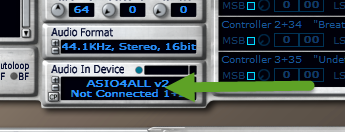
  5. Make sure no other audio apps are running before launching SampleRobot, and then click the little window under where it says Audio In Device. A list of available devices appears. Select any entry in the list that begins with "ASIO4ALL" and then click OK.
    The arrow points to where you should click to select a device. Any "ASIO4ALL" option will work for this step. Also note the little CP button in the lower left of the Audio In Device pane.
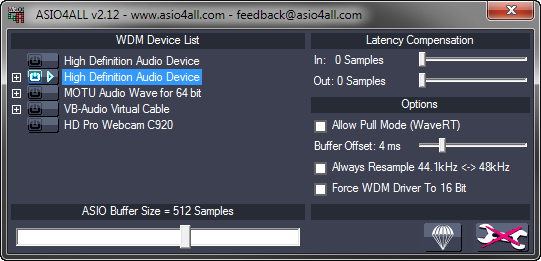
  6. Click the tiny CP button next to the Audio In Device entry you just selected to open the ASIO4ALL control panel. If the Advanced Options button (the big wrench in the lower right) doesn't have a big red X on it, click it once to display the advanced options.
    Your initial settings will look something like this.
  7. To start off with the ASIO4ALL configuration, first disable ALL devices currently enabled. (Click the little power buttons next to any highlighted devices until they are all turned off/unlit. Also, expand any nodes marked with a + sign and make sure their sub-devices are disabled as well.) Next, expand the VB-Audio Virtual Cable node and make sure that only the In option is enabled (do not enable the Out option). Finally, select the In entry under VB-Audio Virtual Cable and move the ASIO Buffer Size slider all the way to the right, for the maximum sample buffer size of 2048 Samples. When you've done everything right, it should look like this:


  8. Once your ASIO4ALL settings are correct, close the ASIO4ALL control panel and then close SampleRobot. This unloads the ASIO4ALL driver, ensuring that it uses your new settings the next time you run SampleRobot.
  9. Launch SampleRobot again and start a new project, either by clicking New in the Projects window or going to File > Project Wizard. Regardless of whether you use the wizard or set your options manually, make sure to choose the following options:

    Audio In Device: ASIO4ALL v2 - VB-Audio Point 1+2
    Audio Format: 44.1KHz, Stereo, 24bit
    MIDI Out Device: LoopBe Internal MIDI
  10. In my screenshot below you can see I've also selected the following:

    Attack Vel: 127
    Note Length: 8 seconds
    Project Settings > Data Path: (a unique folder for this project)
    Note Range: 36/C1 through 51/D#2, 16 notes total, all notes in range selected. (This is the default note range for a Maschine kit.)

  11. Open up the Sound control panel in Windows and locate the CABLE Input device on the Playback tab. Select CABLE Input, and then click Properties.
  12. On the CABLE Input Properties dialog, click the Advanced tab and then select 24-bit, 44100 Hz (Studio Quality) under Default Format. Click OK, and then click OK again.
  13. Start up the instrument you would like to record. If it comes in a standalone EXE version, launch that. Otherwise, load the plugin into your VST host of choice. See part 1 of this series for steps on loading a plugin with VSTHost. Also, don't forget to load up the patch you intend to record!
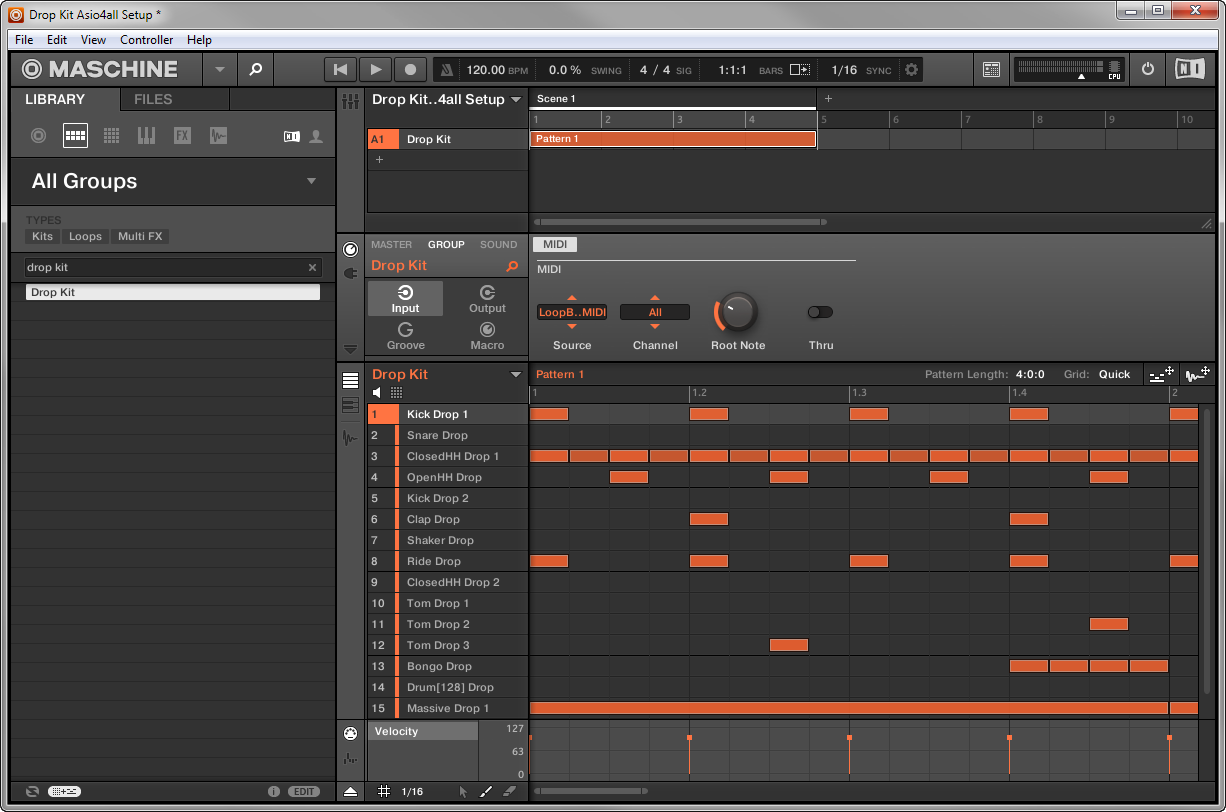
    Maschine, with Drop Kit loaded from the Lucid Mission expansion pack. The Group MIDI settings are set up so that each incoming MIDI note triggers a different Maschine pad.
  14. Locate your instrument's/host's MIDI input settings (in Maschine standalone, you go to File > Audio and MIDI Settings > MIDI > Inputs), and make sure that the option for LoopBe Internal MIDI is enabled. In Maschine you do this by setting the port's Status value to On.

  15. Locate your instrument's/host's audio device settings (in Maschine standalone, it's File > Audio and MIDI Settings > Audio) and make sure to select a Windows Audio driver type (it might be named WASAPI, Wave, WME, Windows Audio, or something similar) and select VB-Audio Virtual Cable as the audio device.

  16. Depending on how your instrument or host works, you might also have to specify how audio from the instrument gets routed. For example, in Maschine, we have to select the Routing > Outputs tab and make sure the main outputs go to the Cable Input L and R.

  17. Switch back to SampleBot. Now that your project is all ready to record, click Rec in the Projects window, and then click Start Recording. You probably won't hear anything while recording is in progress. When recording is complete, little waveforms will appear under the virtual keyboard. You can test the recorded samples by clicking (and holding down) the left mouse on individual notes.
  18. If your samples seem to have completed successfully, go to the Import/Export menu to export the samples into your desired target format. If you're using the default settings, your exported samples will be trimmed down to only contain actual audible audio (which is good!). I like to save my exported files into a new folder called Exports inside my SampleRobot project's Data Path folder. Here's a look at the resulting samples I got after exporting the above project. I am using Resonic Player to preview my samples.

NEXT TUTORIAL


Recording Virtual Instruments with SampleRobot Part 2: Virtual Audio Cable with Windows Audio

This is Part 2 of a 6-part series. Make sure to check out Part 1 for the introduction.

Method One of Four: Virtual Audio Cable with Windows Audio

This is the simplest method I'll describe in this series, and it involves simply sending virtual instrument audio directly to SampleRobot via a virtual audio cable. The instrument I recorded while making the screenshots below was Native Instruments Maschine . The exact MIDI and audio options in your instrument or plugin host might have different names from what you see in the pictures.
  • Difficulty: Easy
  • Advantages: Cheap and easy to do. Suitable for any edition of SampleRobot.
  • Disadvantages: Limited to only 16-bit audio depth.
  • Software Required: VB-CABLE, LoopBe1, SampleRobot (any edition)
How to do it:
  1. Install VB-CABLE if you haven't already. These instructions assume you're using the single "VB-CABLE Driver" version, not the "hi-fi" one.
  2. Install LoopBe1 if you haven't already.
  3. If you just installed either of the above programs, restart your computer before attempting to proceed with recording. Some applications don't "see" their devices until you've rebooted at least once.
  4. Start up the instrument you would like to record. If it comes in a standalone EXE version, launch that. Otherwise, load the plugin into your VST host of choice. See part 1 of this series for steps on loading a plugin with VSTHost. Also, don't forget to load up the patch you intend to record!
    Here I've loaded the Aphasia kit from the Grey Forge Maschine expansion.
  5. Locate your instrument's/host's MIDI input settings (in Maschine standalone, you go to File > Audio and MIDI Settings > MIDI > Inputs), and make sure that the option for LoopBe Internal MIDI is enabled. In Maschine you do this by setting the port's Status value to On.

  6. Locate your instrument's/host's Audio device settings (in Maschine standalone, it's File > Audio and MIDI Settings > Audio) and make sure to select a Windows Audio driver type (it might be named WASAPI, Wave, WME, Windows Audio, or something similar) and select VB-Audio Virtual Cable as the audio device.

  7. Depending on how your instrument or host works, you might also have to specify how audio from the instrument gets routed. For example, in Maschine, we have to select the Routing > Outputs tab and make sure the main outputs go to the CABLE Input L and R.

  8. Launch SampleRobot and start a new project, either by clicking New in the Projects window or going to File > Project Wizard. Regardless of whether you use the wizard or set your options manually, make sure to choose the following options:

    Audio In Device: CABLE Output (VB-Audio Virtual Cable)
    Audio Format: 44.1KHz, Stereo, 16bit (this is the maximum valid bit depth for this particular recording method)
    MIDI Out Device: LoopBe Internal MIDI

    Note
    You won't be able to use the control panel (CP button) or audio in device monitor (the tiny blue button) of SampleRobot with this method because those only work for ASIO devices.
  9. In my screenshot below you can see I've also selected the following:

    Attack Vel: 127
    Note Length: 8 seconds
    Project Settings > Data Path: (a unique folder for this project)
    Note Range: 36/C1 through 51/D#2, 16 notes total, all notes in range selected. (This is the default note range for a Maschine kit.)

  10. When your project is all ready to record, click Rec in the Projects window, and then click Start Recording. You probably won't hear anything while recording is in progress. When recording is complete, little waveforms will appear under the virtual keyboard. You can test the recorded samples by clicking (and holding down) the left mouse button on individual notes (or triggering notes with a MIDI keyboard if you have one specified in the MIDI In Device field- remember to hold down keys to hear the samples ring out).
  11. If your samples seem to have completed successfully, go to the Import/Export menu to export the samples into your desired target format. If you're using the default settings, your exported samples will be trimmed down to only contain actual audio (which is good!). I like to save my exported files into a new folder called Exports inside my SampleRobot's Data Path folder. Here's a look at the resulting samples I got after exporting the above project. I am using Resonic Player to preview my samples.

NEXT TUTORIAL