Showing posts with label komplete kontrol. Show all posts

Tuesday, October 6, 2015

Fixing Native Instruments Product Thumbnails in Komplete Kontrol and Maschine

After several days of installing and patching all my music software on my new DAW PC, I noticed something strange in Maschine 2 and Komplete Kontrol: the thumbnail graphics for a number of my Native Instruments products were missing! Rebuilding the Maschine and Komplete Kontrol databases didn't fix the problem for me, so I took a different approach...


THE SYMPTOMS

Here are some examples of what I was seeing:

Maschine displayed generic artwork on both the product thumbnails in the browser and individual product panels.
Likewise, Komplete Kontrol sometimes showed generic icons and product panels inside the browser.

Both Maschine and Komplete Kontrol give you the ability to rebuild your product database (Preferences > Library > Rescan in both applications), but for whatever reason that wasn't working for me. (And even if it did work, rescanning can take a long time depending on how fast your computer and storage media are.) Thinking I'm probably not the only person who will ever encounter this situation, I decided to add a new wizard to UltimatePluginTool.

THE SOLUTION

To fix this problem, you will need version 1.0 or later of UltimatePluginTool. (You can get the latest version at our downloads page.) Please note that UltimatePluginTool is a Windows application only. I am not a Mac user or developer.

  1. Before you start, it's a good idea to run Service Center and make sure all your products are up to date.
  2. I don't know if this step is necessary, but it's probably a good idea to make sure to quit Maschine or Komplete Kontrol if they're already open.
  3. Launch UltimatePluginTool and select the new option, "Fix Native Instruments thumbnails in Maschine and Komplete Kontrol," then click Next.

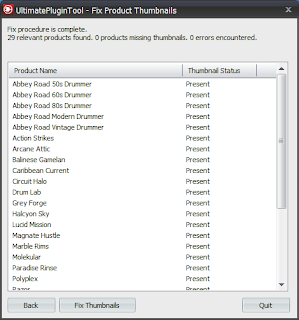
  4. The Fix Product Thumbnails screen will appear, and after a few seconds it should present a list of all applicable Native Instruments products you have installed, as well as whether their thumbnails appear to be installed ("Present") or not found ("Missing"). You can sort the list either by Product Name or Thumbnail Status. (Note: Only products that include their own product artwork appear in this screen. Maschine and Komplete Kontrol have built-in artwork for a number of popular Native Instruments products already.)

  5. Click Fix Thumbnails. UltimatePluginTool will attempt to restore the thumbnail icons to all your installed products, and will update the Thumbnail Status column of each product when it's finished. The text field at the top of the window will indicate if any errors were detected.
    After a successful run.
  6. Re-launch Maschine and/or Komplete Kontrol and enjoy the results!

THE RESULTS

Here's what my Maschine and Komplete Kontrol looked like after I ran the new Fix Product Thumbnails wizard on my DAW PC:
All icons and artwork restored in Maschine.

Also in Komplete Kontrol.

Support UltimatePluginTool

I develop and maintain free software on my own time. I don't charge a fee because I want everyone to have equal access to my programs- but if something I wrote helped you and you'd like to express your thanks in a concrete way, you can send a donation of any amount via PayPal. Support from my visitors covers my hosting and licensing costs, and gives me incentive to keep putting out cool new utilities.

If you wish to help out, you can enter a donation amount below and then click on the Donate button. You do not need a PayPal account in order to donate! Just click the "Don't have a PayPal account" option on the page that comes up after you click the Donate button. The donation amount is in U.S. Dollars (USD).

Amount: $


Note: You might receive a personal "thank you" from me in response, but I won't sign you up for any mailing lists and you won't hear from me again unless you contact me first. Thanks for your consideration!

Sunday, August 9, 2015

Using the Roland FA-06 and FA-08 as DAW Controllers

After several weeks of research, I decided on one of the Roland FA series music workstations to serve as my main MIDI keyboard controller. In this post I talk about why I picked the FA-06 over other keyboard options, what accommodations I had to make in order to fit it into my rig, and how the keyboard integrates with Steinberg Cubase and Ableton Live.

IT WAS TIME FOR A CHANGE

After putting up with minimalistic 49-key and 25-key MIDI controllers for the past few years due to limited desk space in my small studio, I finally decided it was time to move on to a bigger keyboard controller with more features. Until the beginning of Summer 2015, the desk where I did all my music work looked like this:

The old, cramped setup.
My desktop monitors and clunky computer speakers left me so little room that not only could I not fit a very wide (or deep) keyboard controller on the desk to begin with, but when I actually needed to use the desk for writing, I had to disconnect my Roland A-49 controller and rest it against the wall until I needed it again. Since getting a bigger desk (or room) wasn't really an option for me, I developed a game plan for transforming my desk into a workspace that could accommodate a bigger controller and hopefully even leave me a little more surface area than I had before.

Here's what I did:
  • I bought a couple of these Cheetah monitor wall mounts to float my two side monitors over my desk.
  • I bought a Dell S2415H 24-inch monitor to replace my Dell S2440L 24-inch monitor, because my S2440L unfortunately wasn't wall-mountable. Another advantage of the S2415H is that it has built-in speakers, which helped me eliminate the need for desktop speakers.
  • I also got a different Cheetah wall mount for the new monitor, since it was in a corner and needed to extend further than the other two. (A note on both models of Cheetah wall mounts: In order to fasten these to my three Dell monitors, I had to pick up some 20mm-long M4 machine screws and matching washers at a local hardware store. My monitors all have recessed mounting slots that required longer screws than were included with these mounts, and I used the washers as spacers to result in a tight fit.)
  • I also got some mounting hardware to hang my 7-port USB hub to the wall, hidden behind my right-most monitor, leaving my desk completely empty, except for my MOTU Track 16 audio interface.
  • Of course I immediately filled the new-found space on my desk with a luxurious Roland FA-06 Music Workstation.
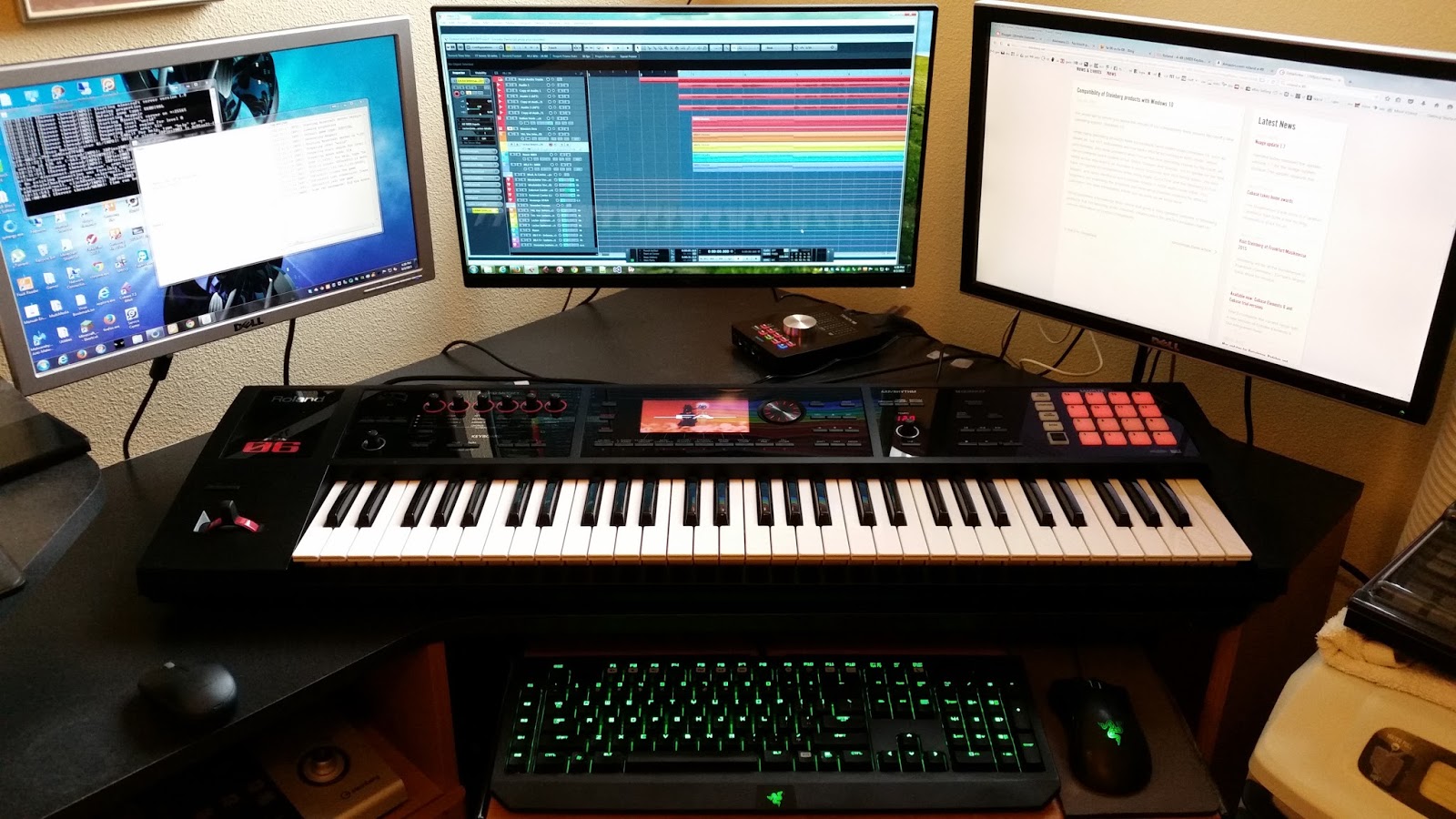
Here's what it looks like now:

The new, spacious setup.
But, you might ask, why did I choose a full-on workstation instead of just a nice MIDI Controller with Cubase integration, like the Nektar Panorama or Roland A-800PRO? Well, that's what the rest of this post hopes to answer.

WHY I CHOSE THE FA-06


My primary reason for wanting to expand from a 49-key to a 61-key controller was to avoid the frequent octave transposing that I had to do on smaller keyboard controllers whenever I used Kontakt instruments or drum samplers that have a GM drum layout. But the more I looked into existing keyboard controllers, the more I realized there were a number of other things I was looking for as well:

  • Requirement: Something that could make sounds of its own. I wanted to be able to work out melodies or chords quickly without having to fire up Cubase and open a DAW project. Straight-up MIDI controllers don't have on-board sound, so I started to look at synthesizers, stage pianos, and workstation keyboards.
  • Requirement: Something that provided some level of DAW control- especially transport controls. When I recorded vocals, I used to put my Steinberg CC121 controller on a TV tray and scoot it next to my microphone stand so I could toggle cycle mode and re-record takes without knocking over the microphone or getting tangled in headphone and mic cables. Transport controls on a MIDI keyboard would put these necessary buttons within much easier reach when I'm set up for tracking vocals. Many hardware synths and stage pianos have some knobs and faders that you can map to different DAW or plugin functions when you're working with a computer, but very few bespoke synths have transport controls. This narrowed my search again to mostly workstation keyboards.
  • Requirement: Something with a reasonable pitch and mod solution. Ideally I'd prefer something with good-feeling independent mod and pitch wheels, but a solid and reliable joystick solution was acceptable. The Yamaha MOXF6, Yamaha MX61, and Kurzweil PC3K6 keyboards have independent wheel controls, so they were under serious consideration. The current KORG offerings have very flimsy looking little joysticks, so I had to scratch them off the list. Also, as nice as the keybed and Komplete integration of the Komplete Kontrol S61 was, I am no fan of those weirdo ribbon controllers it has, so that was out of the running as well. Roland has their own solution, a combo pitch/mod joystick, where both pitch and mod return to the center position when you let go of the stick. While I'm not the biggest fan of the stick, the Roland sticks are much more durable than I've seen in Arturia products, or what I fear the KORG sticks are like, so Roland was still a contender.
  • Nice-to-have: General MIDI support. Often when I'm laying down the initial MIDI tracks for a new project, I use General MIDI patches just because I know the GM sound set so well. It's super easy for me to dial up an acoustic piano here, fretless bass there, and just get my notes and chords down before I start trying to pick the best possible sounds for the job. All the Yamaha, Roland, and Kurzweil keyboards I was considering offered some level of GM support, in that they responded to the typical program changes with appropriate patches.
  • Nice-to-have: Aftertouch support. Of all the keyboards I've owned, I think only one ever actually supported aftertouch- and it was the CME Xkey 25- something just too small and physically shallow for me to do serious work on. I was curious to get a board with aftertouch support just to see what it might add to my work- but this was far from a must-have, since I'd gotten by for so long without it. Neither the FA-06 nor the Yamahas featured aftertouch; only the Kurzweils.
  • Nice-to-have: USB streaming/audio interface support. While this started out as a nice-to-have, now that I've got it, I don't know how I lived without it. Both the Yamahas and the Roland FA series have the ability to serve as an audio interface, meaning you can make them the primary audio device in your DAW. You can plug your headphones into the keyboard and hear both the internal sound and all your other instruments. This is great for me on hot summer days when I don't want to power up my entire rig, which generates a lot of heat. I can just pop a pair of headphones into the FA-06 and do everything I normally do (except record vocals), and the only things I need powered on are the keyboard and my DAW PC. This also means that I can record audio from the keyboard directly into the DAW without any audio cables. Everything can go over USB. The Kurzweil workstations have varying levels of USB connectivity, but they lack anything as sophisticated as the Roland and Yamaha offerings, so Kurzweil was kind of out by this point.
  • Nice-to-have: I'd like to have some actual "desk space" on my desk. Even though I'd freed up a lot of room, my actual working area was still kind of tight. The Yamaha MOXF6 (40.5"x14"x5") was basically the largest possible keyboard I could fit on my desk, so anything smaller with a comparable feature set was desirable. This tipped the scale in favor of the slightly shorter, slightly shallower FA-06 (40"x12"x4").

THE ROLAND FA WORKSTATIONS IN PRACTICE

There are plenty of good reviews already that cover the sounds and the sequencing/sampling capabilities of the FA-06 and FA-08, but I haven't seen anyone talk in much depth about what it's really like to use them as DAW controllers, or how well they integrate with specific DAWs like Cubase or Ableton Live- so that's what I'm going to focus on here.

There are some basic instructions for configuring the FA-06 and FA-08 for DAW control in both the Reference Manual and the Application Guide (available here), but they omit some important steps (and they don't cover Ableton Live setup at all), so first let's go over the steps required for Cubase and Live. From here on out, I'm just going to say "FA-0X" since the steps are the same for both the 06 and 08 models.

SETTING UP DAW CONTROL IN CUBASE

The following steps assume you've already installed the FA-0X driver for your operating system.
  1. Exit Cubase if it is already running.
  2. From the STUDIO SET PLAY screen of your FA-0X, press MENU, then select System and press ENTER.
  3. On the General tab of System Setup, make sure that the USB Driver option is set to VENDOR (MIDI+AUDIO).

    Note
    If you have to change it, you will be prompted to restart your keyboard after you select WRITE. (Please do that before continuing to the next step.)
     
  4. Press the DAW CONTROL button to bring up the DAW Control screen.
  5. On the DAW tab of DAW Control, navigate to the CONTROL MAP line and use the wheel to select CUBASE.

    Important
    Press WRITE and then select OK to store your selection. If you don't do this, the FA-0X will forget its DAW Control settings the next time you power up.
     
  6. If you want to use the FA-0X like a true MIDI controller, select the Controller tab in DAW CONTROL mode, navigate to the Local Switch option and set it to OFF. Now when you play notes on the keyboard, you will only hear the FA-06's internal synth engine in DAW Control mode if it is selected as an output device in your DAW.

    Note
    Don't forget to press WRITE to save your settings.
     
  7. Launch Cubase and go to Devices > Device Setup.
  8. Click the + button and select Mackie Control from the list. This adds a "Mackie Control" entry to the Remote Devices list.
  9. Select the new Mackie Control entry under Remote Devices and set both MIDI Input and MIDI Output to FA-06 08 DAW CTRL.
  10. In the User Commands section of the dialog, you can set custom commands for pads 1-8 of the FA-0X's Sampler section (F1-F8). I do not believe there's a way to make the FA-0X use the "Shift+F1-8" or "User A/B" user commands, so I just leave those blank.
    There are many dozens of commands to choose from.

    Note
    To customize what your FA-0X's knobs and S1/S2 buttons do, go to the Controller tab of the FA-0X while it's in DAW CONTROL mode, and specify which CC value each physical control should use. The S1/S2 buttons can work in Momentary or Latch mode. In Momentary mode, the button fires a single event of the selected CC with a value of 127 when you first press it, and then fires another event of the same CC with a value of 0 when you release the button. In Latch mode, the button toggles between sending a 127-value or 0-value CC event each time you press it, and only fires the event upon pressing the button- not when releasing.

  11. Super Important: Select MIDI Port Setup in the Device Setup dialog and uncheck the "In 'All MIDI'" boxes for FA-06 08 DAW CTRL and FA-06 08.


    None of the documentation I've seen so far explains the difference between the three kinds of ports the FA-0X keyboards present, but unchecking In 'All MIDI' for the DAW CTRL port prevents the assignable sampler pads from transmitting MIDI notes when you're trying to use the pads to issue DAW control commands, and unchecking the box for FA-06 08 prevents Cubase from recording duplicate notes, as described below.

    When your MIDI ports aren't set up right, Cubase will record duplicate notes for anything you play. This has different results depending on which synths or plugins you're using as a sound source, so you may not even realize it's a problem right away. Some plugins will cut notes short when this happens, others will actually leave notes stuck on, just like keys on an old fashioned typewriter get stuck when you press a bunch of them at once.

    If you record a MIDI clip without disabling the extra In 'All MIDI' ports and then open that clip in Cubase's List Editor, you'll see the extra notes quite clearly.
    The problem with duplicate MIDI notes is most obvious in the MIDI List Editor.
  12. Even in DAW Control mode with Local Switch disabled, your FA-0X keyboard still functions as a 16-part multi-timbral synth when it receives incoming MIDI messages from your DAW. You can choose a default studio set to use for whenever you enter DAW Control mode on the Studio Set tab of the DAW CONTROL screen of the FA-0X. On the same screen you can pick which presets to use on each channel of the studio set. Again, remember to press WRITE to save any changes you make here.

SETTING UP DAW CONTROL IN ABLETON LIVE

The following steps assume you've already installed the FA-0X driver for your operating system.
  1. Exit Live if it is already running.
  2. From the STUDIO SET PLAY screen of your FA-0X, press MENU, then select System and press ENTER.
  3. On the General tab of System Setup, make sure that the USB Driver option is set to VENDOR (MIDI+AUDIO).

    Note
    If you have to change it, you will be prompted to restart your keyboard after you select WRITE. (Please do that before continuing to the next step.)
     
  4. Press the DAW CONTROL button to bring up the DAW Control screen.
  5. On the DAW tab of DAW Control, navigate to the CONTROL MAP line and use the wheel to select USER.

    Important

    Press WRITE and then select OK to store your selection. If you don't do this, the FA-0X will forget its DAW Control settings the next time you power up.
     
  6. If you want to use the FA-0X like a true MIDI controller, select the Controller tab in DAW CONTROL mode, navigate to the Local Switch option and set it to OFF. Now when you play notes on the keyboard, you will only hear the FA-06's internal synth engine in DAW Control mode if it is selected as an output device in your DAW.

    Note
    Don't forget to press WRITE to save your settings.
     
  7. Launch Live and go to Options > Preferences.
  8. On the MIDI Sync tab of Preferences, choose MackieControl as one of the options under Control Surface, and then pick FA-06 08 DAW CTRL for both Input and Output on the same row. You might notice that when you do this, the "DAW CTRL" ports disappear from the MIDI Ports list in the lower part of this dialog.
  9. In the MIDI Ports section of the MIDI Sync tab, Make sure that the Input port labeled only FA-06 08 is turned Off, but all the other FA-06 ports are turned On.

    If you don't disable the FA-06 08 Input port, you will encounter a problem where Live accidentally records duplicate notes when you play parts on the FA-0X keyboard. This can result in strange behavior, such as musical notes "sticking" on the FA-0X (or in virtual instruments you're triggering from MIDI parts you recorded with the FA), or notes being cut short unexpectedly. Unfortunately, Live doesn't provide any way for you to actually see evidence of the problem in the user interface. However, if you export MIDI clips recorded in Live to another DAW or MIDI editor, you can see the duplicated notes that happen as a result of leaving the FA-06 08 Input port enabled. In the below screenshot you can see that Live occasionally created extremely short duplicate notes in two parts of this simple sequence.
    Duplicate notes in MIDI recorded inside Ableton Live when the "FA-06 08" Input port was left enabled.
  10. To customize what your FA-0X's knobs and S1/S2 buttons do, go to the Controller tab of the FA-0X while it's in DAW CONTROL mode, and specify which CC value each physical control should use. The S1/S2 buttons can work in Momentary or Latch mode. In Momentary mode, the button fires a single event of the selected CC with a value of 127 when you first press it, and then fires another event of the same CC with a value of 0 when you release the button. In Latch mode, the button toggles between sending a 127-value or 0-value CC event each time you press it, and only fires the event upon pressing the button- not when releasing.
  11. To customize what the Sampler pads do, go to the DAW tab of DAW Control mode and choose CC values and button modes for the User Pad 1-8 settings. These options only appear in the USER DAW profile of the FA-0X. (In Logic, Sonar, and Cubase, you configure the pad functions inside the respective DAW.) Unlike the Logic, Sonar, and Cubase profiles, where you can actually assign DAW-specific commands to the pads, in the USER profile you are limited to only assigning CCs. You also have the option to configure individual pads to operate in Momentary or Latch mode, like the S1/S2 buttons. And as always, don't forget to WRITE.

THE FA-06/08 AS AN AUDIO INTERFACE

If you put the USB Driver setting of the FA-0X into VENDOR (MIDI+AUDIO) mode, the keyboard will appear to your DAW as a 2-in/2-out audio interface.
But the FA-0X is no ordinary audio interface! Here are some things you should know about the interface functionality:
  • By default, audio from internal FA-0X instruments and effects, as well as incoming audio from the analog inputs and the USB audio connection all go to the FA-0X's MAIN outputs, and this output signal goes both to the keyboard's physical MAIN OUTPUT jacks as well as the input channels of your DAW. So, unless you change the default input and output routings, any sound your FA-06 generates, or any sound coming into its inputs can be monitored and recorded inside your DAW without anything connected to the analog outputs of the FA-06. To record the FA-06's output over USB, you simply create a stereo audio track in your DAW and set it to record the FA-06 08 IN and IN(R) I/O ports as a stereo pair.
  • The FA-06 has two kinds of analog inputs: The LINE jack is a 1/8" stereo constant-level input, and the GUITAR/MIC jack is a 1/4" mono input with adjustable gain. (All inputs are unbalanced.) There's also a GUITAR/MIC switch that boosts the GUITAR/MIC signal by an additional 25-30db when placed in the MIC position (this doesn't affect the LINE input). The signals from these two inputs are automatically mixed, and by default these input signals are further mixed with the FA-06's internal sounds, so despite only appearing as a 2-channel interface to your DAW, you can actually record three different sound sources simultaneously into those two channels, similar to recording the output of a small outboard analog mixer.
  • You can change how the various inputs and outputs are routed in various tabs of the System Effects settings.
  • You can avoid experiencing phasing effects in Cubase when working with audio tracks that have track monitoring enabled by enabling the Direct Monitoring feature in Device Setup > VST Audio System > FA-06 08.
  • On Windows, audio applications generally only let you select one audio device (interface) at a time, so if you're using the FA-0X as your audio interface, you won't have access to any of your other audio interfaces while inside your DAW. If you prefer to use a separate audio interface, just use the FA-0X's analog outputs and use it like a regular hardware synth; there is no native way to route its USB audio to another interface. 
  • Also, while the FA-0X keyboards are 16-part multi-timbral, they only have two analog output buses (MAIN and SUB), and only one of those buses is available to the audio interface mode at a time, which means that you can't use the USB mode to record separately mixable parts from the FA-06 into your DAW. (If you had a 4-input external interface, you could record two different stereo parts out of the FA-0X's MAIN and SUB outputs if you assigned them appropriately in your performance settings.) The Roland Integra-7 has twice as many analog outs (and even a digital output connector), so that's where to look if you need lots of separate output channels.
  • When I'm finished using my computer for the day, I turn off my FA-06 and put the computer to sleep. The only times I ever fully shut down or reboot my PC are when I'm making hardware changes or when I install software or updates that require a restart. I have found that sometimes my FA-06 stops functioning as an interface (Cubase and Live can't access it when I select it as an audio device), and the only way to make it work again is to reboot the PC. (Cycling power on the FA-06 doesn't fix it, and attempting to disable/re-enable the driver in Device Manager causes Device Manager to lock up... it appears to be a driver problem rather than a hardware one.) I don't have this issue with any of my other interfaces (including other Roland units), so I really hope Roland fixes this in a future driver update.
In my day-to-day work, I'm finding myself turning on only my FA-06 and using it as my interface while I compose or do audio editing. I usually only power up the rest of the rig if I need to record vocals or hardware instruments (my RME Fireface UFX has balanced mic and line inputs), and my poor MOTU Track 16 has hardly been getting any use at all. (I might retire it at some point, but am still hanging onto it for its digital I/O, which I sometimes use when sampling virtual instruments.)

Also, the way I have my patch bays wired, the FA-06 analog outs default to going into the UFX's analog inputs 1 & 2, and the UFX's main outs default to going to my studio monitors. So I can actually turn everything on and hear the FA-06 through my studio monitors without switching which interface my DAW is using or plugging in any additional cables.
Input from the FA-06 passes directly through the Fireface UFX's main outs, leading to the studio monitors.

I now only have to power up the minimum amount of gear in order to get a given job done, with a minimum of cord patching and audio device switching.

FA-0X INTERFACE LOW LATENCY PERFORMANCE

In terms of low-latency performance, the FA-06 interface is average. It's much better than the Focusrite Scarlett 2i2 or the interface mode of the Access Virus TI2 (both of which I used to own), but not as good as my MOTU and RME interfaces. Like all Roland interfaces I've used, the FA-06's drivers don't use the powers-of-two method for selecting buffer sizes, so in my tests I had to use the closest buffer size I could get: 288 samples.

I tested four different interfaces on my new DAW PC, running 64-bit Windows 7 at 44.1kHz and 256 samples (or 288 samples in the case of the Rolands). Here are the round-trip latency results, as reported by the Oblique Audio RTL Utility (lower numbers are better):

SOUND BANKS AND EXPANSION LIBRARIES

The FA-0X keyboards are much more than simple ROMplers. They support a variety of synthesis methods, and are, in some ways, deeply programmable. But with this power comes a fair amount of complexity. It actually took several weeks of actively using my FA-06 before I fully understood the different classes of sounds it supports, and how those sounds are managed.

There are five top-level categories of "tones" (patches) on the FA-0X keyboards, most of which come from the libraries of other Roland instruments, including the Integra and Fantom lines:
  • SuperNATURAL acoustic tones (SN-A): These are realistic, expressive acoustic instruments that can be customized in the Tone Edit menu.
  • SuperNATURAL synth tones (SN-S): These are more more traditional synthesizer patches that can also be deeply customized in the Tone Edit screen. These tones can comprise up to three oscillators, which can be either PCMs (samples) or traditional synthesizer waveforms.
  • SuperNATURAL drum kits (SN-A): These are high-quality, multi-sampled drum kits with a GM layout. These are fully customizable as well.
  • PCM Synth Tones (PCMS): This bank contains PCM/sample-based sounds. These tones comprise up to 4 layers of PCM sounds. There are several subcategories of PCM Synth Tones:
    1. Presets (PRST): Built-in PCM tones, apparently imported from the Roland XV series of synthesizers. These are user-editable.
    2. General MIDI (GM2): This is a full bank of small-footprint General MIDI patches. To my understanding, this is different from the Integra-7's HQ GM sound set. The FA-series GM2 set sounds very similar to that of my Roland SC-88 Sound Canvas. None of these tones are editable.
    3. Expansion slots 1 & 2 (SLOT1, SLOT2): These are virtual expansion slots where you can install special expansion sets made specifically for the FA-06 and FA-08, which are available at the Axial site. These patches are also freely editable.
  • PCM Drum Kits (PCMD): Drum kits from any of the aforementioned PCM subcategories show up here, and conform to the General MIDI drum layout. Any kits specifically associated with the FA-0X GM2 set are not editable, but non-GM2 presets and downloaded PCMD kits are editable.
Aside from the five types of tones, you can also record or import samples for use on the FA-0X Sampler pads. These samples are stored in a different part of memory from the PCM waveforms used in the various tone categories, and are thus ONLY available for use when triggered by the pads or the built-in sequencer. (As a disappointing side note, the pads do not transmit MIDI note data, so they can't be used to trigger external synths or drum samplers.)

The FA-0X keyboards offer a number of ways to import samples and patches:
  • For samples to use as loops or one-shots on the FA-0X pads, you can either record your own samples or import them from an SD card. 
  • You can download sounds for the Roland Integra-7 from the Roland Axial site, and import them as user presets via a complicated process that uses the included SD card. Sounds you import from downloaded Integra-7 libraries are imported as user presets in the SuperNATURAL synth tones (SN-S) bank.
  • You can download third-party sample packs for the Roland FA series at the FA-06 / FA-08 section of the Axial site. Importing these is an unusually complicated procedure which involves the SD card.
  • Also available at the Axial site are expansion sets designed explicitly for the FA-06 and FA-08 workstations. Instead of installing these via SD Card, you actually import these via USB thumb drive (using the special "FOR UPDATE" USB slot on the back of the unit). In order to import these sounds, you boot the FA-0X into a special mode, and then indicate which expansions to install in which of the two of the keyboard's virtual expansion slots. Sounds imported this way will appear in the PCMS category of sounds, grouped by expansion.
    FA-series libraries labeled "EXP-xx" are real expansion sets that go into the virtual expansion slots.
    The others are just mini sample packs.
    The process for importing expansion packs is very similar to the steps for applying system updates for the FA-0X keyboards.

FINAL THOUGHTS


After a couple of months of using my FA-06 on a pretty regular basis, I am still happy with my decision. The only other keyboard I know of that's really in the same league as the FA-06 in terms of features I was looking for is the Yamaha MOXF6, and while I'm sure it's a fine workstation, I doubt I would be more pleased with it than I am with the Roland. I'll wrap this up with a quick list of pros and cons.

WHAT I LIKE

  • Large and broad selection of high-quality usable sounds.
  • Much more programmable and customizable than I expected. This is no simple ROMpler.
  • Nice-feeling keybed.
  • Lovely, informative display.
  • Good set of physical controls.
  • DAW integration gives me quick access to transport controls and up to eight frequently-used Cubase features at a time.
  • Built-in audio interface enables me to compose and mix without having to power on my whole rig.
  • Axial library provides me access to a surprisingly large number of free new sounds.
  • General MIDI support. (I actually use GM when sketching out ideas!)

WHAT I DON'T CARE FOR

  • Keyboard doesn't support aftertouch (but neither did the competing Yamaha models). 
  • Disappointing implementation of the sampler/pads. I don't care too much about not being able to use my own samples in patches, but I wish I could at least assign MIDI note values to the pads so I could trigger an external drum sampler.
  • Need to use USB thumb drives and SD cards to import different kinds of material, when the keyboard has a USB connection to your PC already. Why not use the connection we already have?
  • Interface mode performs well when it works, but does not seem stable across multiple sleep/wake cycles. Sometimes have to reboot PC in order for DAWs to use the interface again.
  • I wish it had the Integra-7's "HQ GM2" General MIDI bank!


Sunday, July 26, 2015

Setting Up Vocoders in Cubase Part 6: Native Instruments Razor

This is part 6 of a multi-part tutorial on setting up vocoder plugins in Cubase. See part 1 if you missed the introduction.


Razor is a powerful and unique synth produced by Native Instruments, that also has vocoder capability. Unlike all other vocoders we've looked at so far, Razor only supports an internal carrier configuration, using its own synth engine as the carrier. Razor is also not a standalone plugin; it's a Reaktor ensemble, meaning you need either Reaktor, Reaktor Player, or Komplete Kontrol in order to use it.

The screenshots below use the Vocoder Tutorial Projects that you can download at the Ultimate Outsider Downloads page.

USING RAZOR'S INTERNAL CARRIER

This configuration requires an audio track or group channel to serve as the modulator (voice), and a MIDI track to play the carrier signal on the plugin's synth. The Vocoder Internal Carrier demo project in the tutorial projects download is already set up for this.
  1. In the Vocoder Internal Carrier demo project (or your own Cubase project), add Reaktor5 FX or the FX version of Reaktor Player as an insert on the audio track or group channel you wish to use as your modulator. (If you are using a group channel in a Cubase project of your own, make sure that your modulator source's output is not routed to Cubase's "Stereo Out," because if it is, then you will always hear the raw modulator audio mixed in with Razor's outputs.)


  2. Inside Reaktor, open the Player tab and expand the Razor folder, then drag the Razor.rkplr ensemble to where it says, "Drag a file from the browser here." Razor will appear shortly after.
  3. Only some of Razor's presets use the vocoder capability. For just starting out, I recommend the Green Hornet Razorcoder preset.

  4. On your MIDI track's inspector, route the track's MIDI output to your Razor instance, as shown here:
  5. Begin playback on a section of your project that loops your modulator and carrier tracks. You should now hear a vocoded harmony line and see activity in the spectrogram portion of the instrument. If you don't hear anything, make sure you've got a known-good preset selected (like Green Hornet Razorcoder), and check your audio and MIDI routing.

If you followed along using the tutorial project, the result should sound like this:

Conclusion

If you were successful in following the above use cases, you should now be able to jump in and explore Razor's various features.

In the next part of this tutorial, we'll set up mda Vocoder and the Steinberg Vocoder...

Sunday, May 31, 2015

Native Instruments Sales on Komplete, Maschine, and Traktor: A Historical Review

When it comes to Native Instruments, one thing people speculate about almost as often as when the next version of Komplete will be released is when the next big Native Instruments sale is going to happen. While no one outside the company can answer those questions with any certainty, studying the past can often help us make better guesses about what is yet to come. It is in that spirit that I embarked on a historical review of official Native Instruments sales.


After several days of hunting down information on every sale I could find involving the company's Komplete, Maschine, and Traktor lines, I compiled a worksheet that indicates the dates when the sales were in effect, and which products each promotion included. I color-coded each sale to indicate which time of year it fell under so I could get a better idea of what kinds of sales Native Instruments typically offers in the different seasons. The Legend tab describes the different columns, and the Stats tab has a few bits of analytical data that are automatically updated whenever I add a new sale to the list, plus some "manual stats" that I tally up by hand after making major updates. You can click the image below to visit the worksheet. The rest of this post is an analysis of the data, plus some other details about the worksheet.

Click the image above to view the raw data.

Understanding the Data

Here are some things I observed after compiling the information. Please note that as the worksheet evolves over time, some of the numbers below might go out of date- but they are accurate, based on my current information, as of June 1, 2015:
  • Of all the types of sales Native Instruments offered that I could find, discounts on new purchases of Komplete bundles were the most rare (only 9% of all sales as of this writing), and discounts on upgrades or crossgrades to Komplete were the second-most rare (21%). Please see the "Notes About the Worksheet" section for the distinction between new purchases and updates/upgrades/crossgrades.
  • When there was a sale on Komplete bundles, it has always been either for new purchases or for upgrades/crossgrades- not both. Although the different kinds of Komplete bundle discounts haven't been offered simultaneously, they occasionally occurred within a couple weeks of each other (2012, 2014).
  • The most common season to find discounts on new Komplete bundle purchases was Summer (4 times out of 5 total sales), and the most common time for discounts on upgrades and crossgrades to Komplete was Spring (7 out of 12 sales).
  • The most common season for Maschine-related sales was Autumn (7 out of 16 sales).
  • The most common times for sales and specials involving Traktor were Autumn (7 out of 22 sales), followed closely by Summer (6 out of 22 sales).
  • Historically, the busiest season for Native Instruments sales is Summer (32% of all sales I've recorded so far). Autumn and Spring are tied for second (at 25%), while the Winter months were the least likely to see new sales, accounting for only 18% of the sales I could find data for.
  • Of all the promotions I discovered that were in effect during a Black Friday, only one of them offered a discount on Komplete bundles (the Thanksgiving XXL sale in 2013), and that was only on upgrades, not new purchases. Not a single Black Friday sale I found included new purchases of Komplete or Komplete Ultimate.
  • Although sales on full Komplete bundles are not very frequent, if you include sales involving individual Komplete-line products (synths, samplers, instruments, effects), more sales have been recorded for that product line (48%) than for Traktor (39%) or Maschine (29%). (Which is probably not surprising since, the Komplete line is the most mature and has the broadest number of total products.)
  • Over half of all promotions recorded involve Native Instruments hardware, whether it's for Maschine, Traktor, audio interfaces, or the new Komplete Kontrol keyboards.
  • Specific Traktor models covered in previous sales include: Traktor Audio 2 DJ, Audio 4 DJ, Audio 8 DJ, Traktor Kontrol S4, Traktor Kontrol X1, Audio 6, Audio 10, Traktor Kontrol S2, Traktor Kontrol Z1, and Traktor Kontrol Z2.
  • Specific Maschine models covered in previous sales include: Maschine, Maschine Mikro, and Maschine Studio.
  • Hardware products from the Komplete line that have been covered in previous sales include: Komplete Audio 6, Komplete Kontrol S25, Komplete Kontrol S49, and Komplete Kontrol S61.

Notes About the Worksheet

  • In cases where a given promotion straddled two different seasons, you'll find that the Start Date and End Date fields of that sale will be colored differently, while only one color is used in the columns indicating what kind of products are covered in that sale. I chose the color/season based on which season held the most days of that specific promotion. This is why many sales during the Christmas shopping season are marked red; because they ran for more days at the end of Autumn than they did at the start of Winter.
  • The Hardware column in the Data tab of the worksheet straddles all Native Instruments product lines (even Kore). Maschine and Traktor have their own columns, but since some sales in those product lines only involve software (Maschine expansions or Traktor Pro upgrades, for example), you can cross-reference to the Hardware column to determine what kind of sale it was.
  • Regarding sales that involve Komplete bundles, I consider a promotion a "new purchase" if customers are not required to either previously own or make a new purchase of any other Native Instruments product. A sale that requires you to own another Native Instruments product is a crossgrade. Sometimes there are "bundle" discounts where you get a reduced price if you buy two items at the same time- for example the "Dynamic Duo" sale from Winter of 2014 where you could get a discount on Komplete 9 if you bought it along with a Maschine. There was one deal from 2008 where you could get a discount on Komplete 5 if you could prove you owned one of a handful of specific third-party DAWs. I didn't count that as a crossgrade since it didn't require ownership of a Native Instruments product.
  • I had multiple sources of varying degrees of accuracy for sale information. If you see a different start date listed for a sale than what you see listed at the Reference link for that sale, it probably means I found another source with more accurate date information. Stop dates were much easier to verify for sure.
  • The great majority of the sale data I found was between the years of 2010 and 2015. As of this writing I've only found solid information on five sales previous to 2010. I'm sure there were many more sales; it's just increasingly hard to find this info.

Credits

These sites were invaluable in my data mining efforts:
If you have any corrections or know of any sales I missed, please let me know in the comments. Thanks!

Thursday, March 12, 2015

Video Tutorials: Fixing Maschine, Reaktor, and Komplete Kontrol Problems with UltimatePluginTool

I've just updated UltimatePluginTool to version 9.0.0.2 (you can check the release notes in the latest installer for details), and I made a couple of tutorial videos that demonstrate how to fix a number of common problems with Native Instruments Maschine, Kontakt, Reaktor (and other products).

Using UltimatePluginTool to Fix Problems with Kontakt and Reaktor


Fixing Problems in NI Maschine and Komplete Kontrol with UltimatePluginTool

Support UltimatePluginTool

I develop and maintain free software on my own time. I don't charge a fee because I want everyone to have equal access to my programs- but if something I wrote helped you and you'd like to express your thanks in a concrete way, you can send a donation of any amount via PayPal. Support from my visitors covers my hosting and licensing costs, and gives me incentive to keep putting out cool new utilities.

If you wish to help out, you can enter a donation amount below and then click on the Donate button. You do not need a PayPal account in order to donate! Just click the "Don't have a PayPal account" option on the page that comes up after you click the Donate button. The donation amount is in U.S. Dollars (USD).

Amount: $


Note: You might receive a personal "thank you" from me in response, but I won't sign you up for any mailing lists and you won't hear from me again unless you contact me first. Thanks for your consideration!

Sunday, February 1, 2015

Troubleshooting Native Instruments Problems with UltimatePluginTool

There are a number of common problems people encounter with Native Instruments products that are easy to fix once you discover the root cause. Unfortunately, some of the error messages you get when the problems occur are vague or misleading. I wrote UltimatePluginTool to help folks identify and correct these issues. In this article I'll walk you through how to fix the following errors:
  • "Loading Issue: Could not load plug-in" (Komplete Kontrol)
  • "Error: Unable to load Slot" (Maschine)
  • "Load Plug-in: Could not load 1 or more plug-ins!" (Maschine)
  • "Error while reading file: This file was saved with a newer version of Reaktor!" (Reaktor)
  • "This patch was generated by a newer version of the application. Please upgrade your copy to load the patch." (Kontakt)
  • "Loading Issue: Plug-in failed loading. The plug-in is likely too old and needs updating." (Komplete Kontrol)
Note: While this article and UltimatePluginTool are specifically for VST plugins on Windows operating systems, some of the information here may apply to other plugin formats and platforms.

1. Download and install all your Service Center updates

Before we get started with UltimatePluginTool, it will help to make sure that all of your Native Instruments products are activated and up-to-date. Launch the Native Instruments Service Center and make sure you see the "All products are activated" message on the Activate tab. If you don't, go to the Update tab and download/install any pending updates.


Note: It is still possible to get errors about Reaktor and Kontakt instruments being saved with newer versions of those products even after you've installed all your updates. UltimatePluginTool will help you fix those errors if you perform the following steps. You should just be sure you've installed the updates before you proceed.

2. Install and launch UltimatePluginTool

Download and install UltimatePluginTool from the Ultimate Outsider downloads page. If you accept the default installation options, UltimatePluginTool will launch automatically once setup is complete. (Otherwise you should find shortcuts for it on your desktop and your Start menu.)

You should also make sure to quit any DAWs, plugin hosts, or Native Instruments software before you continue.

3. Scan for duplicate plugins

If you have multiple copies of different versions of plugins scattered about your various plugin search paths, DAWs and plugin hosts can get confused, loading an outdated version of the plugin even after you've installed updates. On the UltimatePluginTool Start page, select Find duplicate VST plugins and click Next.


If you are running 64-bit Windows, you'll have a choice of whether to search for 32-bit or 64-bit plugins, since those files are normally installed in different locations. Choose which plugin type you'd like to check for first, and then make sure your desired plugin paths are listed under Plugin folders.

The first time you run this wizard, UltimatePluginTool tries to detect some common plugin locations on your system. If you use different folders than those that UltimatePluginTool finds, you can make the appropriate changes now with the Add New and Remove buttons. The program maintains different folder lists for 32-bit and 64-bit plugins.

The program discovered some plugin folders on this computer. If you keep folders in other locations, use Add New to locate and include them in the search.

Click Next. UltimatePluginTool will search your plugin folders for any duplicate files, or for unsupported files (for example, 64-bit plugins in your 32-bit plugins folder). Once the scan is complete, some statistics will appear in the Search status portion of the screen, and if any duplicates or unsupported files are found, their names will appear in the Duplicate files and Unexpected files lists below.

The results of a scan for 32-bit duplicates. Since 'show duplicates' is unchecked, only files with duplicates are displayed at the moment.
  1. Select a filename in the Duplicate files list to see more information about the specific files discovered.
  2. In the above example we can tell that the first file in the details list is the older one by its Date and Version number. Selecting a file in the details list enables the three action buttons on the right.
  3. To remove the outdated file, click Delete, then click Yes when asked whether you would like to proceed.
Remember to re-run this wizard if you are running 64-bit Windows, in case you still need to scan for 32-bit or 64-bit plugins. See the included user guide for more information about the Find Duplicate VST Plugins wizard.

4. Look for wrong or broken file paths

Once you're sure there aren't any duplicate copies of your 32-bit or 64-bit plugins in your various plugin folders, re-launch UltimatePluginTool or navigate back to the Start page. Select Manage installed Native Instruments products, and then click Next.


Note: If you have a large number of Native Instruments products installed, or if you have some very old 32-bit-only products installed, the product scan might take a minute or two the first time you run it. Once the scan is complete, it will populate the "Product information" list with all products discovered on your system.

To check for file location problems, make to check the options to show apps and plugins, content libraries, bundles, drivers and utilities, and broken folder items. Also make sure to uncheck Show valid folder items, like in the following screenshot:

The above settings will display only products with detected file path problems.
In the above example, UltimatePluginTool discovered that it couldn't find the Kontakt 5 plugin in the folder where it's supposed to reside. This happened because we just used the duplicates finder to delete the outdated version of the plugin that had been located in that folder. Even though we know there is a recent version of Kontakt 5 in our plugin search paths, if the plugin isn't located in the exact folder specified on this screen, then Komplete Kontrol and Maschine won't be able to find the plugin if you try to load any Kontakt instruments with them.

To select the correct folder, click the Options button next to the folder you need to change. This opens the Change Folder dialog:


This dialog lists all the folders that all currently installed Native Instruments products (including the current one) are already using. If you see the folder you want already listed, just select it and then click the Use for (product) only button. In our case, the folder we need isn't listed, so we need to click Select Another Folder and locate the folder. Once the folder's selected, we can click Use for (product) only to continue.


After you select a different folder, UltimatePluginTool re-checks the paths. As we can see here, we selected the correct path, and we have the latest versions specified for the application, 32-bit plugin, and 64-bit plugin files.


5. Check product bundle associations (Komplete Kontrol)

The Komplete Kontrol software is explicitly designed to only work with Komplete 9 or Komplete 10, and this requirement has some side-effects that surprise some Komplete 9 and 10 owners.

Consider this example: Reaktor 5 is available as a standalone product, and has also been in every Komplete release since 2005- however if you didn't use a Komplete 9 or 10 installer to install or update Reaktor 5 on your PC, Komplete Kontrol will not work with your existing copy.

You can encounter this problem even if you are a legitimate Komplete 9 or 10 owner and you've used the Komplete installer to install other products on the same PC. Many Komplete owners who already have previous versions installed on their PCs choose not to install the pre-existing products when installing a new Komplete version. Up until the release of Komplete Kontrol, this was the fastest way to safely install new versions of Komplete. (And sometimes the ONLY way, due to the way the Komplete installers calculate disk space required before allowing you to proceed with setup.)

Unfortunately, it is now necessary to perform a complete installation of Komplete 9 or 10 in order to make sure all your applications and libraries are recognized by Komplete Kontrol as belonging to the supported bundles. This is because the Komplete installers are special. Even though the Reaktor 5 you bought in 2005 is technically exactly the same program as the version included in Komplete 10 (assuming you've kept up with your Service Center updates), the Komplete 10 installer associates any product it installs or upgrades with that specific bundle. All Komplete installers do this, but it wasn't until the release of Komplete Kontrol that this fact actually mattered.

Anyway, here's how you can use UltimatePluginTool to determine if this is what's happening on your computer.

On the Start page, select Manage installed Native Instruments products, and then click Next.


Once the product scan is complete, make sure to select the options to show apps and plugins, content libraries, valid path items, and broken path items. Now any products you select items in the Product information list that are associated with a Native Instruments bundle will show some information in the Bundle field, like this:


Beginning with Komplete 8, there is some overlap between the "Ultimate" bundles and the regular Komplete releases. For example, as shown in the screenshot above, Abbey Road 50s Drummer is only available in Komplete 10 Ultimate, so that's what appears in the Bundle field in UltimatePluginTool. However, if we had selected Battery 4- which is included in both Komplete 10 and Komplete 10 Ultimate, then the Bundle field would just read "Komplete 10" even though this computer has the full Komplete 10 Ultimate package installed. This shouldn't be an issue, though- it's the version number that matters to Komplete Kontrol.

If you have Komplete 9 or 10 (regular or Ultimate) installed, and a product you select on this screen is blank or is associated with an earlier version of Komplete, then you'll need to re-run the Komplete 9 or 10 installer to update your installation and associate it with your bundle in order to get it working properly in Komplete Kontrol.

Note: Misleading Warnings in Maschine and Komplete Kontrol

Both Komplete Kontrol and Maschine will report "could not load plug-in" even if the preset you tried to open isn't directly associated with a plugin. For example, Rise & Hit is not itself a plugin; it's a Kontakt instrument. But if there's something wrong with your Kontakt configuration, this is what happens when you try to open a Rise & Hit preset in Maschine:


To make it easier to troubleshoot, here's a list of all the products that appear in Maschine and Komplete Kontrol that aren't standalone products. So if you get an error while trying to launch one of them, remember to also check the settings of the actual plugin (Kontakt or Reaktor) they're associated with for problems:

Kontakt Instruments supported in Maschine and Komplete Kontrol

  • Abbey Road 50s Drummer
  • Abbey Road 60s Drummer/Drums
  • Abbey Road 70s Drummer/Drums
  • Abbey Road 80s Drummer/Drums
  • Abbey Road Modern Drummer/Drums
  • Abbey Road Vintage Drummer
  • Action Strikes
  • Action Strings
  • Alicia's Keys
  • Balinese Gamelan
  • Berlin Grand
  • Cuba
  • Damage
  • Drum Lab
  • Evolve Mutations
  • Evolve Mutations 2
  • Evolve R2
  • George Duke Soul Treasures
  • Kinetic Metal
  • Maschine Drum Selection
  • NY Grand
  • Retro Machines
  • Rise and Hit
  • Funk Guitarist
  • Jay-Bass
  • MM-Bass
  • MM-Bass Amped
  • Pre-Bass
  • Pre-Bass Amped
  • Rickenbacker
  • Vintage Keys
  • Session Horns
  • Session Horns Pro
  • Session Strings Pro
  • Studio Drummer
  • The Gentleman
  • The Giant
  • The Grandeur
  • The Maverick
  • Upright Piano
  • Vienna Grand
  • Vintage Organs
  • West Africa

Reaktor Ensembles supported in Maschine and Komplete Kontrol

  • Kontour
  • Monark
  • Polyplex
  • Prism
  • Razor
  • Rounds
  • Skanner XT
  • Spark

Final Thoughts

I have some features in the works that should make solving these problems even simpler, so stay tuned. This should at least be enough to help you root-cause the various issues you're having and know what to do to fix them.

Support UltimatePluginTool

I develop and maintain free software on my own time. I don't charge a fee because I want everyone to have equal access to my programs- but if something I wrote helped you and you'd like to express your thanks in a concrete way, you can send a donation of any amount via PayPal. Support from my visitors covers my hosting and licensing costs, and gives me incentive to keep putting out cool new utilities.

If you wish to help out, you can enter a donation amount below and then click on the Donate button. You do not need a PayPal account in order to donate! Just click the "Don't have a PayPal account" option on the page that comes up after you click the Donate button. The donation amount is in U.S. Dollars (USD).

Amount: $


Note: You might receive a personal "thank you" from me in response, but I won't sign you up for any mailing lists and you won't hear from me again unless you contact me first. Thanks for your consideration!