Tuesday, September 2, 2014

The Complete History of Komplete - All Native Instruments Komplete Versions Compared

All the Kompletes
UPDATE (May 7, 2020): I am no longer able to stay on top of this stuff, but user gNNY from the Native Instruments forum has continued my work with his own version of the database. Please see the new "Native Instruments Komplete Version Comparison 2.0" for the latest updates on Komplete bundles.

UPDATE (August 1, 2016): The comparison chart has now been updated for Komplete 11!

In 2003, a seven year old Native Instruments knew what it wanted to be when it grew up: The dominant force in virtual music instruments. When they packed their nine best products into one giant box and dubbed it "Komplete," the message was clear: Why go anywhere else for software instruments when everything you need is right here? Today's Komplete Ultimate bundles are the soft-synth equivalent of Waves Mercury. No other single virtual instrument publisher offers quite the breadth and depth that the Komplete series has consistently delivered since that first big blue box hit store shelves.

Product Comparison of all Komplete Versions


Every year or two when a new Komplete release looms, music message boards light up with users asking, "If I have version X of Komplete, what would I gain by upgrading to version Y?" This hasn't always been an easy question to answer, because Native Instruments preserves very little information about older products on their site. To satisfy my own curiosity, and to help my fellow KLFs (Komplete Lovin' Fools), I spent a fair amount of time compiling the contents and release information of every Komplete bundle since the series debuted.
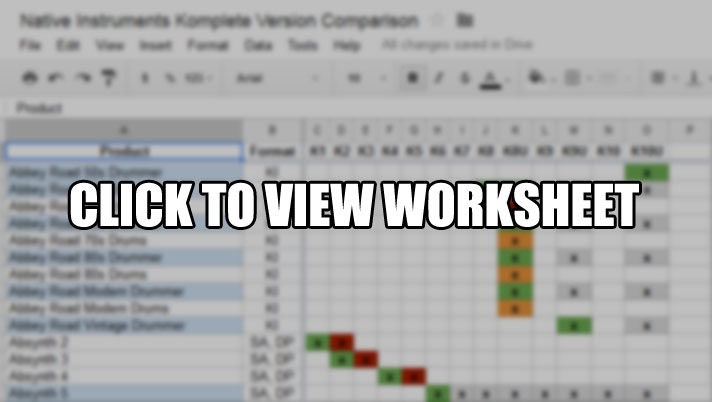

Click image to view the Komplete product version comparison worksheet.

You can find my detailed product comparison of all Komplete versions right here. It lists every major version of every individual product that was ever included in a Komplete bundle, and when each product was introduced or discontinued. The Legend tab describes the color scheme used in the worksheet (green products are first-appearance-in-Komplete, red products last-appearance/discontinued, etc.) The Release Details tab gives detailed stats on each Komplete bundle (month and year of release, price, number of products, etc.).

The worksheet and its tabs represent the raw data, and what follows is some various trivia and analysis of Komplete over time.

Ultimate Notes

  • The first "Ultimate" bundle was 2011's Komplete 8 Ultimate. Unlike "standard" Komplete releases, which are a selection of popular products in the Komplete product line, Ultimate bundles contain the entire Komplete catalog of software products as of a specific date which  Native Instruments specifies.
  • Any new products in the Komplete line that Native Instruments brings to market after a Komplete Ultimate release date are usually not grandfathered into that pre-existing Komplete bundle (although there have been occasional exceptions). Those new products generally will be included in the next major Komplete Ultimate bundle, however.
  • Another distinguishing feature of Komplete Ultimate bundles is the fact that they ship with small USB hard drives for installation instead of DVDs. The Komplete Ultimate hard disks are not used at product runtime, and aren't intended to store any information other than the product installers. They are only provided to facilitate installation.
  • Neither Komplete 8 Ultimate or Komplete 9 Ultimate are available in downloadable form. Registered owners of standard Komplete 8 and 9, however, are granted download access to the ISO images of the DVD install discs in the event that their discs are damaged or misplaced.

Discontinued Products


Over time, Native Instruments has discontinued a number of products that once featured in earlier Komplete bundles.
  • Acoustic Refractions (Komplete 7) was the only full Kore soundpack included in a Komplete bundle, although some content from other Kore packs has trickled into various Komplete products since Kore was discontinued. Kore was a hybrid hardware/software product that acted as a sort of master library and control center for your Native Instruments sounds. Some see Maschine as an evolution of the Kore concept, although Maschine lacks Kore's advanced sound morphing engine. See the Kore Soundpacks section later on for more details about that product line.
  • The Akoustik Piano and Elektrik Piano Kontakt instruments that appeared in Komplete releases between 2005 and 2007 were discontinued, however most of their samples were reused in other Kontakt piano instruments that are still available today (and included in current Komplete Ultimate releases). The four real electric pianos sampled for Elektrik Piano were the Fender Rhodes MK I and MK II, Hohner Clavinet E7 and Wurlitzer A 200. These instruments now appear in the Band > Electric Pianos folder of the Kontakt Factory Library. Read on to learn what happened to the Akoustik Pianos samples.
  • The contents of the Classic Piano Collection appeared in all Komplete bundles from Komplete 7 through Komplete 9 Ultimate. The samples used in these instruments come from the discontinued Akoustik Piano product, although any references to the original manufacturers and piano models were removed from the Piano Collection versions. The original pianos used for Akoustik Piano were the Steinway D, Bechstein D 280, and Boesendorfer 290 Imperial, and the charismatic Steingraeber 130. In Kontakt, the new instruments appeared as individual products in the Library tab as New York Concert Grand, Vienna Concert Grand, Berlin Concert Grand, and simply Upright Piano. These products were discontinued in 2014 in favor of the new pianos that debut in Komplete 10.
  • B4 Organ (Komplete 1-5) was a popular emulation of  the Hammond B-3 organ. In 2005, Native Instruments even released a bespoke MIDI controller just for B4, called the B4D Organ Controller. While the Vintage Organs Kontakt library includes a "Tonewheel Organ B3" instrument that represents the B-3, it is purely sample-based whereas B4 was synthesized. 
  • Intakt was a slicing and looping sampler that had several features which now appear in Maschine.
  • Kompakt was a multi-timbral sample player based on the Kontakt engine which has more or less been replaced by Kontakt Player.
  • Reaktor Session (Komplete 1) was a stripped down version of Reaktor 4. It had the full engine, so was capable of playing any existing Reaktor ensembles, but apparently couldn't be used to create new instruments. Replaced by the modern Reaktor Player.
  • NI-Spektral Delay was a sophisticated FFT-based stereo delay effect, and one of Native Instruments' earlier products. It was officially discontinued in 2007 because the potential benefits of keeping the product alive did not justify the effort required to keep it up to date with evolving computer and DAW architectures.
  • Vokator was an advanced FFT-based vocoder. Like NI-Spektral Delay, keeping the product current proved to be more trouble than it was worth, so the company discontinued both products in 2007.
  • Pro-53 was actually Native Instruments' third and best emulation of the Sequential Circuits Prophet 5 analog synthesizer. The earlier emulation products were Pro-Five and Pro-52. While there are some Prophet samples in the Retro Machines Mk2 Kontakt library included in all current Komplete bundles, Native Instruments does not currently offer any true Prophet emulations.
  • In 2007, Native Instruments released three bundles under the Komplete banner. Alongside the major Komplete 5 release, there were two subset bundles: Komplete Synths, with Absynth 4, FM8, Massive, and PRO-53- and Komplete Classics, with Akoustik Piano, B4 II, Elektrik Piano, and... PRO-53. They didn't release multiple Komplete SKUs again until Komplete 8, when they introduced the Ultimate concept.
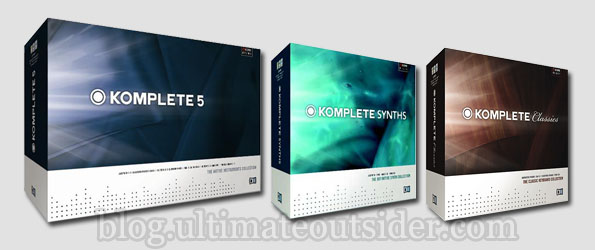
    The 2007 Komplete bundles.

Kore Soundpacks

While Native Instruments sells many expansion packs for Maschine, occasionally distributes free remix sets for Traktor, and frequently promotes third-party Traktor remix sets, they do not currently market any expansion sets for the Komplete product line. This wasn't always the case, however.

During the heyday of the Kore product line, Native Instruments sold around 30 different Kore Soundpacks, which employed the various engines behind Native Instruments' flagship Komplete instruments. While most of the soundpacks focused on a single engine (there were several Massive and Absynth packs, for example), a number of them included patches that used several engines together, taking advantage of Kore's powerful sound morphing capabilities.

After Native Instruments discontinued the Kore line, a lot of content from the original Kore soundpacks made its way into various aspects of the remaining Komplete products. After a fair amount of research, I've compiled a list of all Kore soundpacks that were released, and where they ended up in Komplete. You can find the full list here. (It's a tab on the main Komplete comparison worksheet.)


Click image to view Kore Soundpacks worksheet.
While content from about half of the soundpacks is still available in Komplete in one form or another, please note the following:
  • Around half of the soundpacks are simply not available in any manner in Native Instruments' current line-up. Most of these were either produced by third-party developers or were too complex to break out into presets for any single Komplete product.
  • While a number of soundpacks used only a single Komplete engine, many used more than one. So even though the content from an original soundpack might appear today as a Massive, FM8, or Absynth sound bank, for example, it might be missing presets that relied on different engines.
  • Without Kore, you lose the ability to take advantage of its sound morphing; today you only have individual presets.
  • Many of the Kore "sound variations" from the original soundpacks didn't make the translation into individual Komplete preset libraries.

Freebies and Upgrades

  • Komplete 2 initially shipped with Battery 1 and Absynth 2, but in late 2004, Native Instruments granted free upgrades to Battery 2 and Absynth 3 to all registered Komplete 2 owners.
  • Driver was offered as a free gift to Native Instruments customers registered as of late 2012, but was later released as a commercial product and made its Komplete debut in 9 Ultimate.
  • Komplete 8 and 8 Ultimate included Abbey Road "Drums" products at launch, but several months later, when Native Instruments released improved "Drummer" products (which included MIDI grooves), existing Komplete owners received the new versions as a free update.
  • Komplete 8 Ultimate owners got free upgrades to the Solid Mix Series and Vintage Compressors effects when those items were re-released as standalone plugins. 
  • Driver and Session Horns were originally exclusive to the Ultimate bundles, but beginning with Komplete 10 they are now part of the "standard" bundle.

Series and Collections

  • The Discovery Series of Kontakt instruments has appeared in Komplete Ultimate bundles since Komplete 8 Ultimate. It includes Balinese Gamelan, a "lite" version of a Soniccouture product of the same name, Cuba, which was produced for Native Instruments by e-instruments, and West Africa, which Native Instruments produced entirely in-house. In 2009, Native Instruments released the first entry, Discovery Series: North India, as a Kore soundpack. Although Kore soundpacks are no longer sold separately, all instruments from that soundpack are currently part of the "World" category of the Kontakt 5 factory library.
  • While the Reverb Classics plugins (RC 24 and RC 48) are listed on the box art for Komplete 9 Ultimate, the installer drive for K9U did not include those plugins at launch. Registered K9U owners received download links a couple days after registering on Service Center, but users could also download the Demo versions of the plugins from the Native Instruments site and use them as fully licensed products without needing an additional product key.
  • The Solid Mix Series, which includes Solid Bus Comp, Solid Dynamics, and Solid EQ, was originally only for Guitar Rig, but in early 2013 Native Instruments re-released them as standalone plugins. Registered Komplete 8 Ultimate owners got these updates for free. They still appear in Guitar Rig under "Solid Mix Series."
  • The Softube-developed Vintage Compressors line, made up of VC 160, VC 2A, and VC 76, was also originally exclusive to Guitar Rig, but was re-released as standalone around the same time as the Solid Mix Series. They still appear in Guitar Rig under "Vintage Compressors."
  • The Grandeur, The Maverick, and The Gentleman comprise the Definitive Piano Collection (mentioned in some leaked copy as the "Essential Pianos Collection") that replaces the now discontinued Classic Pianos Collection in Komplete 10. The new instruments were produced by Galaxy Instruments, who also produced The Giant and Rise & Hit.

Plugin and Application Formats

  • Since the very first release, all Komplete editions have fully supported both Mac and Windows (32-bit).
  • Komplete 6 was the first edition to include 64-bit installers for some products (in addition to the pre-existing 32-bit versions), but it wasn't until a 2011 software update several months after Komplete 7's release that all Komplete products were available in 64-bit formats on both Mac and PC.
  • Every version of Komplete has included both standalone and plugin versions of major products such as Reaktor, Absynth, and Kontakt. Initial plugin support in 2003 was 32-bit VST 2.x, AU, DirectX, and RTAS.
  • To date Native Instruments has never supported Steinberg's VST 3 format.
  • Komplete 7 was the first release to include any products that weren't stand-alone applications or DAW plugins. It included Kontakt instruments, Reaktor ensembles, and even a Kore soundpack.
  • Native Instruments dropped the DirectX plugin format sometime between 2006 and 2007. (Unclear whether Komplete 5 included any DirectX plugins. There definitely weren't any in Komplete 6.)
  • In October 2013, Native Instruments added AAX plugin support to all relevant products, enabling 64-bit functionality in Pro Tools 10 and 11. Komplete 10 will be the first Komplete bundle that ships with AAX support in-the-box.

Licenses and Registration

  • Native Instruments debuted the Service Center application for product activation in 2006, and Komplete 4 was the first Komplete release to include it. However, upon Service Center's introduction, the activation process for older products, such as Komplete 2 and 3, was changed to use Service Center as well. (Users had to import a key file into the Service Center application to activate those products.)
  • Native Instruments commonly offers attractive upgrade or crossgrade prices to owners of previous Komplete bundles or qualifying products in the Maschine or occasionally Traktor product lines, enabling loyal customers to affordably stay up to date with Komplete. It is important to note that once you use a qualifying product in order to get an upgrade or crossgrade discount on another Native Instruments product, their licenses become linked. So, for example, if you use your Komplete 8 license to get a discount on Komplete 9, you cannot turn around and sell your Komplete 8 license to someone else without contacting Native Instruments and paying the difference between what you paid and the current retail price of Komplete 9.
  • In a similar vein, Komplete is sold as a bundle, with a single serial number that covers all of the individual products within the bundle. As a result, you cannot resell individual products that you don't intend to use. Komplete ownership is an all-or-nothing prospect.
  • Once activated, all Native Instruments software products are tied to your specific Native Instruments user account. If you ever plan to buy a used Komplete bundle (or any other Native Instruments product, for that matter), make sure that the seller has unregistered the product from their account, and that they provide the original serial number upon sale. Sellers can go here to find out what they need to do, and potential buyers can learn more here.
  • Also note that "EDU" (educational) and "NFR" (not for resale) licences can never be transferred/sold.

Random Facts

  • The first Komplete bundle shipped in an enormous box- the reason it was so big was that it contained nine fully boxed products. Komplete 2 was the first "single box" edition.
  • Reaktor 5 is the longest-running single product in the Komplete series. Version 5 has been included in every Komplete release from Komplete 2 through Komplete 10. Reaktor has seen several "point releases" since its original introduction (it's currently up to 5.9), and owners of Komplete 2-10 have all been eligible for those updates.
  • Historically, almost all Komplete editions have been released in September or October- in time for holiday shopping. The only two Komplete editions released in different months were Komplete 2 (June 2004) and Komplete 9 (March 2013).
  • Many customers expected a Komplete 9 announcement in Fall 2012, given the traditional Komplete release cycle- but instead of announcing a new version of Komplete at that time, Native Instruments refreshed Komplete 8 Ultimate with new box art. Komplete 9 was announced several months later, in a rare early Spring release (March 2013).
  • In November of 2013, Native Instruments released a massive slew of updates for all major Komplete products, enabling their libraries to better integrate into Maschine 2.0's updated preset browser.
  • With only one exception, Komplete becomes a better value in terms of dollars-per-product with every subsequent release. Komplete 1 contained 9 products, with an MSRP of $1,499 USD, coming out to around $167 per product. Komplete 10 Ultimate, on the other hand, sold for $999 USD and contained 75 products, bringing the per-product cost down to $13 USD, making Komplete 10 Ultimate possibly the best software deal in the entire industry. 

Crunching the Numbers - The Komplete Discount

The new Komplete 10 Prices tab on the version comparison worksheet summarizes the pricing of the Komplete 10 bundles in great detail. Here are some quick facts regarding the bulk software discount that is Komplete 10. Note that all prices are in US dollars (USD):
  • If you paid the Manufacturer Suggested Retail Price (MSRP) for all 39 Komplete 10 products individually, it would cost you $4,541 USD, making Komplete 10's asking price of $499 an 89% discount over retail. Similarly, if you paid the full MSRP for all 75 products that make up Komplete 10 Ultimate, the total would be $9,255 USD, which also turns out to be an 89% discount; the two bundles deliver the same price-per-product value (of $13 per product).
  • If you're upgrading from standard Komplete 9 to standard Komplete 10, the 10 new products you'll get in the upgrade would cost you $712 to purchase individually, making the $199 upgrade price a 72% discount from full MSRP. Things get even better with the Komplete 10 Ultimate upgrade, where your $399 upgrade price buys you $1955 worth of software (14 new products), resulting in an 80% discount from MSRP.
  • If you are trying to decide whether it will be worth it for you to upgrade from your existing version of Komplete to Komplete 10, just visit the Komplete 10 Prices tab and tally up the prices of the individual products in Komplete 10/K10U you think you'd actually use (the individual prices are all there). If the total price of the products you'd like to have is higher than the bundle update prices, then the upgrade will be a better deal for you in the long run.

Credits

This post and the related worksheets are the result of many combined hours of research that I've done over the past couple of years. While I've picked up details from many dozens of places, there are a few sites and people that have proven particularly valuable to my research:

Corrections


As time goes on it becomes increasingly difficult to find accurate information about the older releases. If you have any corrections or you're able to fill in any of the gaps in the worksheets, please let me know in the comments. Thanks!

Monday, August 25, 2014

Do you need an audio interface?

Many people new to music production are confused when it comes to the topic of how to get music into and out of their PCs. The best solution for you will depend on your needs and preferences, and perhaps on the capabilities of your existing setup. I have at least a couple articles planned on the topic of audio interfaces, and this first one covers the basics:

What is an audio interface?

When music producers mention “audio interfaces,” they’re talking about devices that enable you to record music from external sources into your computer and play music from the computer through headphones or studio monitors. While some interfaces offer digital inputs and outputs (ADAT, S/PDIF, AES, etc.), almost all interfaces provide at least a couple analog inputs and outputs, meaning they have both analog-to-digital converters (ADCs) and digital-to-analog converters (DACs).

Nearly all modern computers have some form of audio ADC/DAC already, whether it’s part of the chipset on the computer’s mainboard, or a discrete card (like a SoundBlaster) plugged into a PCI or PCI Express slot of a desktop PC.

Some folks say “sound card,” whether they’re referring to onboard audio, a SoundBlaster, or an external audio interface. This is very confusing! Just know that if I say “sound card” below, I’m only referring to integrated audio chipsets or consumer add-on cards, like SoundBlasters.

How is an audio interface different from a “sound card?”

Audio interfaces are (usually) just for music production. PC sound cards and integrated audio chipsets are made for “all-purpose” use. They’re typically the default playback device for all system sounds, games, and Internet browsers, where as true audio interfaces normally default to only handling sound from applications that explicitly use them (for example, most DAWs require you to select an audio device, rather than just defaulting to your computer’s built-in playback device). On Windows (and I presume Mac?) you can adjust your computer’s settings so that all system sounds go through your audio interface (you make the interface your default playback and recording device), but that’s rarely an optimal configuration for music production.

Audio interfaces have pro audio connections. The most obvious difference between sound cards and dedicated audio interfaces is the connections. It is rare to find a sound card that includes any analog audio connection types other than 1/8" “headphone jack” style ports, and rarer still to find any kind of digital audio I/O connectors on a computer with integrated audio. True audio interfaces generally have balanced 1/4" connections and/or XLR connections (frequently you’ll find so-called combo jacks that can accommodate both kinds of cable), so you can plug any traditional microphone, instrument, or pro audio equipment into them.

Audio interfaces usually have preamps. Most audio interfaces also include built-in preamps, which amplify the weak signals from microphones and guitars. You can usually adjust the input levels on sound cards, but the amplified signal is often quite noisy, and the interfaces/control panels for making these adjustments are frequently arcane and imprecise.

Audio interfaces usually support higher quality audio formats. The sound cards of most computers I’ve seen seem to default to “CD Quality,” which is 44.1kHz, 16-bits, and frequently don’t go higher than maybe 44.1/24-bit. Most audio interfaces default to 44.1kHz/24-bit (which offers more headroom than CD quality), but some support more 96kHz/32-bit or even higher. (Note that it usually takes a pretty fast computer to keep up when you’re working at such high settings.)

Audio interfaces offer better performance. Digital audio is never “instant.” There’s always some delay/latency involved when recording digital audio, and your computer, your DAW settings, your audio hardware, and all related device drivers play a role in how long the delay actually is. “Low latency” is a big selling point for many audio interface manufacturers, so they strive to deliver drivers and features that enable users to hear what they’re doing in as close to real time as possible. The drivers for most PC sound cards usually simply aren’t optimized with this in mind, mainly because they’re mostly used for playback, not recording/mixing. Many don’t even come with ASIO drivers at all, meaning you might be stuck with 3rd party “band-aid” solutions like Asio4All just to let your DAW access the sound card.

Audio interfaces can sound better. There’s also the question of sound quality, which is not as simple a topic to tackle as some seem to think. The main issue with most computer sound cards is noise. Their physical connectors can be susceptible to hum from electromagnetic interference, the “noise floor” is often high (meaning you have less “headroom” in which to record your audio signals without having to deal with background noise), and some folks believe that the quality of the ADC/DAC just doesn’t match that of pro interfaces in an audible, qualitative way. I’ll take a closer look at this possibility in another post, but I will generally agree that your best chance at getting the best sound with the least noise/interference is to get a good dedicated audio interface.

Audio interfaces offer more flexibility. While typical PC sound is either built into your motherboard or mounted inside your PC’s case, most audio interfaces are external devices which connect to your PC via USB, Firewire, Thunderbolt, etc. There are also PCI and PCI Express audio interface cards, however these are usually wired to external expanders or “breakout boxes” for the actual audio connections. You can get audio interfaces with many analog inputs and outputs (versus the single stereo input/output pairs you find on most PCs), and you can find interfaces with numerous different kinds of analog and digital audio connectors. Also, many of the more expensive interfaces have very advanced software that enables you to route audio and configure the device’s settings and easily switch between various configurations.

What is a converter, and how is it different from an audio interface?


In the high-end pro realm, you'll often hear folks use the term "converter" to refer to devices that perform analog/digital conversion instead of "audio interface." This can be really confusing because "converter" is both the name of the device and the name of the electronic components inside it (and inside audio interfaces!) that perform the actual AD or DA conversion. While the distinction can sometimes be blurry, here are some general guidelines for telling the difference between converters and interfaces:

Audio interfaces connect to computers, while converters usually don't. All audio interfaces have some way to connect to a computer (USB, FireWire, or Thunderbolt ports, for example). Occasionally you'll find something marketed as a "converter" that also offers computer connectivity- perhaps with the use of an optional add-in card- but that's generally not the case.

Audio interfaces almost always perform both analog-to-digital and digital-to-analog conversion, but some converters do only one or the other. Converters are sold in AD, DA, and AD-DA models. Interfaces generally do both.

Most interfaces have microphone preamps, but most converters don't. A converter simply converts a signal between the analog and digital domains; it generally doesn't try to do anything other than that.

Converters are generally more expensive than interfaces. You'll have a hard time finding a standalone converter for anything less than $1500 USD, and most models are in the $2000-3000 range.

For the rest of this article, I'm only talking about audio interfaces.

Do I need an audio interface if I mostly work with soft synths?

Excellent question! The most important purpose of an audio interface is to give you a reliable way to record external signals, such as vocals, guitars, or hardware synthesizers. When you work exclusively with plugins (like Sylenth1, Massive or Kontakt), you're not technically recording any audio- in fact during the rendering process (when you mix your DAW project down to a stereo audio file), your computer doesn't even use your interface at all. One occasional exception to this is interfaces that include special DSP features that actually process your audio like effects plugins would in your DAW. The UAD Apollo interfaces are an example of this. The majority of interfaces- even most high-end ones- don't do this.

Although an interface won't necessarily affect your sound quality when doing totally in-the-box work, they can have other benefits. Since audio interfaces often perform better than built-in audio, if you trigger your soft synths with a MIDI keyboard or pad controller, you might get better real-time performance when recording new MIDI parts, because there will be less of a delay between when you press a key or pad and when you hear the sound triggered in your DAW.

Another place an audio interface can help a totally in-the-box producer is by giving you better monitoring options (pro style amplified headphone jacks and balanced output connections) than you can get by plugging speakers and headphones directly into your computer.

To summarize:
  • Audio interfaces don't make plugin-based music sound any better, except for special cases where the interface provides DSP features that are used during rendering/mixdown.
  • Audio interfaces can reduce/eliminate noticeable lag when triggering software or hardware synths from physical MIDI controllers.
  • Audio interfaces are an important part of your monitoring/playback environment.

What are some good prosumer audio interfaces?

Most of the major manufacturers offer a wide array of solid options. I’m going to go into much more detail on some specific devices in another post, but right now I’ll offer some quick recommendations for interfaces I’ve personally owned, used, and tested.

While there are a number of connectivity options today (USB, FireWire, Thunderbolt, PCI Express, etc.), I'm just going to list devices that have USB 2.0 support, since that's still pretty universal, and it's perfectly capable of supporting the streaming needs of the majority of musicians.

ENTRY LEVEL

A good entry-level interface should get you at least 2 analog ins and outs and deliver reasonable performance in the sub-$200 USD price category.

The Roland Duo-Capture EX has 2 analog ins and outs, plus MIDI in/out. It can optionally run on batteries and serve as an interface for an iPad or other other tablets. I've successfully connected mine to an iPad and a Dell Venue 8 Pro.

Roland Duo-Capture EX
I also really like the Steinberg UR22. Like the Roland, it's a 2-in/2-out interface with MIDI in/out. While the Steinberg lacks the Roland's tablet support, it offers higher sample rates (up to 192kHz) and slightly better performance.
Steinberg UR22

MID-RANGE 


In the middle of the prosumer range, you'll find interfaces with more ins and outs, more I/O options, and often better bundled software for mixing and routing audio. There is a pretty wide range of prices in this category, from around $300-1400 USD. There are a number of "hybrid" interfaces in this range that can support more than one connection type (typically USB + FireWire).

The MOTU Track 16 is a pretty solid choice. It offers 8 analog input channels and 4 analog outputs, in addition to a number of digital I/O channels, plus MIDI. It includes CueMix FX software for audio routing and monitoring and has a number of useful level meters right on the hardware. Offers both USB and FireWire 400 connectivity. Also includes "loopback" support, for recording your PC's audio, among other things, and DSP effects, letting you apply reverb or compression to your vocals, for example, without taxing your computer's CPU.

MOTU Track 16

HIGH END

At the top end of the prosumer range, you will find interfaces with a large number of analog inputs and outputs, a wider range of digital I/O options, and very low-latency, high-performance drivers. Price-wise, these interfaces can cost between $1500-2300 USD.

In 2013, I bought an RME FireFace UFX out of curiosity more than anything else. I just had to know why that interface was so popular with so many producer types. Well now I know. Absolutely the best performance I've seen in any prosumer interface, USB/FireWire connectivity, a huge number of analog and digital ins and outs, four MIDI ports, and the famous TotalMix software, which is limitless in its flexibility. Like the MOTU Track 16 UFX also features loopback and DSP effects.

RME FireFace UFX

Interfaces in other places

Some audio mixers and instruments include audio interface functionality, but depending on your needs and your setup, those features can sometimes be more trouble than they're worth. The Access Virus TI line of synths have optional interface support, but the latency is very high and enabling that feature sacrifices some I/O capabilities. Several of the Roland Aira devices use an interface mode to provide multi-channel output straight into your DAW, but if you already have a standalone audio interface, you may run into headaches integrating this feature into your rig. (On Windows, you normally can only have a single interface or "audio device" enabled in your DAW at a time.)

The mixers with built-in interfaces, such as the Mackie ProFX line, make more sense, because they offer expanded I/O options over most standalone interfaces- but they aren't always known for delivering the best low-latency performance.

If you don't have any interface at all yet, purchasing one of these multi-function devices might help you out (since something's better than nothing), but ideally a standalone bespoke audio interface is going to give you the best performance and flexibility.

Friendly advice

When shopping for an audio interface, keep in mind that when you get to the high end, you're generally paying for features, performance, and reliability- not necessarily audibly better sound quality. If you have a solid entry-level interface and you're not satisfied with the quality of your recordings, it's very unlikely that purchasing a more expensive interface will improve things.

Try to focus on how many inputs and outputs you think you'll need, what features you think would be useful, and pay close attention to user reviews to learn about potential performance and stability issues. If the price is right and most users seem to be happy with it, you're probably gonna be okay.

Monday, August 18, 2014

REVIEW: Intel NUC D54250WYKH - The World's Smallest DAW PC?

For the past couple of years, Intel has quietly sold miniature computer kits under the product name Next Unit of Computing- NUC for short. Intel envisions a number of usage models for these tiny barebones PCs (they measure 4"x4"x2"), but I've never seen anyone discuss their suitability for music production- so I decided to spend some time working with and benchmarking a recent NUC model to see how it fares in the studio.

Left-to-right: Roland Duo-Capture EX interface, Intel NUC, Amazon Basics DVD writer.

Kit Contents and Specifications


The specific model I have is the Intel NUC D54250WYK.

Front view. USB 3.0 ports on left and audio jack / infrared sensor on right.
The D54250WYK unit has the following specifications and components:
  • Intel Core i5-4250U processor, which is permanently fused to the unit's custom motherboard.The processor is rated at 1.30 GHz clock speed, however with the NUC's Intel Dynamic Power Technology enabled, the clock speed runs closer to 2.40 GHz.
  • Intel HD Graphics 5000 (integrated).
  • WiFi antennas built into the chassis (the NUC does not include a WiFi card- more on this later).
  • Two SO-DIMM slots for up to 16GB of 1600/1333 MHz 1.35V DDR3L memory.
  • One mini DisplayPort connector (with audio support).
  • One mini HDMI connector (with audio support).
  • Four external USB 3.0 connectors.
  • One internal SATA port.
  • One full-length mini PCI Express slot with mSATA support.
  • One half-length mini PCI Express slot (for WiFi adapters).
  • One Gigabit Ethernet Connector.
  • Headphone/Microphone combo jack on front.
  • Infrared sensor on front panel.
  • Kensington style security connector on side.

Rear view. Those are vents near the top. Below those you see power, mini DisplayPort, mini HDMI, Ethernet, and USB 3.0.

When you open the box, you'll find the NUC kit includes the following:
  • The NUC itself (case, motherboard, processor, fan heatsink).
  • A brick style power adapter.
  • A VESA mounting bracket (for fastening the NUC behind your TV).
  • Very minimalistic instructions.
Here's what the kit DOESN'T include. I'll list the specific accessories and components I used with my NUC next:
  • No RAM.
  • No storage (although there are slots and connectors for both SATA and mSATA drives).
  • No OS, obviously.
  • No WiFi card (although there are built-in antennae and a slot for a mini WiFi card).
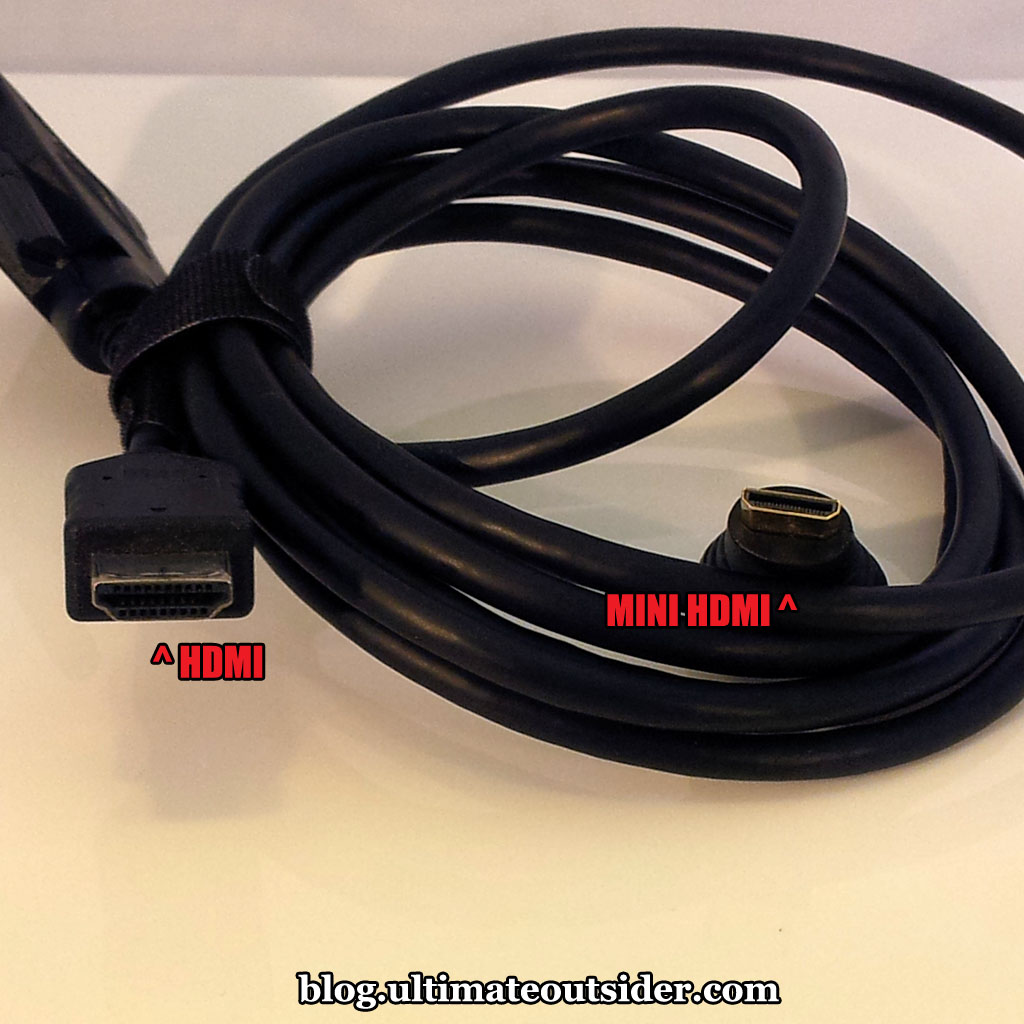
  • No adapters or cables for the mini DisplayPort or mini HDMI connectors; these particular connectors are not very common yet, so check your existing cables and adapters before purchasing.
  • No keyboard or mouse.
  • No discs. You can obtain all necessary drivers from the Intel Download Center.

 Recommended Components and Accessories


Since the NUC is just barebones PC kit, you're going to need some additional items in order to get any use out of it.

Here's what I paid for the NUC plus its essential components (each of which I list below):
  • NUC: $351.00
  • RAM: $87.99 x 2 = $175.98
  • mSATA SSD drive: $116.99
  • SATA hard drive: $72.05
  • TOTAL: $716.02
Here are the specific items I've used to set up my NUC and use it in my studio:

Installing Components

Installing RAM, storage, and Wi-Fi on the NUC is pretty straightforward. You flip the unit upside-down and remove the four screws that fasten the rubber feet to the bottom of the device. Once you remove the bottom plate, you'll find where you can install a typical laptop SATA drive:

 
The connectors on the right are for SATA and power.
After disconnecting the power and SATA cables, you can remove this layer of the NUC to reveal the moterboard:


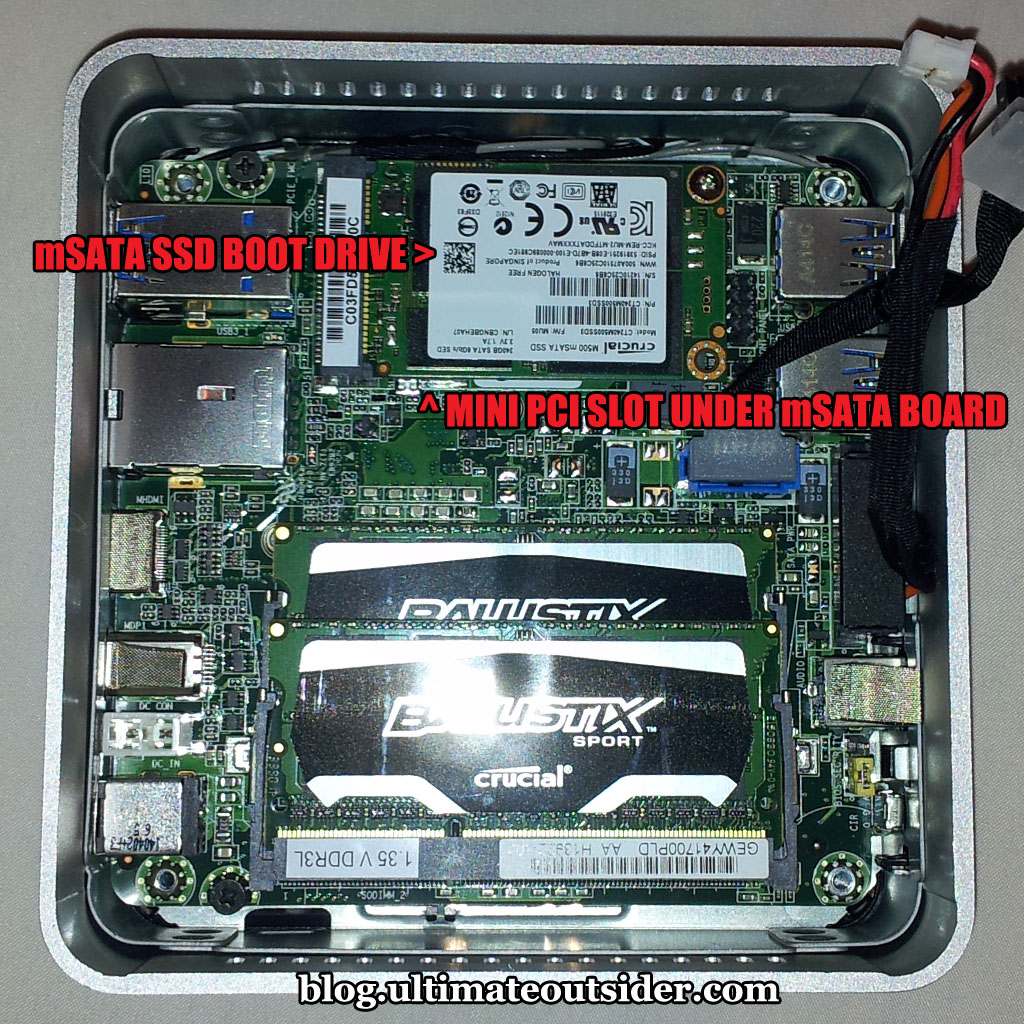
This is where you install RAM and mini PCI Express devices. In my case, I didn't bother with a Wi-Fi card, and just installed an mSATA SSD drive to use as my boot device. The half-height mini PCI Express slot for Wi-Fi cards is directly under the slot for full-height cards.

So, can it make music?


Once I had everything set up, the first thing I did was install Cubase. Here's the NUC in action, playing a Steinberg demo project that includes a number of VST instruments and audio effects in addition to lots of digital audio content. Notice how fast Cubase starts!


So, yes, the diminutive NUC is certainly capable of running a modern DAW. But how well does it stack up against full-sized desktops and laptops?

DAW Performance Test Setup


Test tools 

In addition to simply setting up my NUC with a DAW and an audio interface, I ran a number of tests to get a sense of the NUC's overall performance both as a general purpose computer and as a DAW PC. Here are the test tools I used:
  • Windows Experience Index. This is the benchmark tests built into Windows to give users an impression of their computer's suitability for different tasks. For reasons known only to Microsoft, it's no longer exposed in the Windows 8.1 user interface, however the tests can still be run from an administrator command prompt.
  • PassMark Performance Test 8. This program tests all aspects of a computer, including operating system UI performance and resource intensive 3D graphics.
  • DAW Bench. This is a collection of DAW projects that push a computer's DSP processing abilities to its absolute limits, giving users a measure of how many plugins or how many simultaneous musical notes the computer can generate and still deliver reliable audio. DAW Bench comes in different flavors, to suit different DAWs. I use the Cubase version.
  • RTL Utility. This is a free tool that I use to determine the true round-trip latency of audio interfaces under various sample rate and buffer size settings.

 Computers used


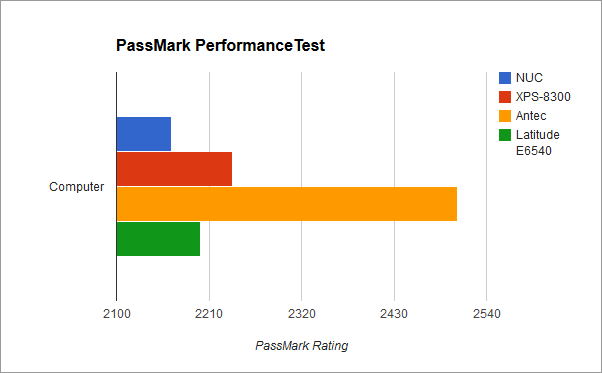
In order to get a feel for how powerful the NUC is, I tested it against three other computers. Some quick descriptions and basic specs are below. All systems have Intel processors that support HyperThreading:
  • NUC: My D54250WYK NUC with a Core i5 4250U (dual core).
  • XPS-8300: An off-the-shelf Dell desktop with a Core i5 2300 (dual core).
  • Antec: My home-built desktop DAW PC with a Core i7 950 (quad core).
  • Latitude E6540: A Dell laptop with discrete graphics and a Core i7 4800MQ (quad core).

    Note
    : Like many modern laptops with discrete graphics, the Latitude uses graphics switching technology. It defaults to using the built-in Intel HD Graphics, but can be configured to use the internal ATI Radeon HD 8790M graphics on a per-application basis.

The systems under test. Please see above note about the Latitude's graphics.

Setup preparation

 I prepared each computer identically before running the various tests:
  • All computers are running 64-bit Windows 7 SP1 with the latest updates installed.
  • All systems were using the High Performance power scheme in the Power control panel.
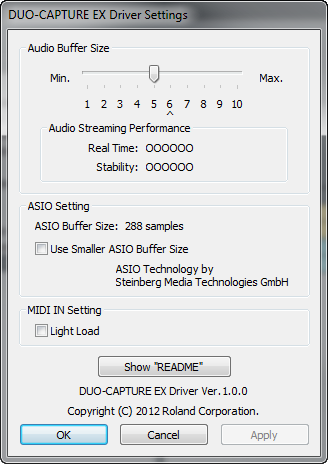
  • All computers had version 1.0.0 of the Windows 7 drivers for the Roland Duo-Capture EX (it's the only version released for Win 7), and the driver was configured the same way for all systems:
  • All computers have Steinberg Cubase 7.5.2, and all were configured the same way:

    Cubase settings.
  • All computers had version 5.30 of Native Instruments Kontakt.

Test Results


Let's start off with the raw results:
Highest scores are green, lowest scores are red.

Understanding the tests


First, here's a quick rundown of what the scores indicate:
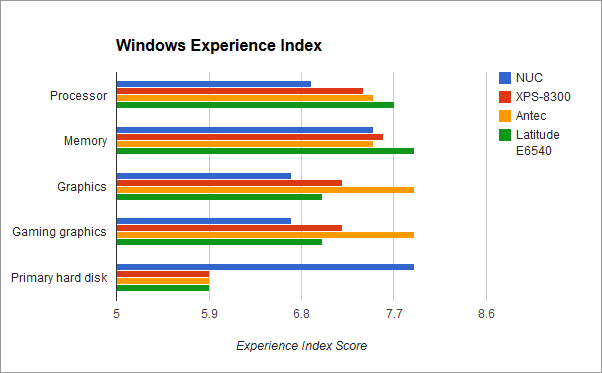
  • Windows Experience Index. Windows 7 Experience Index scores range from 1.0 to 7.9, where high scores are better. Things got a little more complicated when Windows 8 came along, but we'll talk about that later.
  • DAW Bench. The scores above represent three different tests. The ReaXcomp score indicates how many active instances of the Cockos ReaXcomp compressor could be enabled before audio started to break up. (This is a test of your PC's raw DSP power.) The Kontakt scores represent how many notes of polyphony your computer is able to play in Kontakt before glitching out. The "CV" version includes convolution reverb processing on the polyphony channels, and the "no CV" version doesn't include reverb. This is why the "no CV" scores are always a little higher.
  • PassMark PerformanceTest: This is a single overall score determined by the PerformanceTest test suite. It's the combined total of all points awarded to all subtests. 3D graphics play a large role in these tests, which is why the XPS-8300 and Antec systems outscored the otherwise more powerful Latitude system, as they both have heavy-duty graphics cards installed.
Now let's take a closer look at the results to see what they tell us about the NUC.

Windows Experience Index

The NUC trailed at least a little behind all other test systems in everything except storage, where it excels due to its SSD boot drive. It scored pretty well on memory performance, nearly tying with the Antec system. I am not sure whether Windows Experience Index used the Latitude's Intel or ATI graphics for the assessment, but I think it was the Intel.


PassMark PerformanceTest

Even though the NUC received the lowest PassMark score, it was surprisingly close to the ostensibly much more powerful Latitude system (I was able to configure the Latitude to use the ATI Radeon graphics for the PassMark tests). The Latitude only fell behind the two desktop systems because of their superior, power-hungry graphics cards. The NUC scored admirably well here, considering its competition.


DAW Bench

The NUC fared worse in the DAW Bench tests, receiving the lowest scores in every category. It did about half as well as the Antec system and around a third as well as the Latitude. While it was no surprise to find that it came in last, I was puzzled as to why its scores were so low in this department, compared to other test metrics where it didn't fall as far behind the other systems.
 

What could explain the gap between the NUC's performance in the Windows Experience Index and PassMark tests and its DAW Bench performance?
  • It's not the interface, and probably not USB 3.0. All of the NUC's external USB ports are USB 3.0, and nearly all USB audio interfaces are USB 2.0, including the Roland interface I used in the tests. While USB 3.0 claims to support backward compatibility with USB 2.0 devices, the reality is that it doesn't always work, and different USB 2.0 devices can deliver different results depending on the USB 3.0 bus they're connected to. To rule out the possibility of an incompatibility issue with my specific interface on the NUC, I re-ran the tests using my RME FireFace UFX in USB mode, at 44.1kHz, 256 samples. The RME's scores on the NUC were very close to the Roland's scores (ReaXcomp: 100, Kontakt CV: 200, Kontakt No CV: 220), so I don't feel the the interface is to blame. This does not completely rule out basic USB 3.0/2.0 compatibility, but I used other USB 2.0 devices on the NUC with zero problems, so I don't think that's a factor either.
  • The number of cores plays a part. The NUC and the XPS-8300 are both dual-core, whereas the Antec and Latitude are quad core, and except for graphics-intensive tests, the NUC's scores were closest to the XPS-8300's. Cubase was configured for multi-core support, and the ReaXcomp test especially draws every ounce of computing power your CPU can deliver.
  • The clock rate is low. Not only is the NUC dual-core, it also has the lowest factory clock rate by far of the other processors. Now Intel has some very clever ways to squeeze some extra juice out of the CPU (which I'll talk about in a moment), but out of the box, this is a very modestly rated CPU.
  • The features that make it a good gaming device don't necessarily improve audio streaming. Intel's modern CPUs feature Intel Dynamic Power Technology, which combines some power management and performance boosting features to dynamically strike the balance between power efficiency and performance. This usually results in little bursts of improved performance here and there, which is perfectly appropriate for gaming (modern games are written to seamlessly adapt based on computing needs and CPU/GPU availability), but not generally beneficial in audio applications where consistency is every bit as important as raw speed. In earlier generations of the Intel Core processors, disabling Intel's CPU power management facilities commonly improved DAW performance- but that's no longer the case today.
  • Face it, the thing's just plain tiny. At only four inches squared, the NUC's form factor didn't offer Intel's engineers many options for heat dissipation, and putting too much processing power in that little box would simply not be feasible. As a result, they locked down some of the overclocking features (several options are grayed out in the NUC's BIOS and the Intel Extreme Tuning utility) and gave it the most powerful processor they could that wouldn't melt the motherboard in day-to-day operation. Part of the reason it's not as powerful as a desktop or an enterprise laptop is that it's just too small to safely deliver that kind of speed in this small a package.

Loudness levels

Desktop DAW PCs and even many laptops are known for being a bit loud in the studio, thanks to fan noise. The NUC is fan-cooled, so it does have potential to introduce noise into the studio environment. To measure its impact, I used a Galaxy Audio CM-140 SPL Meter at a distance of 9 inches from the NUC at different operation states. For reference, my primary desktop DAW PC increases the ambient sound in my room by 6 dB (measured 9 inches away from the side of the PC that faces me) when just sitting idle.

In contrast, the NUC only introduced 2.9 dB of noise when running idle, and 3.6 dB when working at 100% CPU load. (Also measured at 9" away from the NUC.) So even when working at top capacity, it's still a fair amount quieter than my main DAW system is when it's doing nothing at all. And the NUC's sound is just a breezy little whirring that I normally don't even hear unless I'm listening for it, versus the DAW desktop's much more noticeable deep hum.

Dynamic Power Technology

Several years ago, when computers with the first couple generations of the Intel Core processors started showing up in studios, music producers learned pretty quickly that the best way to ensure solid DAW performance was to disable the various power saving and performance boosting technologies in BIOS- at the time those features improved power efficiency and sporadically boosted PC performance at the cost of consistency, which is a problem in DSP-instensive activities like music production. (If you ever hear people talking about disabling EIST, SpeedStep, Turbo Boost, or "C-States", that's what they mean.) These technologies have evolved in more recent generations of Intel's processors, though, and it's now generally recommended to leave them on.

The NUC's BIOS groups SpeedStep and Turbo Boost under a single umbrella, called Intel Dynamic Power Technology. It is enabled by default, with the High Performance BIOS profile, and you should not turn it off. Disabling Dynamic Power Technology on the NUC seriously compromises its performance, as the following video demonstrates:


Windows 7 versus Windows 8.1

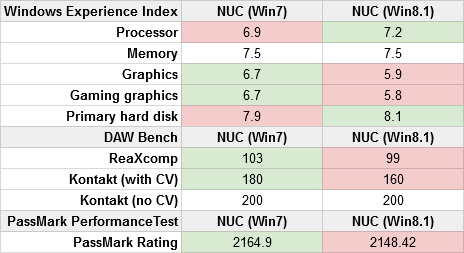
Around the time of Windows 8's release there was a lot of conjecture and misinformation about whether Windows 8 would improve DAW performance. I and several other people conducted benchmarks at the time which established that none of the various performance enhancements included in Windows 8 have any significant effect on DAW performance (which is measured as how far you can push your computer's DSP resources before audio breaks down). But I was curious if anything had changed with the Windows 8.1 update, so I re-ran all of my benchmarks on a fresh Windows 8.1 install with all the latest drivers and updates applied. Here are the results:

Best scores are green, worst scores are red, tied scores aren't colored.
 Overall, the scores were a little lower on Windows 8.1, but really all tests came out close enough that there isn't much practical performance difference between either operating system. So long as all your drivers are 8.1-compatible, I don't see a strong argument one way or the other.

The Windows Experience Index situation is a little weird on Windows 8.1. I had to search around a bit to learn how to run the test. There's a built-in command-line tool called winsat that runs the tests, and when they're complete you have to open up an XML file or use a Powershell command to find the results. I don't know why Microsoft decided to hide this feature from the user interface. It does appear that they increased the maximum possible score (considering that the "primary hard disk" result on Win 8 was 8.1), but I don't know what the new cap is. The highest possible score in Windows 7 was 7.9.

Skyrim Performance

Running benchmarks is one thing, but I was curious how gaming on the NUC felt and looked, considering that traditionally, playing modern 3D games on computers with built-in (usually Intel) graphics chipsets usually isn't a very pleasant experience. I was surprised to find that Skyrim was playable at all four graphics settings (low, medium, high, and ultra) at 1360x768 resolution, although gameplay was noticeably less smooth at high and ultra.

Here are the FPS metrics I recorded at each graphics setting:
  • Low: 40-60 FPS
  • Medium: 24-40 FPS
  • High: 13-25 FPS
  • Ultra: 8-20 FPS
I recorded a video showing the differences between each of the four modes. The actual act of recording video affects performance a bit; I did the FPS measurements before I recorded any footage. The video still conveys the visual and performance differences.


Final thoughts

From my experience with the NUC, I can say that it's absolutely a viable solution for music production use, although that comes with some caveats. It's small and quiet, making it attractive for space-limited studios, and you can pack it with enough RAM and storage to host all the apps and samples you can throw at it.

The NUC's small size comes with some necessary sacrifices in terms of raw performance, though. And while this means less for gaming (where the NUC performs surprisingly well), if you routinely have many dozens of virtual instruments and effects plugins in your DAW projects, you'll probably find yourself freezing tracks to free up CPU cycles more often than you'd like.

The NUC is about as expandable as a typical notebook (and it's quite a bit easier to install and upgrade RAM and storage in the NUC than it is in many laptops), and definitely smaller and more portable than any laptop I've ever used- although laptops don't need you to bring your own display. While the NUC can't compete with a modern desktop for expandability and performance, it is somewhat competitive with modern low-to-mid-range laptops, assuming you've already got a monitor with HDMI or DisplayPort support handy.

While the base NUC kit is quite inexpensive, once you add in all your RAM and storage, the total price for a functional setup is about half what you would pay to build a high-end desktop or to purchase a high-performance laptop.

Pros:
  • Tiny
  • Quiet
  • Stable and reliable
  • Good performance for gaming and general purpose use
  • Capable of running modern DAWs and plugins
  • More power efficient than a desktop or high-end laptop
Cons:
  • Not the best DAW performance for the price
  • More portable than a laptop, but not really a mobile device (no display or batteries)
  • You might need to get some new cables or adapters for the mini DisplayPort or mini HDMI connectors.

Sunday, May 18, 2014

How to Speed up Cubase's Initializing MIDI Startup Stage

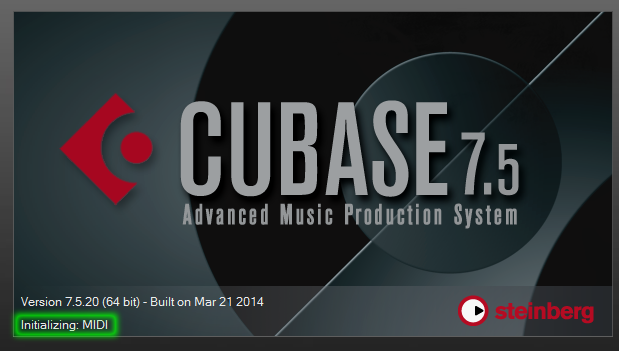
About a year ago I noticed that Cubase was taking an outrageously long time to start up. It seemed like it had gotten gradually worse since I'd originally installed Cubase, and when I watched it, I noticed the vast majority of startup time seemed to be spent at the "Initializing: MIDI" stage. When I first discovered the problem, it was taking about a minute and a half to do whatever Cubase does when it's initializing MIDI.


After a bit of searching I ran across this thread at the official Steinberg forums, where numerous other Cubase users were complaining of the same issue. Someone there actually posted a solution which sort of works, but it's not very complete and can actually be pretty dangerous (so please don't follow the steps you see there), but I do credit that poster for identifying the root cause of the problem: Too many extra multimedia device entries in the Windows registry.

Update (April 2022): While this article is quite old, the steps are mostly the same for Windows 10 (and probably 11). Just note that where it says to open the "System control panel" below you should now search for "View advanced system settings" in the Windows search box. Also, the above-linked thread no longer exists, but it discussed manually removing entries under the registry key HKEY_LOCAL_MACHINE\SOFTWARE\ASIO. If, after performing the steps in this article you still see some additional unwanted entries in Cubase's Audio Driver Setup dialog, you can now safely remove them using the Windows Registry Editor. See this knowledge base article from Steinberg for further details.

The problem


Every time you plug a USB device into a different port on your computer or on a USB hub, Windows creates a new device entry for it. Say you have a USB headset and you plug it into three different ports on your USB hub- Windows will actually create three different device entries as a result, but only one (if any) will be active at any one time. The problem is that Cubase scans your registry for multimedia devices, and every entry it finds increases the startup time a little bit- even if it's for a device you no longer use.

Note: The screenshots and specific steps below were done on my 64-bit Windows 7 system, but this should work for all Windows versions from XP up to Windows 8.

Displaying the extra device entries


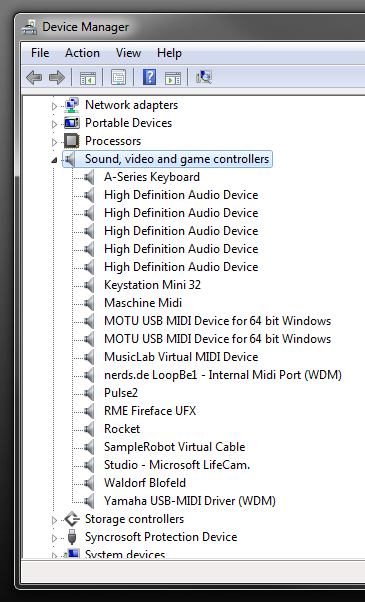
The devices that Cubase cares about all appear under Sound, video and game controllers in the Windows Device Manager. Our goal here is to delete any duplicate or obsolete entries from the system, but there's a problem: By default, Windows will only show you devices that are currently connected to your computer- even if you enable the "show hidden devices" feature in Device Manager. For example, before I performed the steps for this blog entry, this is what Device Manager showed me, even after I went to View > Show hidden devices:


I can see my keyboard controllers, audio and MIDI interfaces, and even a few synths... but what about all the other audio devices I had connected to my computer over the previous months? Well, this is what we have to do:
  1. Close the Device Manager control panel if you currently have it open.
  2. Open the System control panel and click Advanced system settings.
  3. On the Advanced tab of the System Properties dialog box that appears, click Environment Variables.
  4. In the Environment Variables dialog that appears, click the New... button in the System variables section of the dialog.
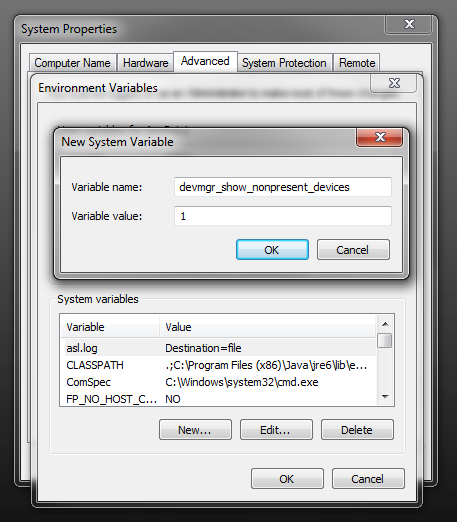
  5. In the Edit System Variable dialog, enter devmgr_show_nonpresent_devices for Variable name and put 1 for Variable value.

  6. Click OK > OK > OK and then close the System control panel.
  7. Now open the Device Manager control panel, and enable View > Show hidden devices.

  8. Now expand the Sound, video and game controllers section of the Device Manager. You will probably see a number of new entries now. The little speaker icons next to the "hidden" entries will appear grayed out compared to those for the active devices.

Removing the extra device entries


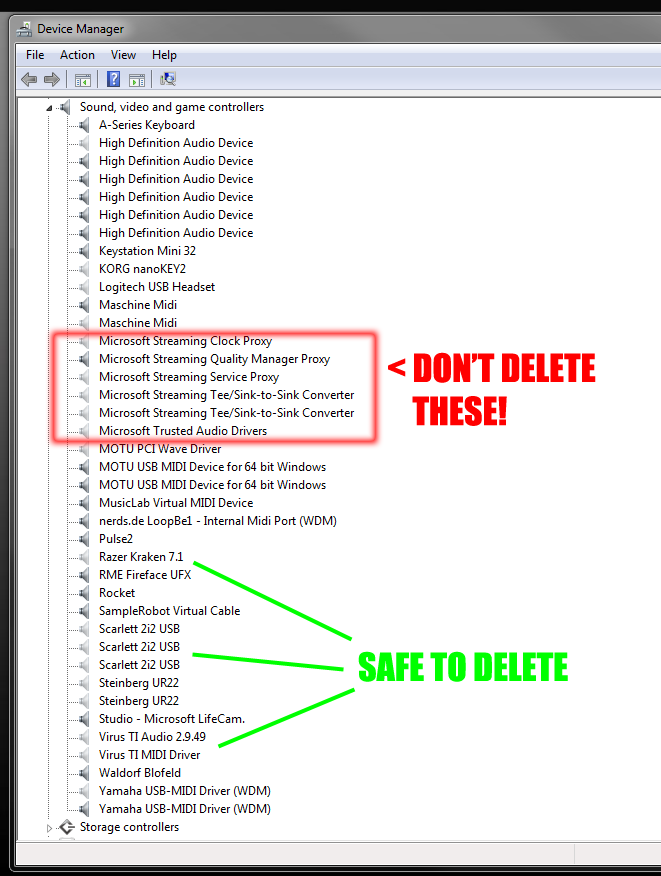
Here's what I saw after performing the above steps. Notice the huge difference- all those grayed-out hidden devices! My computer still had entries from pieces of gear that I don't even own anymore!


Important
Please note that some of these hidden entries are important operating system components that you should not remove. Basically leave any of the Microsoft stuff alone. Only perform the following steps on devices that you recognize and know that it will be safe for you to remove.
  1. Right-click a device entry that you wish to remove, and then click Uninstall.


  2. If the device's drivers were not provided with the Windows operating system, Device Manager will ask if you want to delete the device driver along with the device entry. Only check this box if you do not plan to use this device anymore on your computer. (Otherwise you will have to reinstall the drivers if you ever connect the device again.) Since I was removing entries for devices I'd actually sold, I would delete any duplicates first without checking the "delete the driver software" box, but I would check the box when removing the final instance. (For example, I deleted the first two Scarlett 2i2 entries without checking the box, but then checked the box when I deleted the third and final entry.


  3. After repeating the above steps for each unwanted device entry, close the Device Manager and then launch Cubase and see if things start up any quicker.
Here's what my Device Manager looked like after I trimmed out all the extra entries earlier today. Notice that the only "hidden" devices left over are the special Microsoft ones:


Before trimming out the extra devices, the "Initialize: MIDI" stage of Cubase startup was taking 24 seconds on my PC. Now it takes only 16 seconds (a 33% reduction). If you have fewer multimedia devices plugged in than I do, you'll probably see even faster speeds.

Saturday, May 10, 2014

SOLUTION: Restore File Menu and Bookmark Behavior to Firefox 29

I woke up this morning to a new Firefox (version 29, the official debut of Mozilla's new "Australis" theme) that I was quite unhappy with. For one thing, the Menu Bar was gone (with the File, Edit, View menus, etc.), and for another, the "star" button for adding bookmarks was just instantly shoving all my bookmarks into the "Unsorted Bookmarks" folder without giving me a chance to pick the proper folder or set tags.

I'm running Windows 7 64-bit and my currently installed Mozilla Firefox is 29.0.1. Here's how I restored the Menu Bar and figured out how to add bookmarks properly.

First, how to restore the menu bar:
  1. Press ALT on your keyboard. The Menu Bar will momentarily appear at the top of your Firefox window. It will automatically go away if you select any commands until you "anchor" it with the next step. If you accidentally do something to make it go away, just press ALT again.
  2. With the Menu Bar showing, go to View > Toolbars > Menu Bar.

    Note
    If you find that you don't like having the Menu Bar, you can hide it again by going to View > Toolbars > Menu Bar again.
Next, how to add bookmarks like you could in previous Firefox versions:

  • If you're showing the Menu Bar, you can go to Bookmarks > Bookmark This Page. This will pop open a dialog by the star button where you can enter tags and select the proper folder to store the bookmark.
  • If you don't wish to use the Menu Bar, you can just press CTRL+D to open the bookmark dialog.
  • The little clipboard looking icon next to the star opens your Bookmarks list.
  • To get to the searchable bookmark organizer view, you can either go to Bookmarks > Show All Bookmarks or click the clipboard button and scroll all the way to the bottom of the list, where you can click Show All Bookmarks.
  • Also, if you've added any new bookmarks since Firefox updated to version 29 and you're wondering where they went, take a look in the Unsorted Bookmarks folder.
  • If you find yourself using the Blue Star method, one sort of useful thing about it is that once a bookmark is stored (when the star appears blue), if you click the star again, it will bring up a dialog where you can tag and move the bookmark. So, instead of using CTRL+D to add a new bookmark, you could just click the star twice. It's kind of a strange implmentation (basically, you create an untagged, unsorted bookmark, and then tag and sort it), but it works well enough.
Also, I'm not much of an addons user, but lots of folks who were similarly annoyed with Firefox 29 have installed the Classic Theme Restorer and seem pretty happy with it.


Wednesday, May 7, 2014

Why Battery 3 Is Better than Battery 4

I've been complaining about Battery 4 ever since I first loaded it up and realized that several features I'd always relied on in Battery 3 were nowhere to be found. Native Instruments gave Battery 4 a beautiful user interface and a nice, modern set of kits- but the cutting of not one, not two- but several of Battery 3's most important and distinguishing features makes so little sense that I almost felt betrayed.

I'm thankful that as a Komplete 6 and 8 owner I have access to Battery 3, and that it still works fine on modern DAWs and operating systems. But every time I hear someone ask, "Hey, what's wrong with Battery 4?" I end up reciting the same list of omitted features. I finally sat down and put together a video that demonstrates some of the most significant differences, and hopefully illustrates why Battery 3 is by far the better tool for people who like to make their own kits and customize their sounds.


Here's an official Battery 3 trailer, I presume from 2006 when B3 was first introduced. It even lists a feature or two that I didn't mention in my video. Native Instruments- you tarnished your own classic!

Friday, December 27, 2013

My Desktop DAW PC Specifications (December 2013 edition)

UPDATE 2015.06.21 - I built a new PC in June of 2015. Go here to learn all about it. The following post is all about my previous rig.

While it's only been six months since my previous post on this topic, I've made a number of improvements to my setup that I figured were worth mentioning.

I'm still using the same home-built PC from early 2010. There have been some changes, but it's the same processor, motherboard, case, and power supply that I've been using for nearly 4 years now. It's held up surprisingly well. I routinely produce projects that have 30-50 tracks of mixed VSTi and audio, and dozens of processing plugins with smooth, consistent operation. I've done a number of completely ITB (in the box) productions in the past year, and several times I've had to freeze VST tracks when the project got too busy for my CPU to handle. The only thing a new PC would get me is the ability to run more VSTi instances simultaneously, but as long as I'm able to freeze tracks, that's a low priority.

PC Hardware
  • Processor: Intel Core i7-950 @3.06 GHz (Bloomfield family, 4 cores, 8 threads). I'm using the factory heat sink.
  • Motherboard: Gigabyte GA-EX58-UD5. Plenty of room and plenty of slots. Also has Texas Instruments FireWire, which is considered to be the best chipset for digital audio. Socket 1366 supports Intel Gulftown and Bloomfield processors.
  • Case: Antec P183. Quiet and sturdy with isolated areas for power supply and hard drives, to reduce noise. I'm using the fans that came with the case.
  • Hard drives: I replaced all three of my original 500GB drives with 7200RPM 2TB drives by Seagate and Western Digital. I got these all out of necessity, and in emergencies due to space requirements. Worth noting: One of the Seagate Barracuda drives I bought last year to replace my 500GB system drive started failing a couple weeks ago (large downloads were always corrupted). I just replaced it with a 2TB Western Digital Caviar Black, and everything's back to normal.
  • Power Supply: Corsair HX650. Relatively quiet, with all the power this computer will ever need. Wonderful modular cabling; you only use exactly the number of wires you need.
  • RAM: Two Kingston DDR3 1333 sticks @ 6 GB each, for 12 GB total.
  • Wireless: Linksys WMP600N Wireless-N PCI Adapter with Dual-Band. Reliable connection, with good range. I do not have any of the audio problems some people report with their WiFi adapters.
  • Optical: Plextor PX-B320SA Blu-ray Disc Combo. BD reader, and super multi writer.
  • Video:  Currently using an ATI Radeon HD6450 graphics card to run two monitors. The drivers for the NVIDIA card I had before were conflicting with the drivers for my PCIe audio interface on both Windows 7 and Windows 8. This card is actually a downgrade in terms of graphics power, but it uses less electricity and is quieter than the NVIDIA card, and I hardly ever play games these days. It has both HDMI and DVI outputs, which is perfect for me since one of my monitors is HDMI only and the other is DVI/VGA.
Audio and MIDI Hardware
  • MIDI Controller: I sold my AKAI keyboard controller for a much simpler Roland A-49 keyboard controller. I thought the AKAI was a fine device, but it was enormous due to all of its pads and faders and other controls which I simply never used. I traded the AKAI's enormous feature set for the Roland's light, slim design to reclaim some serious desk space.
  • Audio Interface: Over the summer I purchased a number of current-model prosumer audio interfaces to do some "shootout" tests (which I will likely post about eventually). I ordered a RME Fireface UFX, as it is pretty much the pinnacle of prosumer interfaces, fully intending to sell it off after my tests were complete. Problem is, the thing is so great, what with all the I/O options and the awesome TotalMix routing software, that I couldn't bear to part with it. Anyway, that's my current interface of choice. I'm using it via FireWire, but it works just fine via USB as well. The UFX replaces my MOTU 24 I/O PCIe Core System , which is still a great, solid performer.
  • Patch Bays: Since I no longer have as many analog I/O ports as I did with the MOTU interface, I've rewired my rig so that every one of my hardware instruments goes into one of two DBX PB-48 patch bays in one of my racks. Each bay has 24 in/out columns in a half-normalled configuration. (You can invert the individual boards to disable normalling.) This model also supports TRS/balanced connections, so I have to be careful which kind of cables I'm using when connecting up older synths with unbalanced outputs. (There are various recommended ways to do this, but I'm just making sure to use unbalanced interconnect and patch cables with them, and balanced cables from the patch bay to my interface.)  
  • DAW Controller: I'm 90% a Cubase user these days, so I upgraded to the Steinberg CC121 Advanced Integration Controller for most DAW controlling needs. (It works with other Steinberg products like Wavelab too.) It integrates wonderfully with Cubase, and is pretty much a must-have in my day-to-day use, now- especially when tracking vocals. The bad news is that it is Steinberg-specific, and can't be programmed to work in third-party DAWs.
  • DAW Controller: KORG nanoKontrol2 . I got this because I wanted a physical device with transport controls for Ableton Live. It has built-in templates to integrate with all major DAW packages, and also includes buttons for setting and navigating markers/locators in audio projects, plus 8 rows of channel strips which map to tracks inside your DAW. A really handy little controller, at an unbeatable price. Even though I'm mostly using Cubase these days, I still have this little guy wired up because it makes my life easier whenever I happen to be working in Live.
  • Monitor Controller: Three things I like to have within reach at all times are a headphone jack, a monitor volume control, and a monitor mute switch. The SM Pro Audio M-Patch V2 gives me all of this and more. You can switch between two different monitor sets, and even switch between two sets of inputs (one balanced, one unbalanced), and it's got a stereo/mono toggle for checking your mixes. This thing's big and weird looking, but it sounds great and has everything I need. I've heard some folks complain about the clicky master volume encoder. Well, the M-Patch even comes with a traditional pot-type volume knob that you can pop in if you don't like the encoder.
  • Reference Monitors: A few months ago I was shopping for a compact pair of active monitors that I could take with me for some music production demonstrations. I wasn't really looking for "flat response" true reference-quality speakers. Just something small that sounded nice. I was most impressed by the Presonus Eris E5 active monitors. But then the tweeters blew on my JBL passives, and now the E5s ARE my reference monitors! This things are pretty nice, although I will probably pick up some JBL LSR305 or JBL LSR308 monitors in the coming year, for a flatter response and lower noise floor.
  • Sub woofer: Going from hefty 8" JBLs to the compact Presonus 5" speakers cost me a fair amount of low end, so I picked up the JBL LSR2310SP Powered Studio Subwooferto round out my sound. I don't have much experience with woofers, but the way this one's designed, you route sound from your audio interface's stereo outs to the subwoofer, and then from the sub to each of your active monitors. You set the crossover frequency on the subwoofer, so the monitors only receive the mid/high frequencies. It works really nicely, and has actually improved my mixing a bit. I discovered I had been mixing in too much bass before when I was working with the old setup.
Software
  • Operating System: Windows 7 Professional 64-bit, with Service Pack 1. The 64-bit version of Windows 7 delivers the best balance between power and performance, and gives you access to as much RAM as you're able to cram into  your computer. Most DAWs have 64-bit versions these days, and an increasing number of plugins come in 64-bit formats as well, offering more memory flexibility and occasionally faster performance. I've only recently made an across-the-board move to 64-bit applications and plugins, although this means I've had to turn my back on a number of plugins that still don't have 64-bit support. (I'm not interested in bridging solutions at this time.)

    Note: I often see people asking whether they should upgrade to Windows 8 for DAW use. I've actually done a LOT of benchmarking work between Win 7 and Win 8, and my answer is this: If you are buying a brand new computer that already comes with Windows 8, it works just fine. If you've got an existing computer running Windows 7 and you are happy with how it works, just stick with Windows 7. The various performance tweaks Microsoft made to Windows 8 do not have anything to do with audio/DAW performance, and some devices do not have drivers that are fully compatible with Windows 8. So there's nothing wrong with Windows 8, but it is NOT a must-have for music production.
  • DAW: Steinberg Cubase 7 . I've been a cubase user since the very first release on Mac in 1994, although the Cubase of today is wildly different from the MIDI-only Cubase of the early 90s. After some tweaking I seem to have 64-bit Cubase 7 running pretty stably. Version 6.5 seemed a little bit more reliable, but I'm doing okay for now. I believe that if you buy retail Cubase 7 now you get a free upgrade to the latest version, 7.5.
  • DAW: Ableton Live 9 Suite . With version 9, Ableton Live added some really interesting new features and significantly improved a number of their built-in effects. I've completed several productions in Live 9 and have found it to be a really enjoyable environment. Both Live 8 and 9 offer 64-bit versions now, too! I just really wish Live had VST 3 support; a number of plugin developers only offer 64-bit plugins in VST 3 format, so Live's VST compatibility isn't the greatest.
  • Audio Editor: Steinberg WaveLab 8. I've used a number of free and commercial audio file editors, and none of them have matched WaveLab for features and ease of use. It's a mature product that has tons of editing, processing, metering, and analysis tools. Apparently some previous versions of WaveLab were criticized for lacking proper documentation, but that's no longer the case. Steinberg has full PDF manuals available for download.
  • VST Instruments: Far, far too many to mention. I can strongly recommend the Native Instruments Komplete packages (especially Komplete 9 Ultimate ). They really cover all the basics for software synthesis, and include a growing number of solid effects, too.